
Cloud Voice App Web Client Layout
The Cloud Voice App web client opens in your browser and puts calling, messaging, and personal settings in one place. This page walks through the main regions of the screen so you know where to find each feature.
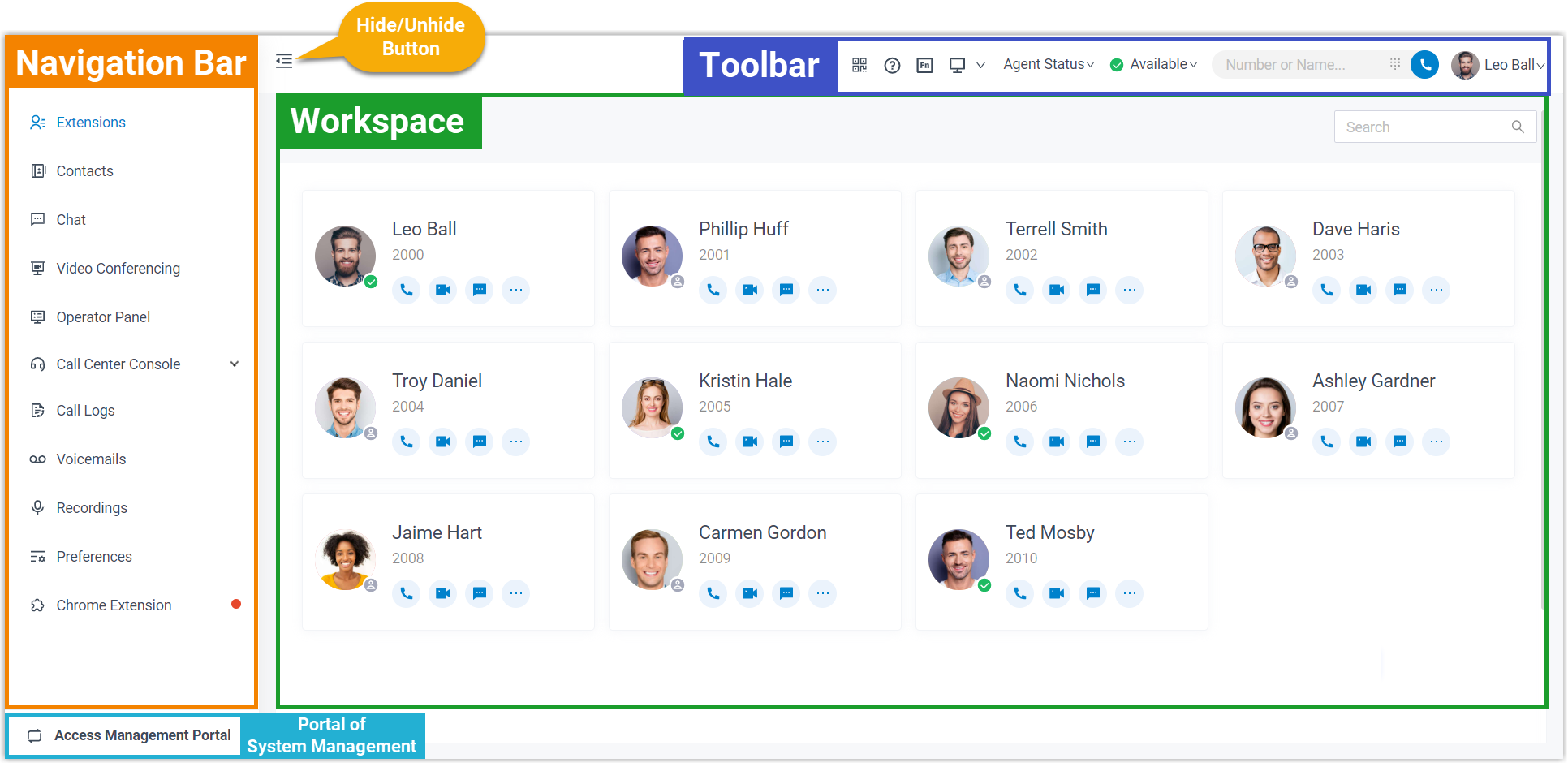
The interface is divided into four areas: the navigation bar, the toolbar, the workspace, and the entry point to the system management portal.
Navigation bar
Section titled “Navigation bar”The navigation bar runs down the side of the window and takes you directly to each feature:
- Extensions: Look up your colleagues, then call them by audio or video, or leave a voicemail.
- Contacts: Keep your external contacts organized and place audio calls to them.
- Chat: Message a colleague one-on-one or open a group conversation.
- Video Conferencing: Start a meeting on the spot or schedule one for later with several participants.
- Operator Panel: Oversee and route the calls of a defined group of members.
- Call Center Console: Take queue calls and work with live monitoring, reporting, and call management tools.
- Fax Management: Send and receive faxes without leaving the app, build custom cover pages, and review your fax history.
- Call Logs: Browse and manage your call history.
- Voicemails: Listen to and manage the messages left for you.
- Recordings: Open and manage your recorded calls.
- Preferences: Set up your extension profile and presence, voicemail, audio and video, function keys, call-handling rules, email notifications, and more.
- Chrome Extension: Jump to the Cloud Voice App for Google extension.
Toolbar
Section titled “Toolbar”The toolbar gathers the actions you reach for most often. From it you can:
- Download the Cloud Voice App for desktop.
- Download the Cloud Voice App for mobile.
- Download the Cloud Voice App for Google extension.
- Watch the status of specific objects or trigger features using function keys.
- Switch between CTI mode and web client mode.
- Update your agent status.
- Update your extension presence.
- Place an audio or video call.
- Change your account password.
- Change the interface language.
Workspace
Section titled “Workspace”The workspace is the large central area where the feature you selected opens, and where you view and manage its details.
System management portal
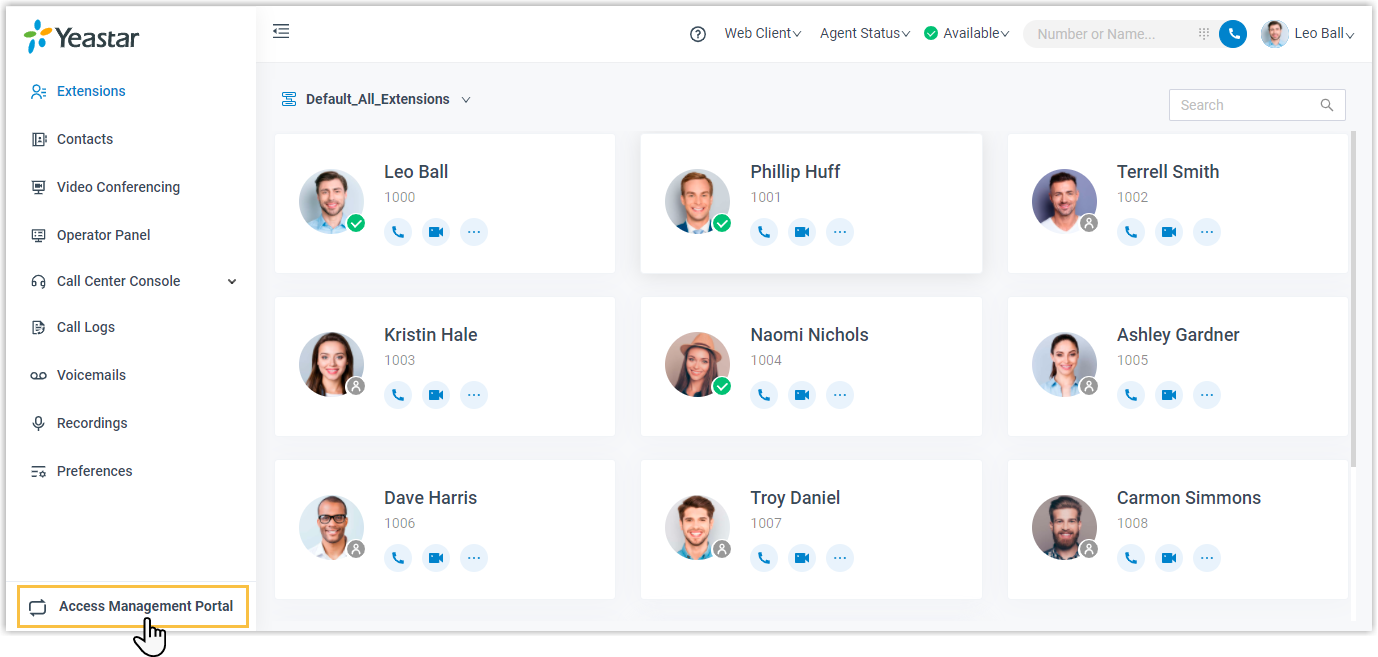
Section titled “System management portal”If you also administer the phone system, you can open the management portal directly from the web client to work with system-level features.
Question about this page?
Ask the AI assistant. It starts from this page, then searches the rest of the docs.
Ask Cloud Voice AI
Answers are AI-generated from the docs and may contain mistakes. Verify with the linked pages.