
Integrate the Cloud Voice App Desktop Client with Outlook for Windows
Linking the Cloud Voice App Desktop Client to Microsoft Outlook lets the two applications share data: Outlook can create contacts for numbers it doesn’t recognize, your call history can flow into Outlook automatically, and you can place calls straight from Outlook. Setup happens in two parts, first in the desktop client, then in Outlook itself.
Requirements
Section titled “Requirements”Confirm that your Outlook installation matches all of the following:
- Client: Outlook for Windows
- Version: Outlook 2016 or later
- Operating system: Windows 10 or Windows 11
Step 1: Enable Outlook integration in the Cloud Voice App
Section titled “Step 1: Enable Outlook integration in the Cloud Voice App”-
Sign in to the Cloud Voice App Desktop Client and open Preferences > Integration.
-
Switch on Enable Outlook Integration.

-
Choose which automated behaviors you want. Each option is independent, so enable only the ones you need.
Feature What it does and how to set it up Automatic contact creation When you make or receive a call from a number that doesn’t match any Outlook contact, Outlook opens a new-contact form so you can save it. To turn this on, select Create New Contacts Automatically, then open the Call Types to Auto-create Contacts drop-down and pick when the form should appear: Inbound (calls received from an unknown number) or Outbound (calls placed to an unknown number). Call log synchronization Copies your entire call history with each Outlook contact into Outlook. To turn this on, select Synchronize Call Logs Automatically. -
Click Save.
Step 2: Activate the add-in in Outlook
Section titled “Step 2: Activate the add-in in Outlook”-
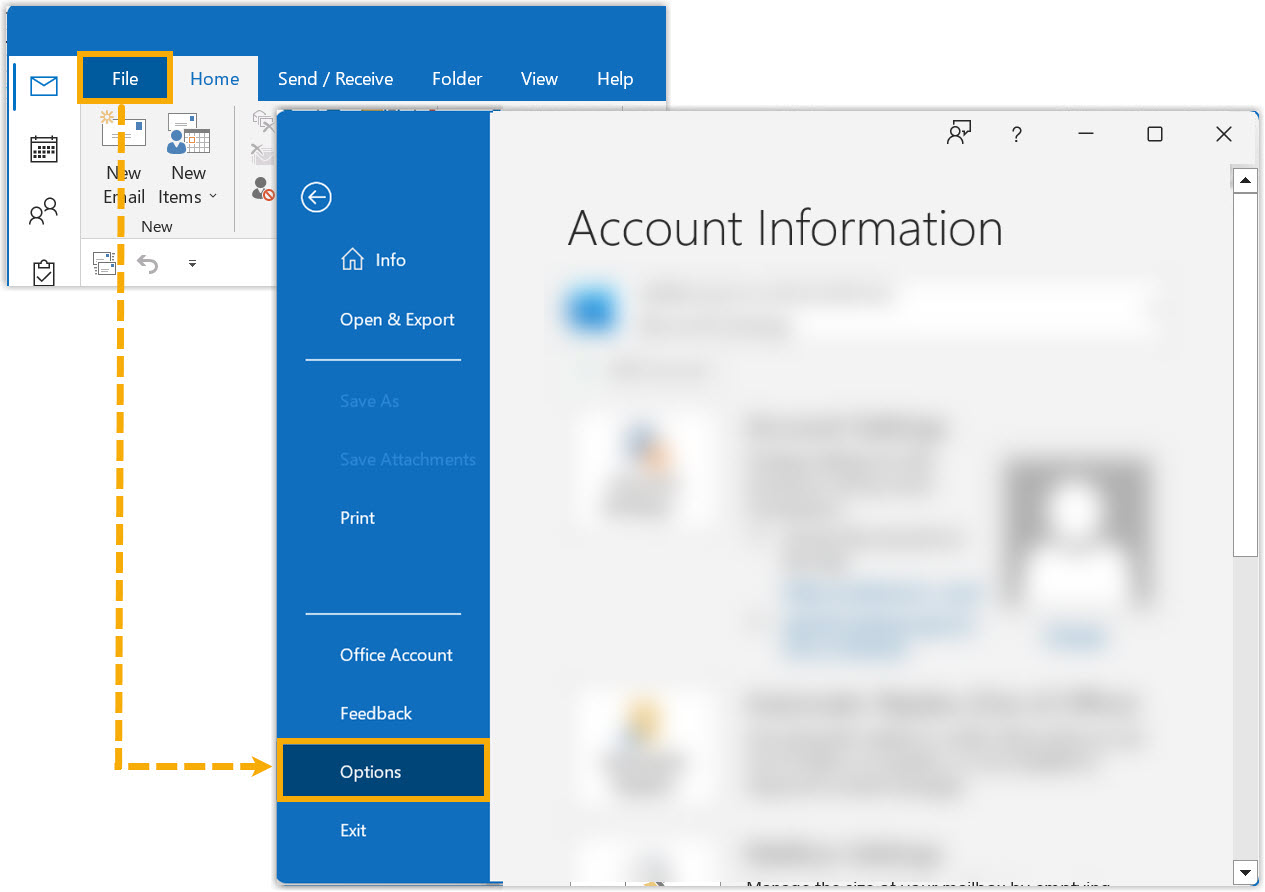
Open Outlook (restart it if it’s already running), then go to File > Options.
-
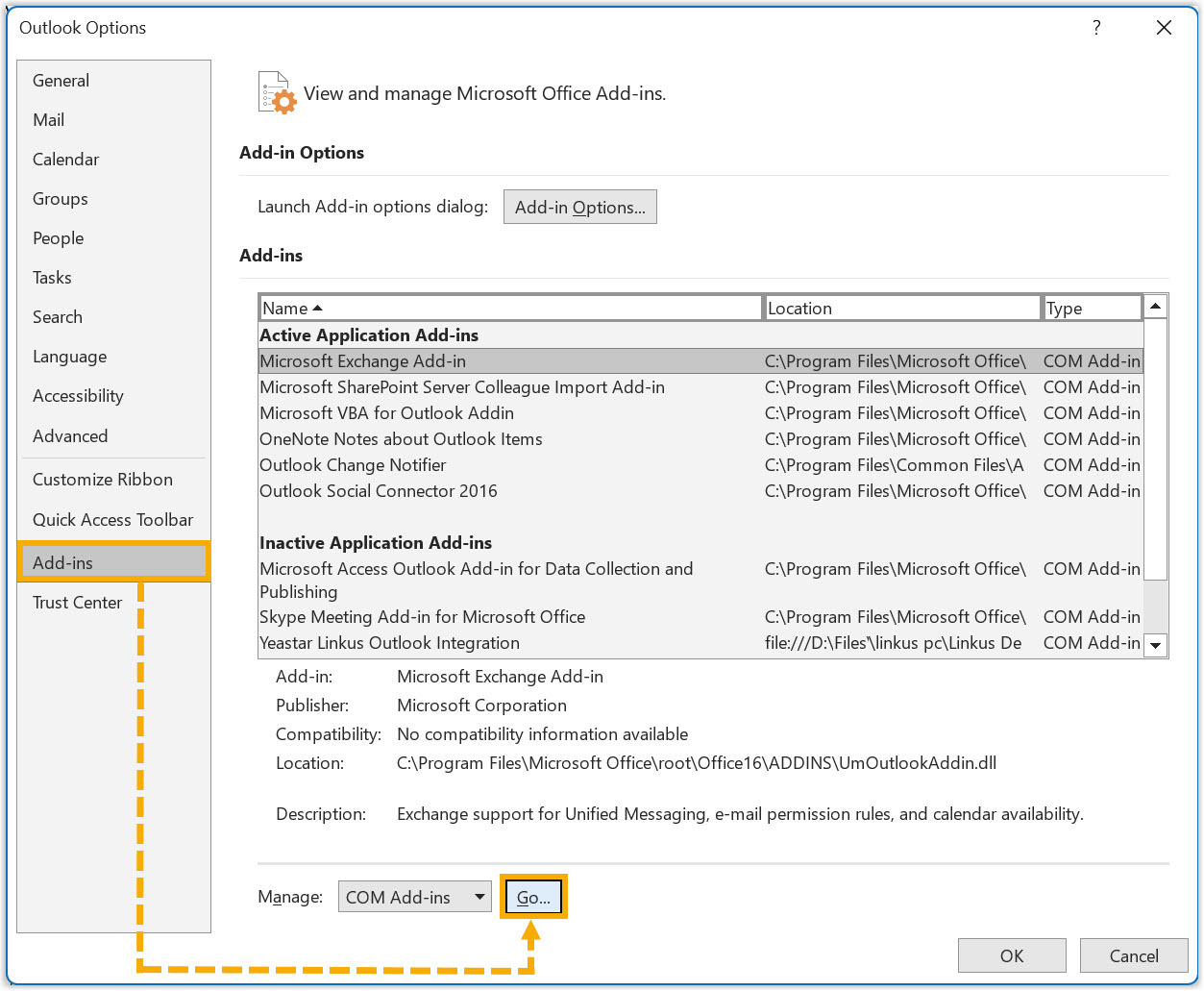
Select Add-ins, then click Go….
-
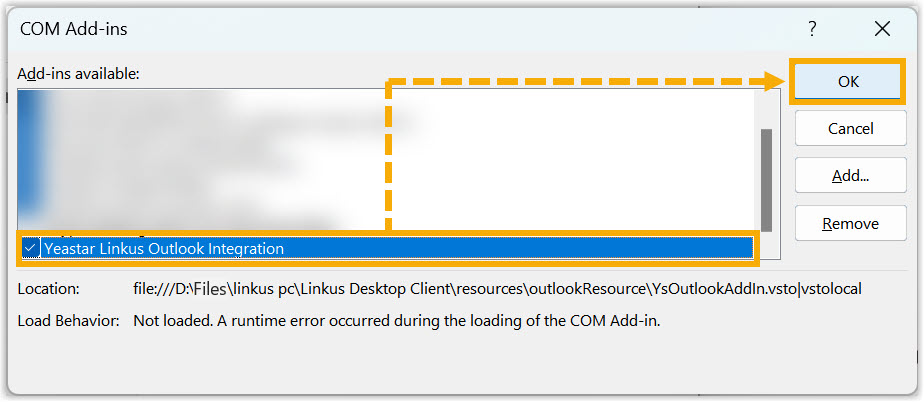
In the add-ins window, select the Cloud Voice App Outlook Integration checkbox and click OK.
-
When prompted, click Install.
Result
Section titled “Result”- The Cloud Voice App Desktop Client and Outlook for Windows are now integrated.
- You can place calls and use call features directly inside Outlook.
Question about this page?
Ask the AI assistant. It starts from this page, then searches the rest of the docs.
Ask Cloud Voice AI
Answers are AI-generated from the docs and may contain mistakes. Verify with the linked pages.