
Configure Audio and Video Devices
The Cloud Voice App lets you pick exactly which hardware handles your calls, so you can route ringing to your speakers while talking through a headset, or send video from a specific camera. This page walks through selecting those devices in the Desktop Client.
Before you begin
Section titled “Before you begin”Run the Cloud Voice App in Desktop Client mode. The device settings below are available only in this mode.
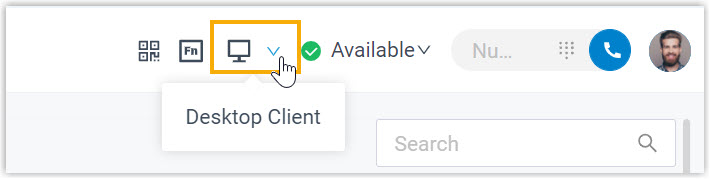
Choose your devices
Section titled “Choose your devices”-
Sign in to the Cloud Voice App Desktop Client and open Preferences > Audio & Video.
-
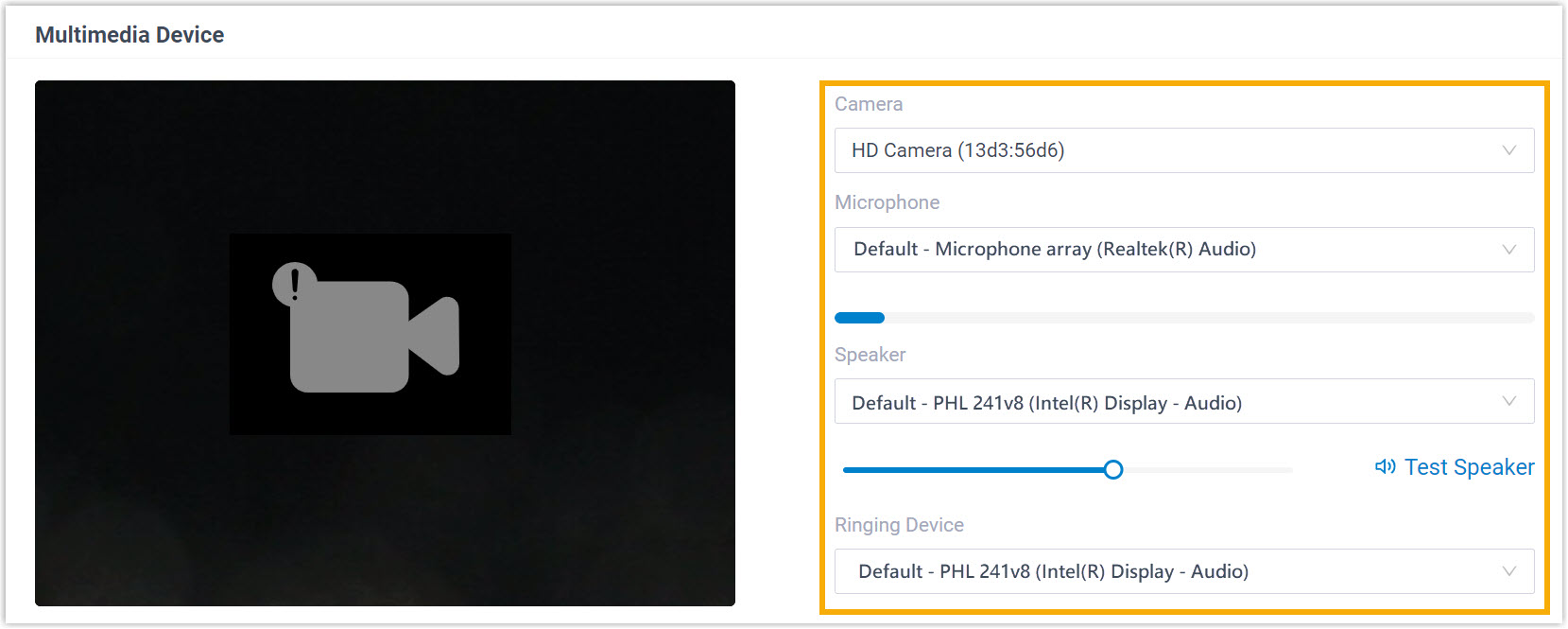
Under Multimedia Device, use the drop-down lists to assign each function to the hardware you want:
- Camera
- Microphone
- Speaker
- Ringing Device
-
If you use a headset that works with the Cloud Voice App, configure it under Headset Integration. This lets you answer, end, and manage calls straight from the headset controls. Support depends on the headset exposing standard HID (Human Interface Device) call buttons, which most business headsets do. For supported models and setup steps, see Integrate HID-compliant Headsets with the Cloud Voice App Desktop Client.
-
Click Save.
Question about this page?
Ask the AI assistant. It starts from this page, then searches the rest of the docs.
Ask Cloud Voice AI
Answers are AI-generated from the docs and may contain mistakes. Verify with the linked pages.