
Why is my video feed poor for other participants?
Other participants may see your video as blurry or low quality even though the picture looks fine on your own screen. On macOS, this usually happens when you join a Cloud Voice video conference in Google Chrome (version 88) and Chrome’s hardware acceleration is switched off.
Hardware acceleration lets Chrome hand video processing to your Mac’s graphics chip (the GPU) instead of the main processor. With it turned off, Chrome has to encode your outgoing video in software, which can lower the quality that other people receive. Turning it back on restores the quality of the video you send.
Enable hardware acceleration in Chrome
Section titled “Enable hardware acceleration in Chrome”-
In the top-right corner of Chrome, click the menu icon, then choose Settings.

-
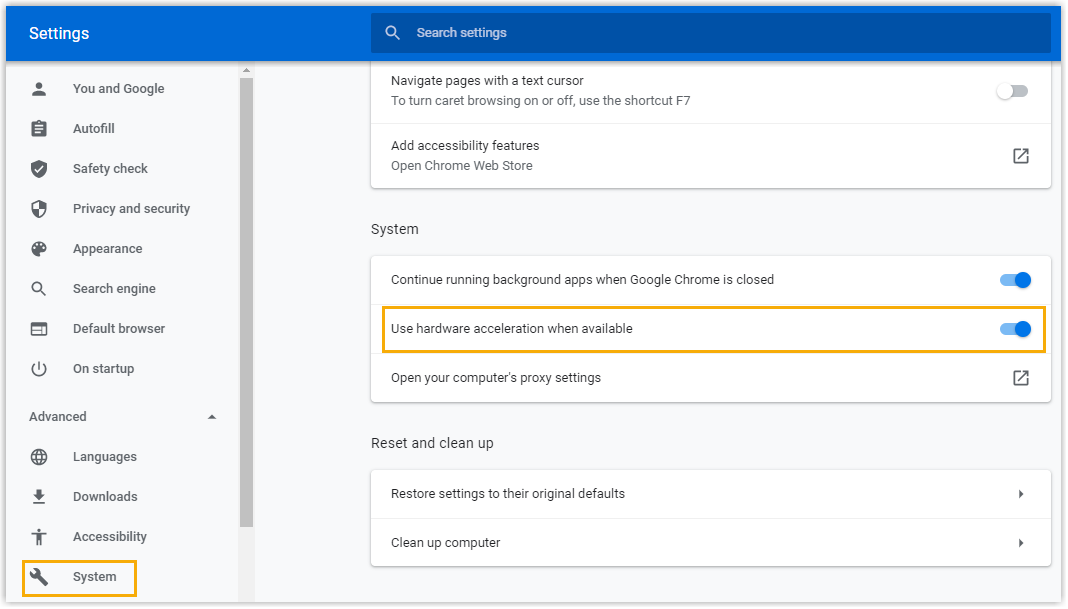
In the left-hand navigation, open Advanced (an expandable group), then click System.
-
Under System, turn on Use hardware acceleration when available.
Question about this page?
Ask the AI assistant. It starts from this page, then searches the rest of the docs.
Ask Cloud Voice AI
Answers are AI-generated from the docs and may contain mistakes. Verify with the linked pages.