
Allow your browser to use the microphone and camera at the OS level
Before a browser can pass your microphone and camera through to the Cloud Voice App, your operating system has to allow it. If audio or video still fails after you have granted the in-browser permission, the block is usually at the system level. Follow the section that matches your computer.
Windows
Section titled “Windows”Open the Start menu, select Settings, then choose Privacy.
Turn on the camera
Section titled “Turn on the camera”-
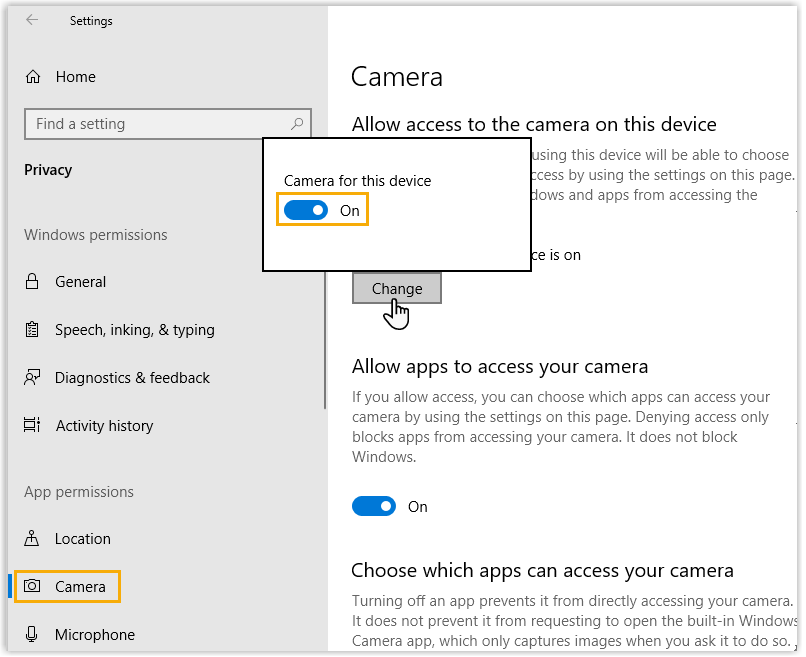
In the left-hand list, select Camera.
-
Under Allow access to the camera on this device, click Change and confirm that Camera for this device is switched on.
-
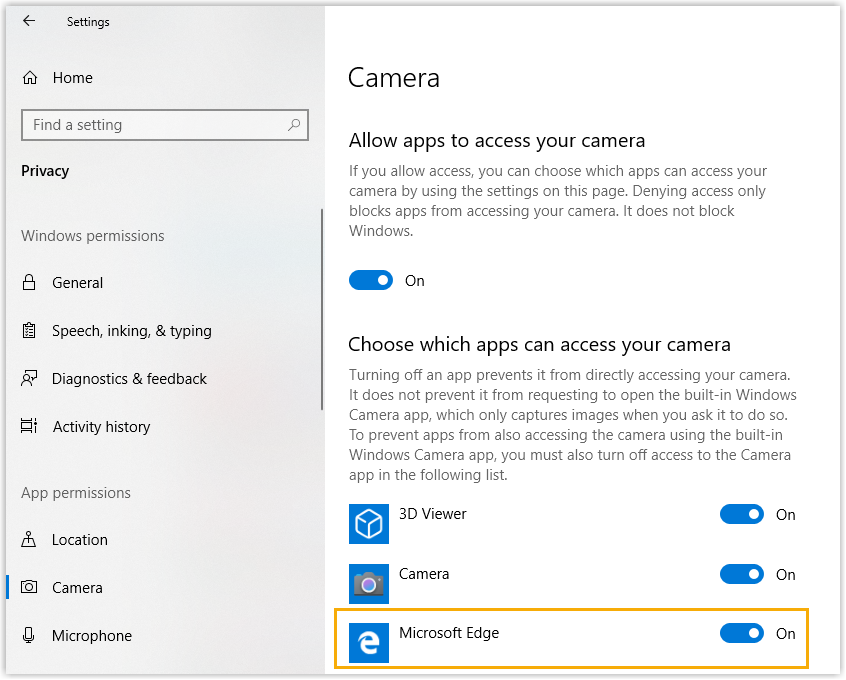
Switch on Allow apps to access your camera.
-
Scroll to Choose which apps can access your camera and allow the browser you use for Cloud Voice video conferences.
Turn on the microphone
Section titled “Turn on the microphone”-
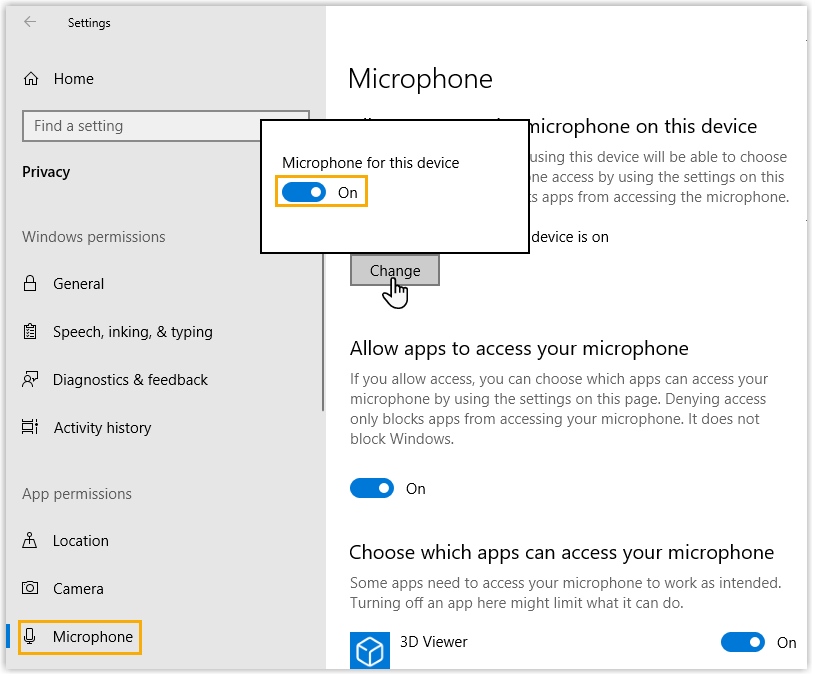
In the left-hand list, select Microphone.
-
Under Allow access to the microphone on this device, click Change and confirm that Microphone for this device is switched on.
-
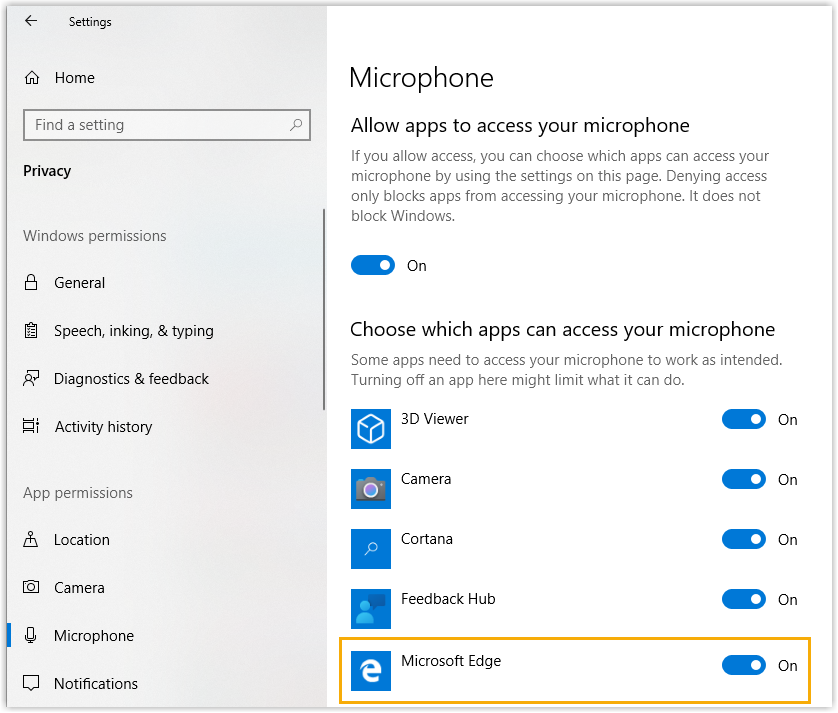
Switch on Allow apps to access your microphone.
-
Scroll to Choose which apps can access your microphone and allow the browser you use for the Cloud Voice App.
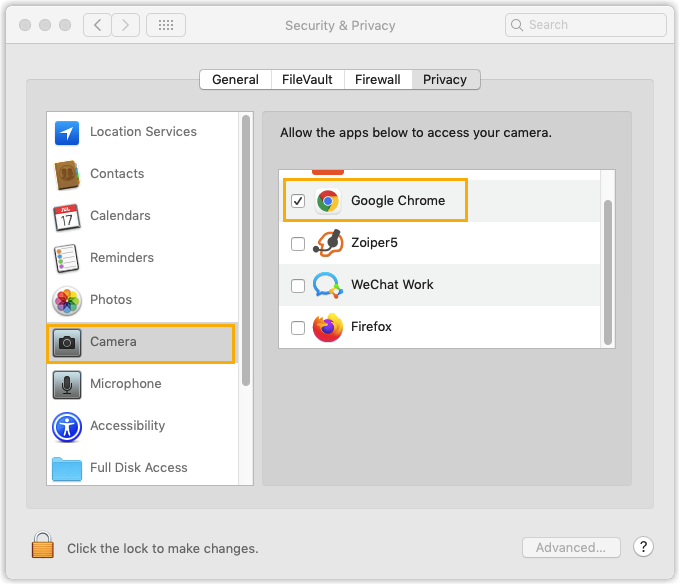
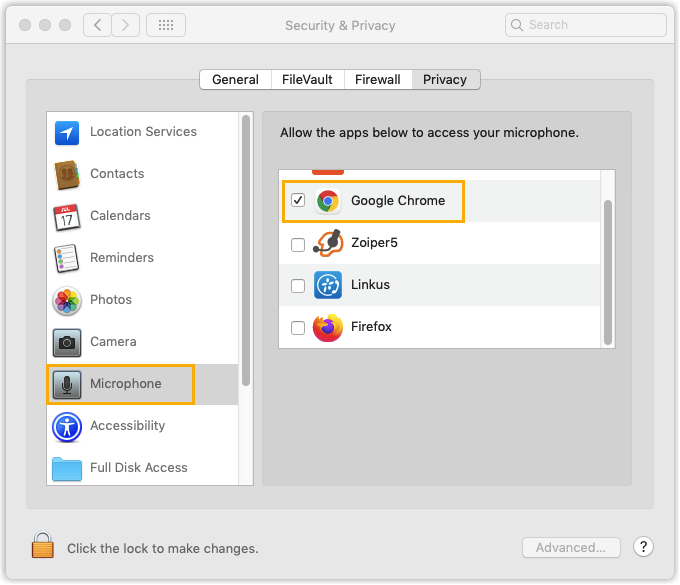
Open the Apple menu, choose System Preferences > Security & Privacy > Privacy.
Turn on the camera
Section titled “Turn on the camera”-
In the left-hand list, select Camera.
-
Tick the checkbox for each browser you use to start or join video conferences.
Turn on the microphone
Section titled “Turn on the microphone”-
In the left-hand list, select Microphone.
-
Tick the checkbox for each browser you use to start or join video conferences.
Question about this page?
Ask the AI assistant. It starts from this page, then searches the rest of the docs.
Ask Cloud Voice AI
Answers are AI-generated from the docs and may contain mistakes. Verify with the linked pages.