
Change Chat Notification Settings
When a conversation gets noisy, you can turn off its new-message alerts without leaving the chat. In the Cloud Voice App, a “chat” is an instant message (IM) conversation. Muting affects only the chat you choose: you keep receiving every message, you just stop getting notified about them. This page covers how to mute a chat and how to switch its notifications back on.
To find a conversation, open the Cloud Voice App Web Client, click Chat, then select either the Internal Chat tab (conversations with colleagues inside your organization) or the External Chat tab (conversations with outside contacts).
Mute a chat
Section titled “Mute a chat”Mute a chat when you want to stay in a conversation but stop it from interrupting you with alerts.
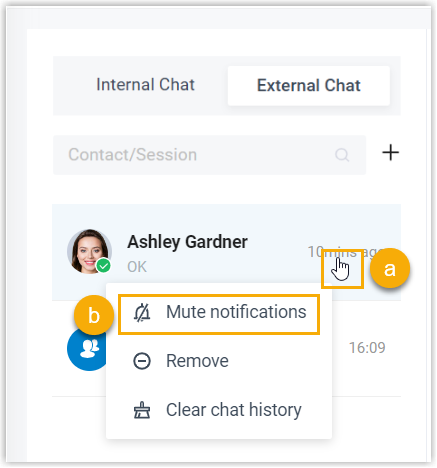
- Right-click the chat you want to quiet.
- Choose Mute notifications.
The chat now shows a mute indicator  , and you will no longer be alerted when messages arrive. Incoming messages still reach the conversation as usual. Instead of a count of unread messages, a muted chat displays a small red dot to signal that something new is waiting.
Unmute a chat
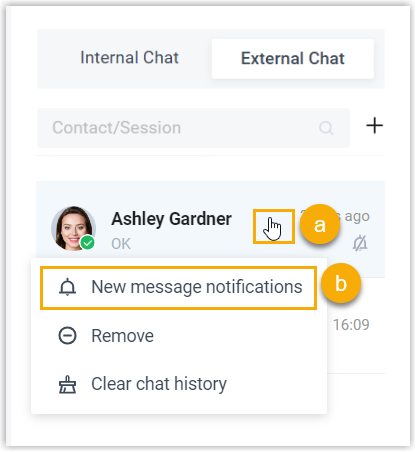
Section titled “Unmute a chat”- Right-click the muted chat.
- Choose New message notifications.
Alerts resume immediately, so you will be notified again the next time a message comes in.
Question about this page?
Ask the AI assistant. It starts from this page, then searches the rest of the docs.
Ask Cloud Voice AI
Answers are AI-generated from the docs and may contain mistakes. Verify with the linked pages.