
Directory Overview
The Cloud Voice App groups the people you reach into three separate directories: your coworkers (Extensions), the numbers saved on your handset (Phone), and external contacts kept on the server (Contacts). This page explains what each directory holds and what you can do from it.
Extensions
Section titled “Extensions”The Extensions directory lists everyone whose extension is registered on the system, so it always mirrors the current roster of your colleagues as it is synchronized from the server.
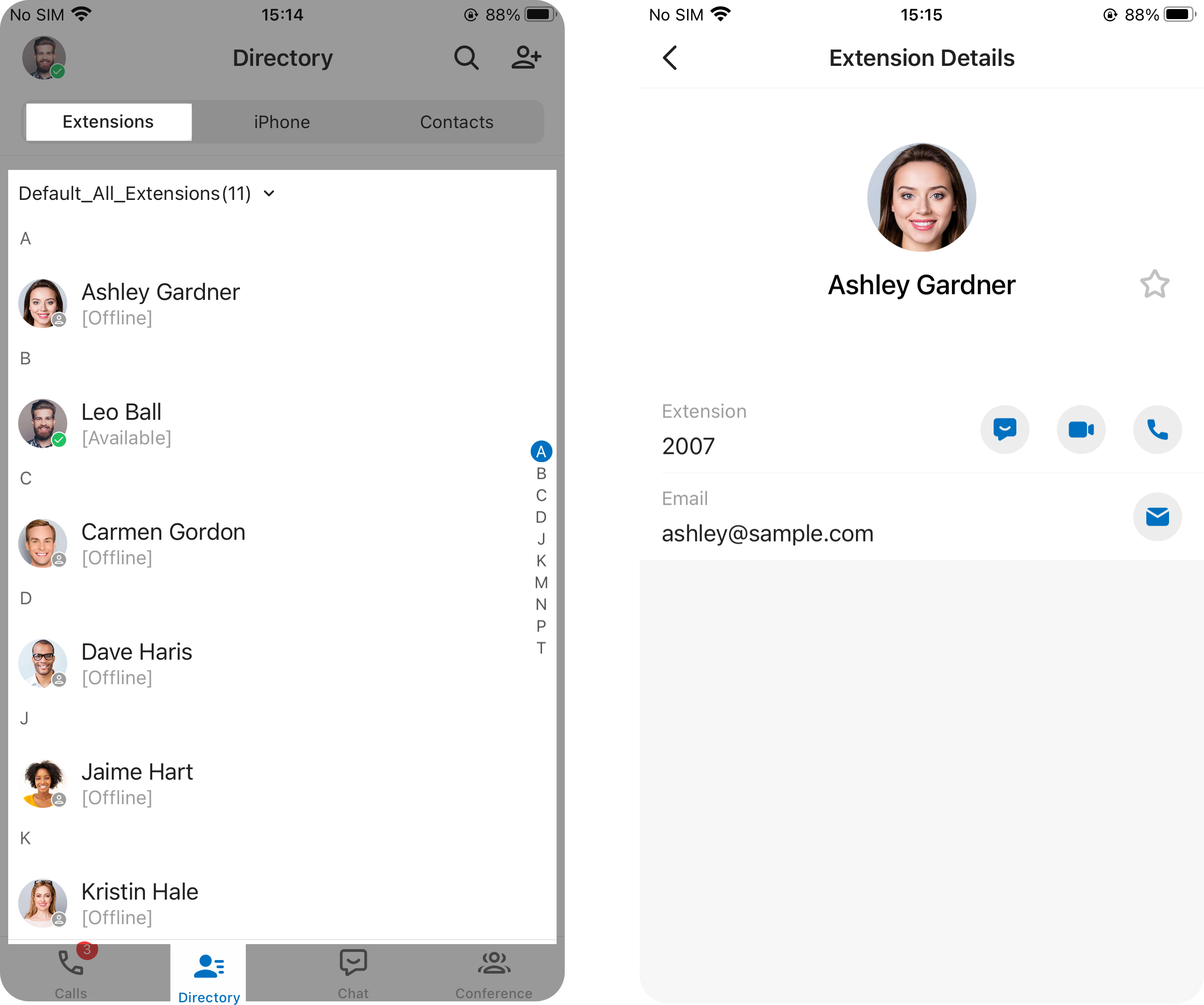
Use it to stay connected with your team:
- Check each colleague’s presence status at a glance to know who is free to talk.
- Pin the people you contact most to a favorites list for faster access.
- Place a call to any extension.
- Open a one-to-one chat.
When you allow the Cloud Voice App to read your device’s address book, the Phone directory shows the contacts stored locally on your handset.
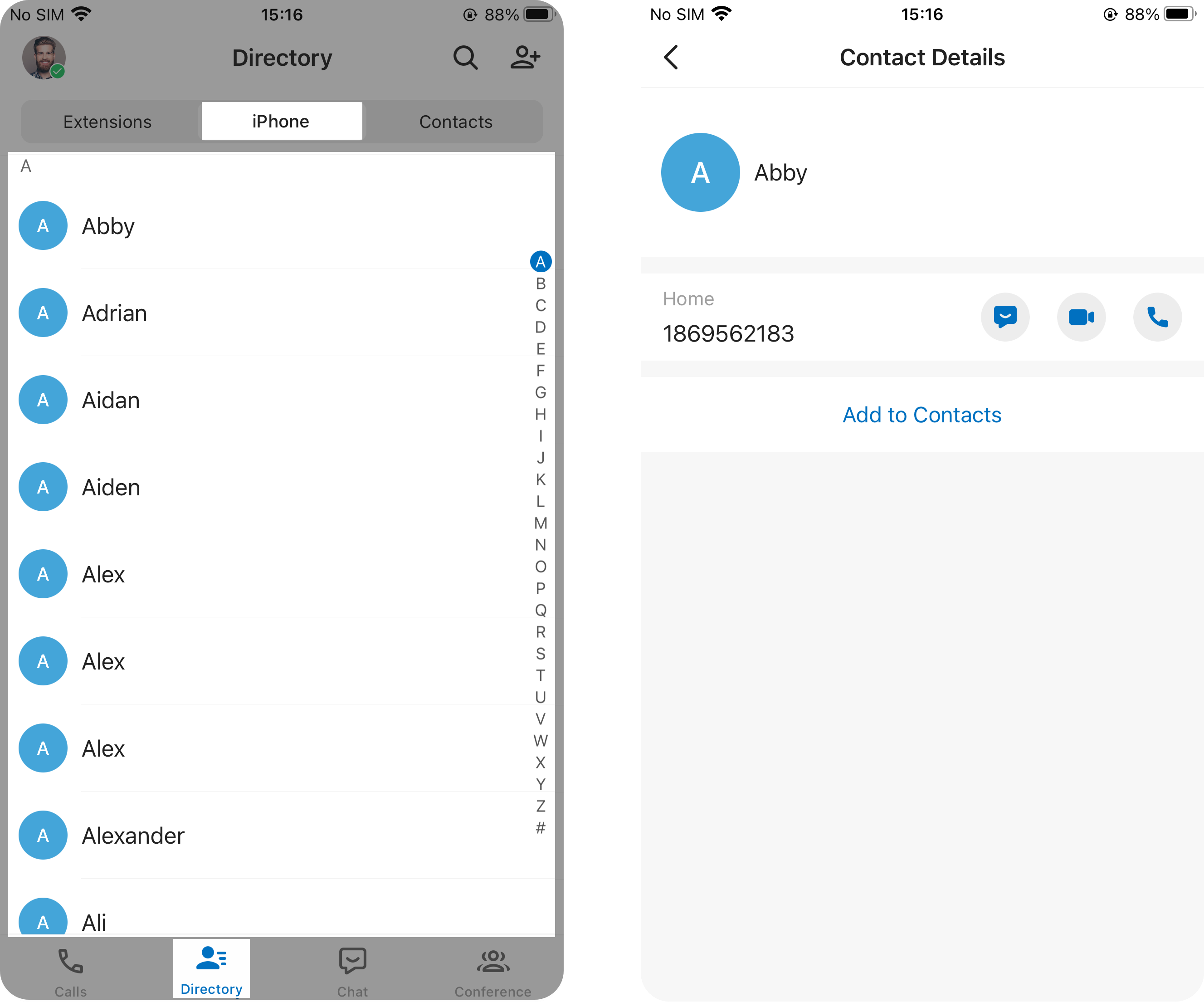
From here you can copy a handset contact into your Cloud Voice Contacts directory whenever you need it, and dial the person directly using either the Cloud Voice App or your phone’s native dialer.
Contacts
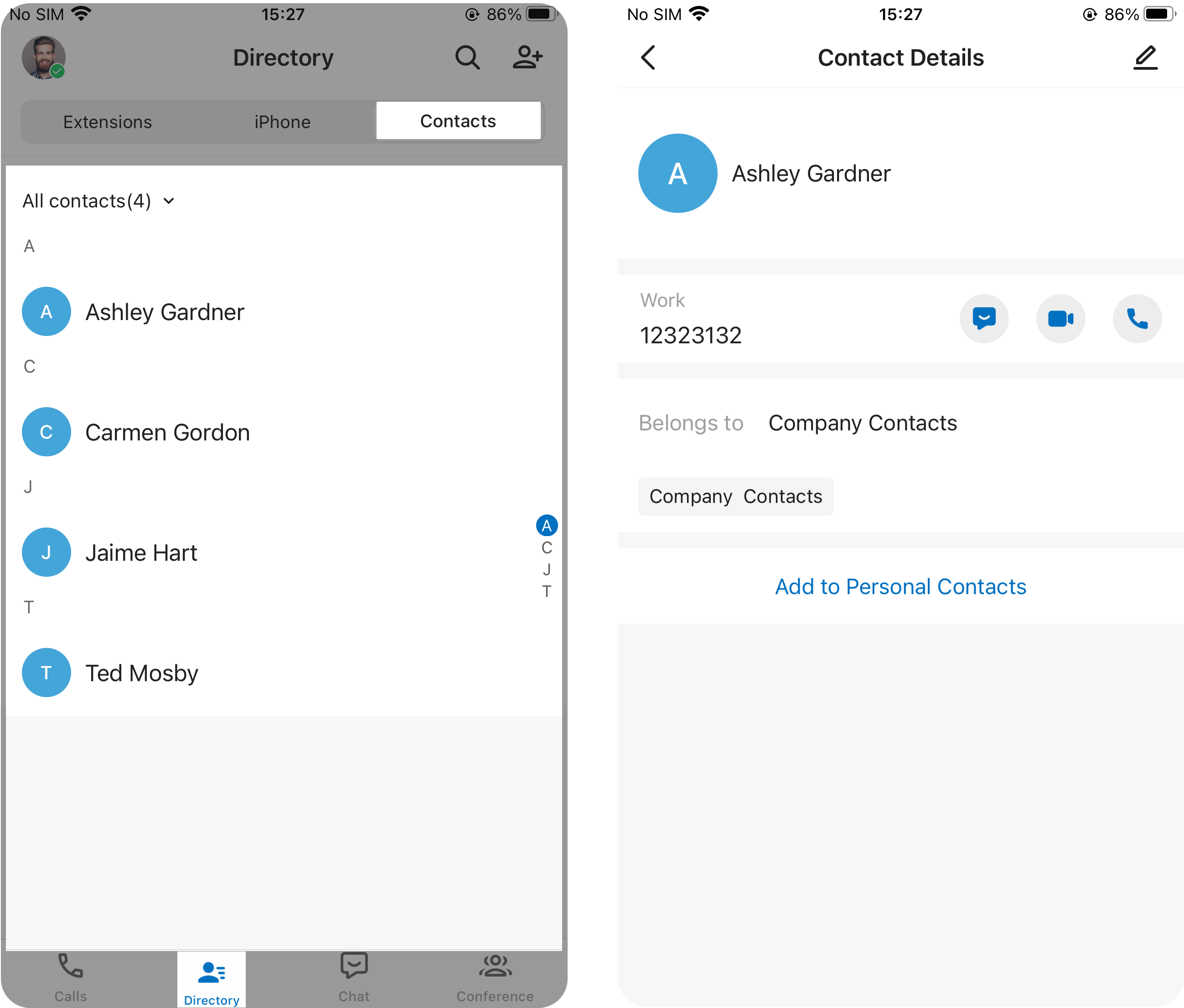
Section titled “Contacts”The Contacts directory holds external contacts saved on the server. It is split into contacts only you manage (Personal Contacts) and contacts your team shares (Company Contacts).
Personal Contacts
Section titled “Personal Contacts”This list is private to you. Keep your own external contacts here, such as direct customers. Entries stay in sync across all of your Cloud Voice App clients and remain hidden from coworkers.
To work with personal contacts, see:
Company Contacts
Section titled “Company Contacts”This list is shared with the colleagues who have permission to view it. Store customers, resellers, partners, and other external contacts here so your team works from the same information. Any change you make is synced to the server and across every Cloud Voice App client, so the whole team always sees the latest details.
To work with company contacts, see:
Favorite Contacts
Section titled “Favorite Contacts”Mark any contact you reach often, whether personal or company, as a favorite. Favorites collect in the Favorite Contacts list so you can find them quickly.
For details, see Mark or Remove Favorite Contacts.
Question about this page?
Ask the AI assistant. It starts from this page, then searches the rest of the docs.
Ask Cloud Voice AI
Answers are AI-generated from the docs and may contain mistakes. Verify with the linked pages.