
Reset Your Cloud Voice App Password
Locked out of the desktop Cloud Voice App? You can request a new password straight from the sign-in screen and set it yourself through a secure email link.
Reset the password
Section titled “Reset the password”-
On the Cloud Voice App sign-in screen, select Forget Password?.
-
Complete the Forgot Password form:
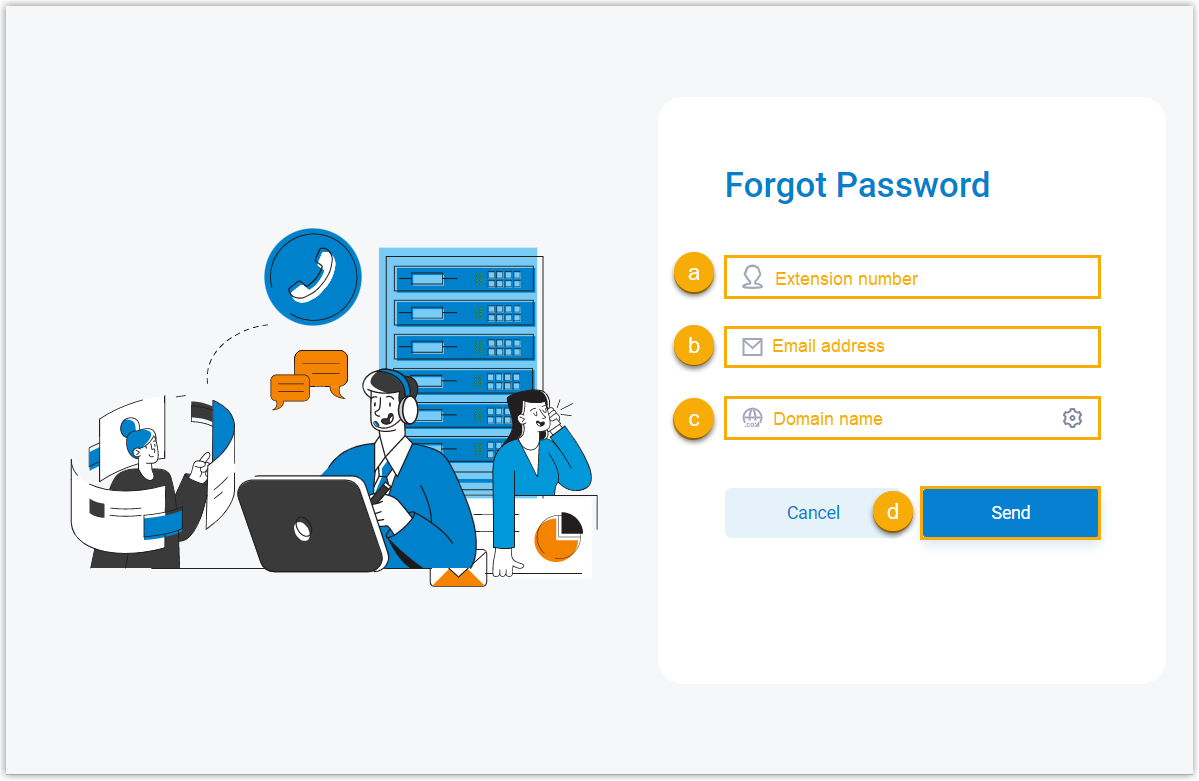
a. Enter your extension number in the Extension Number field. This is the internal line number assigned to you.
b. In the Email Address field, type the email address that is associated with your extension.
c. In the Domain field, enter your server’s domain name.
d. Select Send. A message with password reset instructions is delivered to your inbox.
-
Open the email and select the reset link.
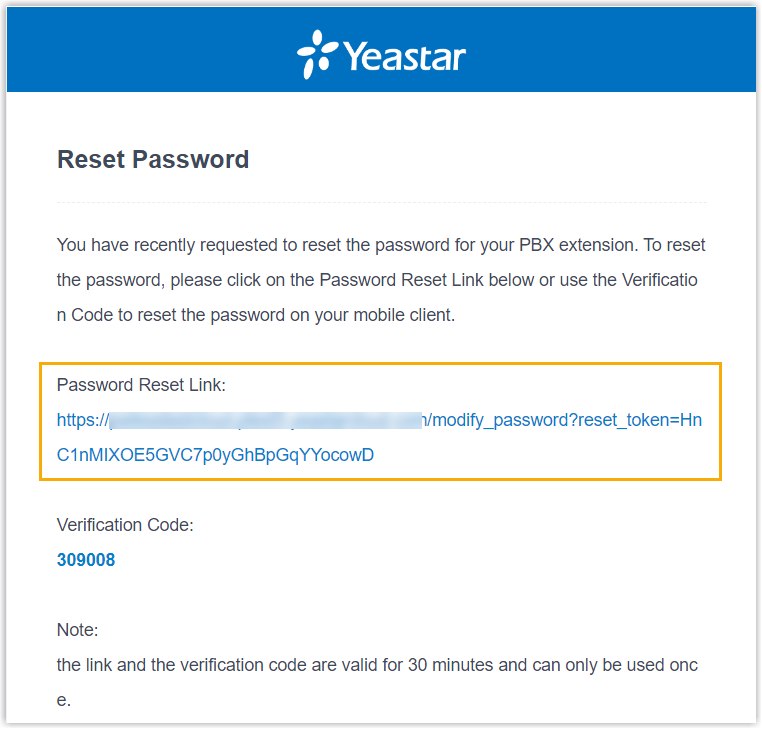
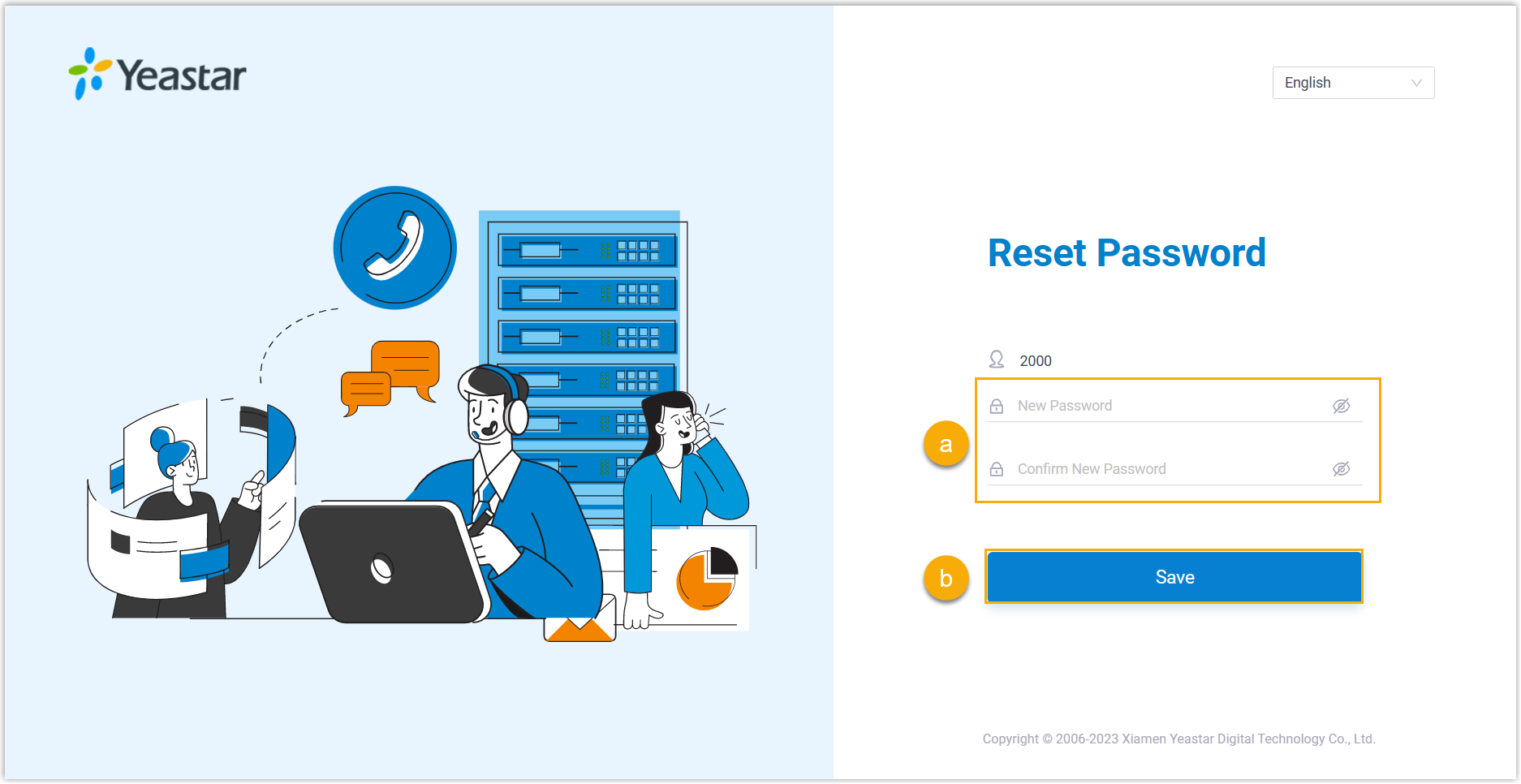
The link opens a Reset Password page in your browser.
-
On the Reset Password page, enter your new password in both fields, then select Save. Your login password is now updated.
Next step
Section titled “Next step”Sign in to the Cloud Voice App using your new password.
Question about this page?
Ask the AI assistant. It starts from this page, then searches the rest of the docs.
Ask Cloud Voice AI
Answers are AI-generated from the docs and may contain mistakes. Verify with the linked pages.