
Why can't my Samsung phone receive Cloud Voice App calls?
On Samsung devices, a few Android system settings can silence or hide incoming calls from the Cloud Voice App even when the app itself is running. If your Samsung phone isn’t alerting you to calls, work through the three checks below until calls come through again:
- Turn on full-screen alerts
- Switch off Do Not Disturb or Focus mode
- Allow Cloud Voice App calls through Do Not Disturb or Focus mode
Turn on full-screen alerts
Section titled “Turn on full-screen alerts”Full-screen alerts let the Cloud Voice App take over the whole display when a call arrives, so you don’t miss it.
-
Open Settings > Apps.
-
Tap the more options icon
 in the top-right corner, then choose Special access.
 -
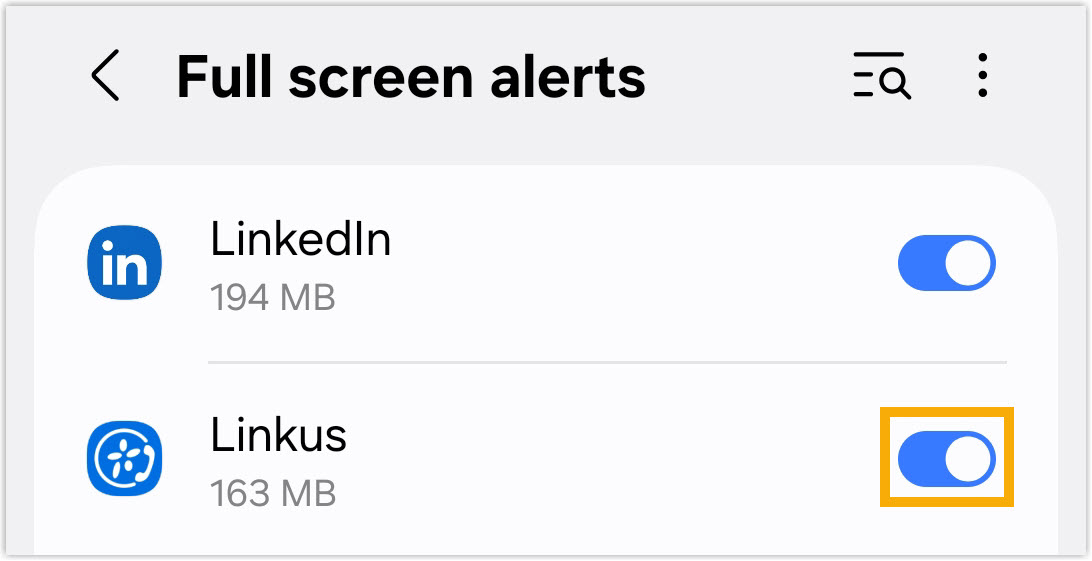
Scroll to the bottom of the list and tap Full screen alerts.
-
Locate the Cloud Voice App and switch it on.
Switch off Do Not Disturb or Focus mode
Section titled “Switch off Do Not Disturb or Focus mode”If Do Not Disturb or a Focus mode was turned on by accident, it will suppress call alerts. Turn it off:
-
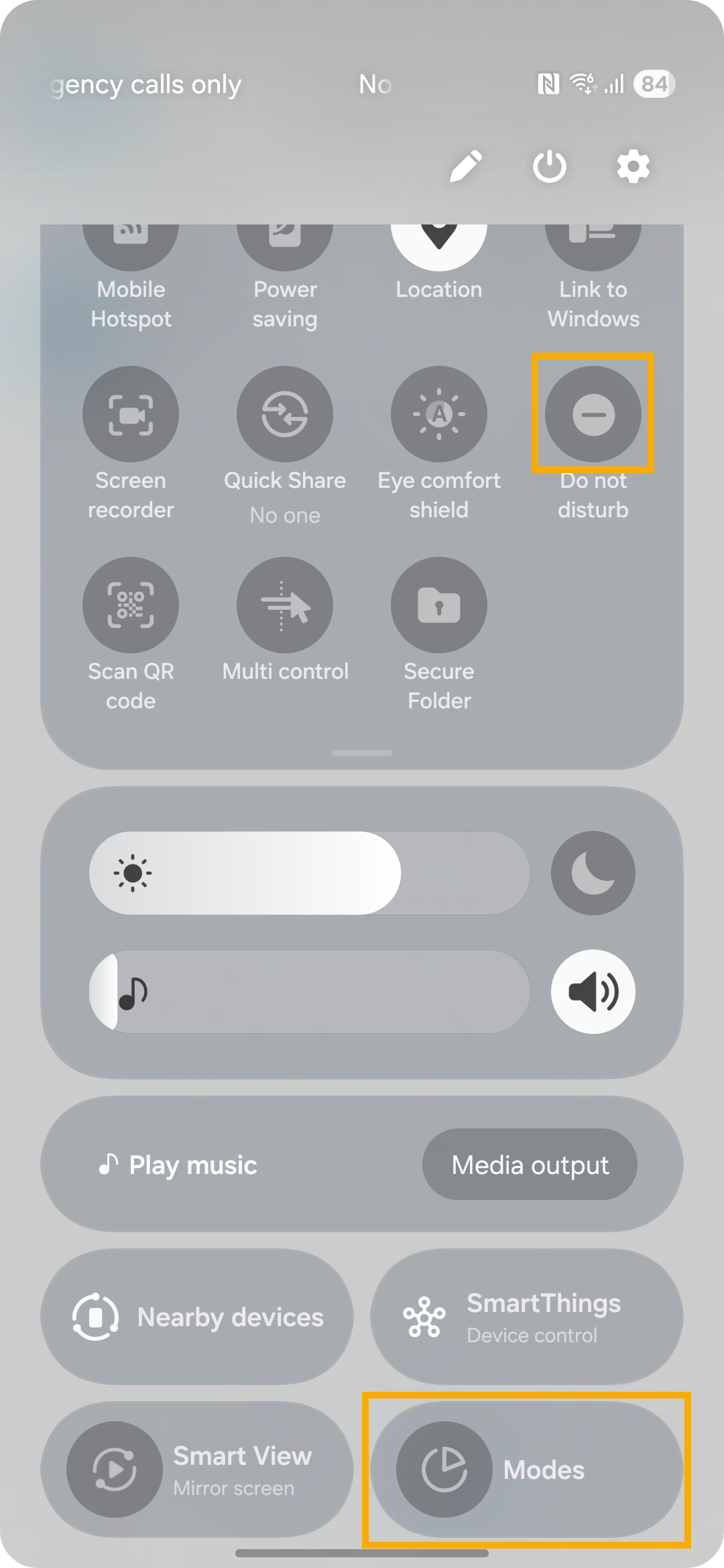
Swipe down from the top of the screen to open the Control Center (Samsung’s Quick panel).
-
Tap the Do not disturb tile or the Focus mode tile to disable it.
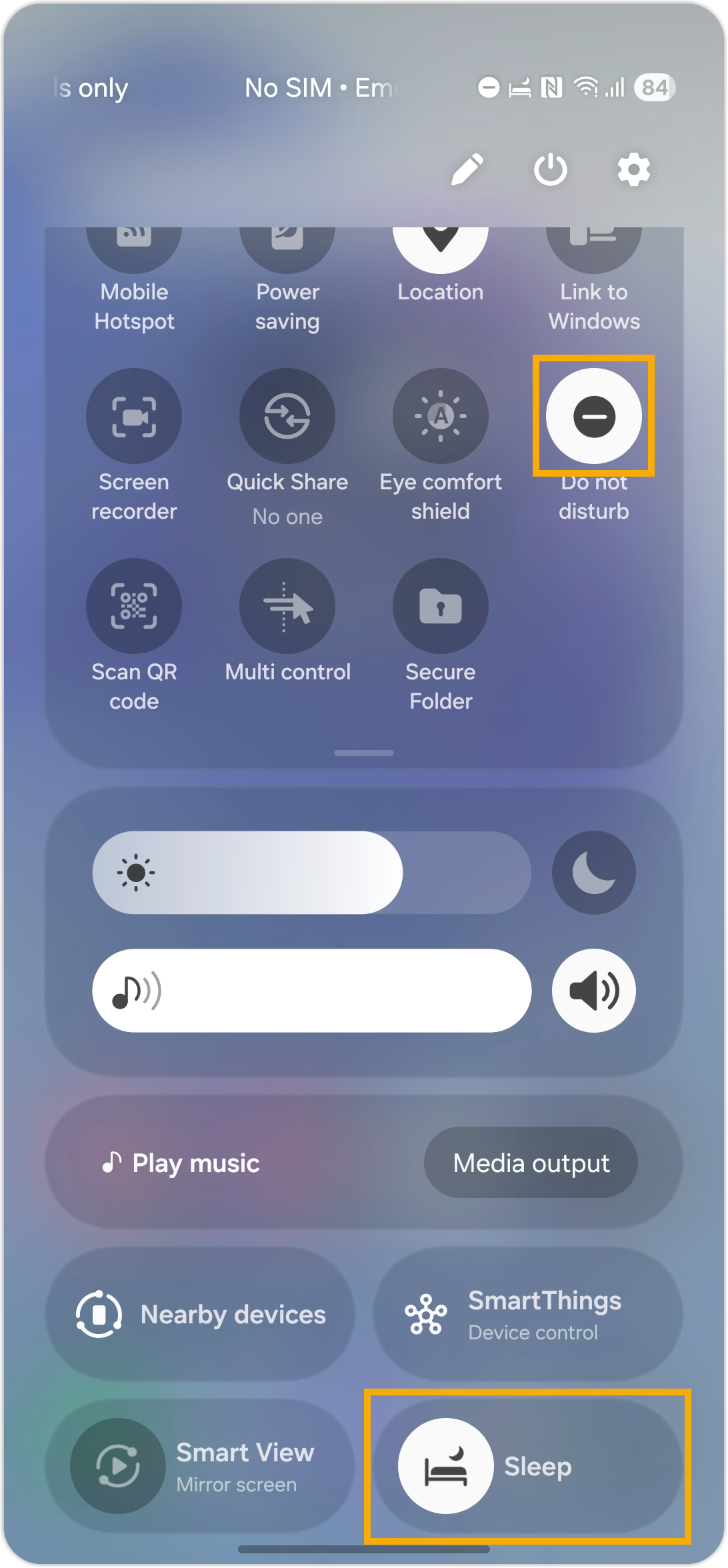
When the tile is no longer highlighted, Do Not Disturb or Focus mode is off.
Allow Cloud Voice App calls through Do Not Disturb or Focus mode
Section titled “Allow Cloud Voice App calls through Do Not Disturb or Focus mode”If you need to keep Do Not Disturb or a Focus mode running, add the Cloud Voice App to its list of allowed apps so its call notifications still get through. The steps differ depending on which mode you use.
Do Not Disturb mode
Section titled “Do Not Disturb mode”-
Open Settings > Notifications > Do not disturb.
-
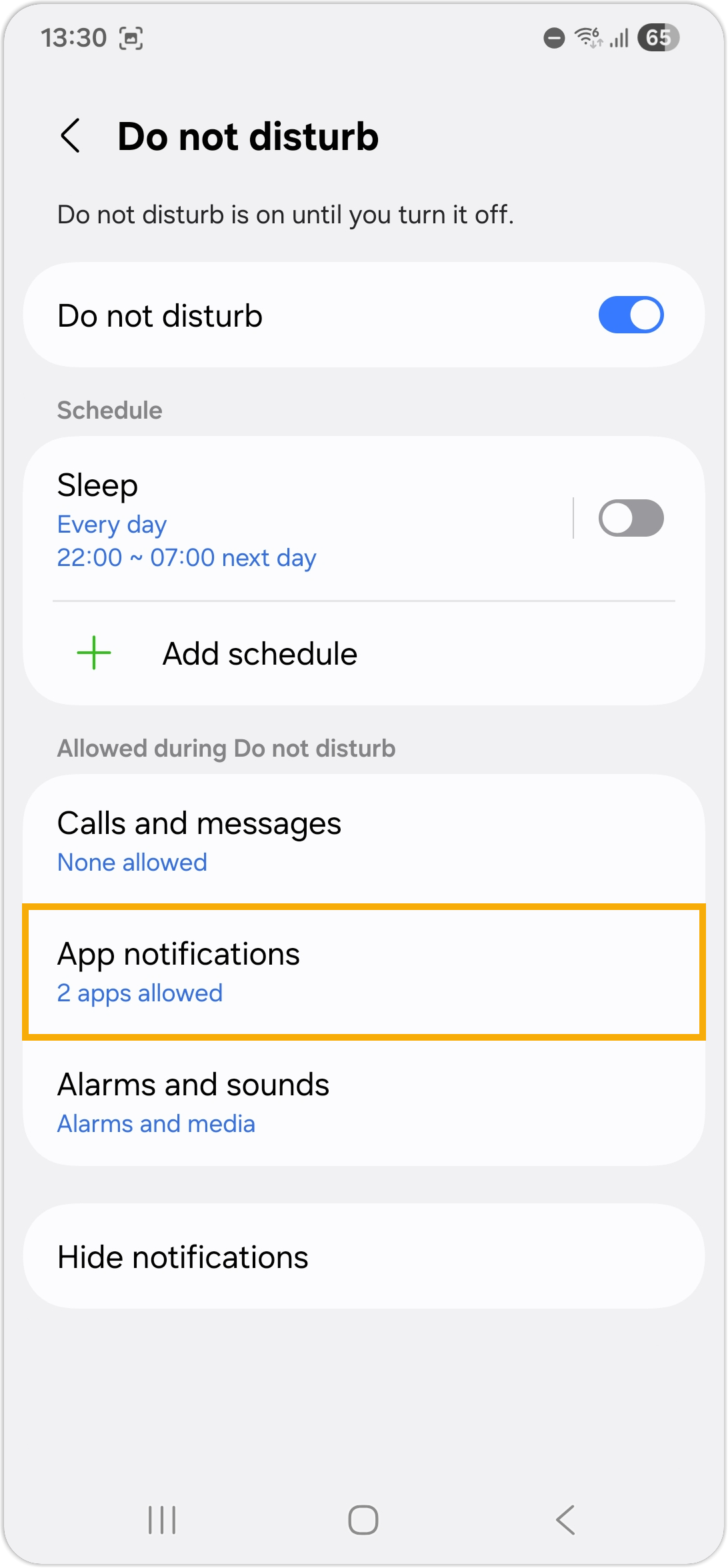
Under Allowed during Do not disturb, tap App notifications.
-
Tap the add icon
 and select the Cloud Voice App.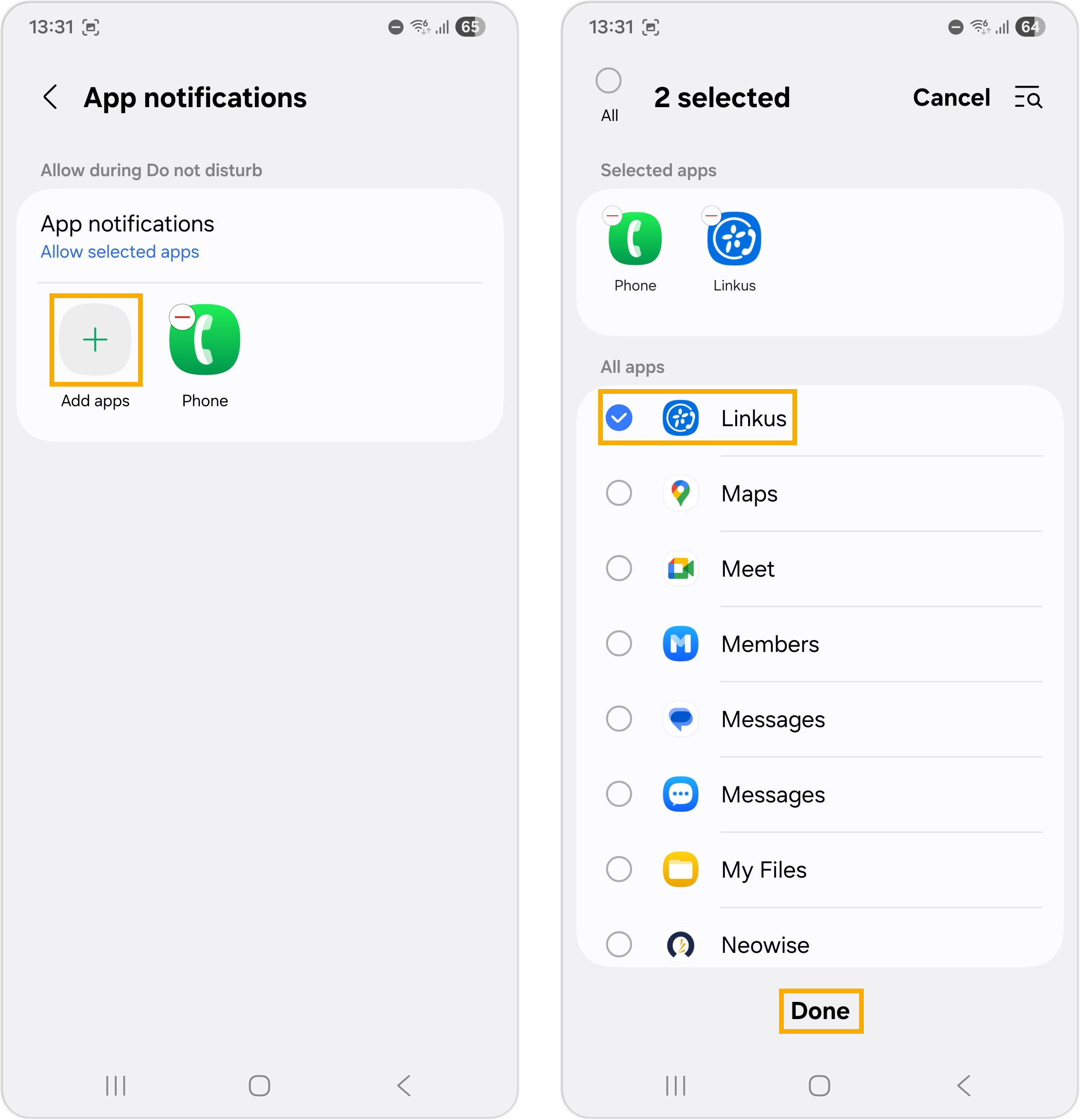
Focus mode
Section titled “Focus mode”- Open Settings > Modes and Routines and select the Focus mode you want to adjust.
- In the Choose what this mode does pane, tap Stay focused.
- Allow notifications from the Cloud Voice App:
-
Tap Do not disturb.
-
Under Allowed during Do not disturb, tap App notifications.
-
Tap the add icon
and select the Cloud Voice App.
-
- Allow the app to run in this mode:
-
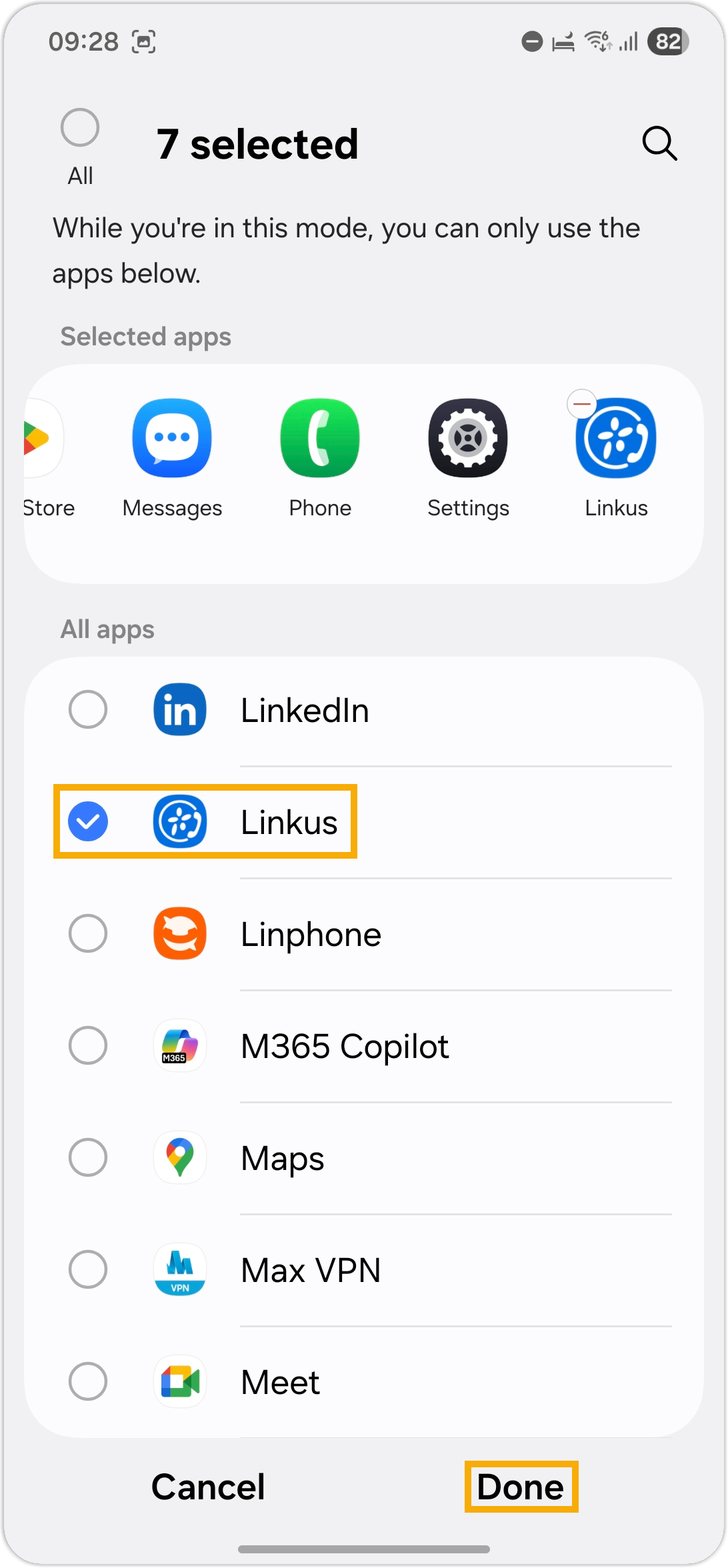
Tap Restrict app usage.
-
Add the Cloud Voice App.
-
Question about this page?
Ask the AI assistant. It starts from this page, then searches the rest of the docs.
Ask Cloud Voice AI
Answers are AI-generated from the docs and may contain mistakes. Verify with the linked pages.