
Make a Multi-party Call
A multi-party call lets you pull additional people into a conversation that is already underway, turning a one-to-one call into a small, on-the-fly conference where everyone hears everyone else. If you are working through a mortgage closing on a call, for example, you can bring in the broker and a supervisor so questions get answered on the spot.
How many people can join
Section titled “How many people can join”You can invite up to 3 more people to a call in progress. Counting yourself and the person you were already speaking with, that makes 5 participants in total.
Add participants during a call
Section titled “Add participants during a call”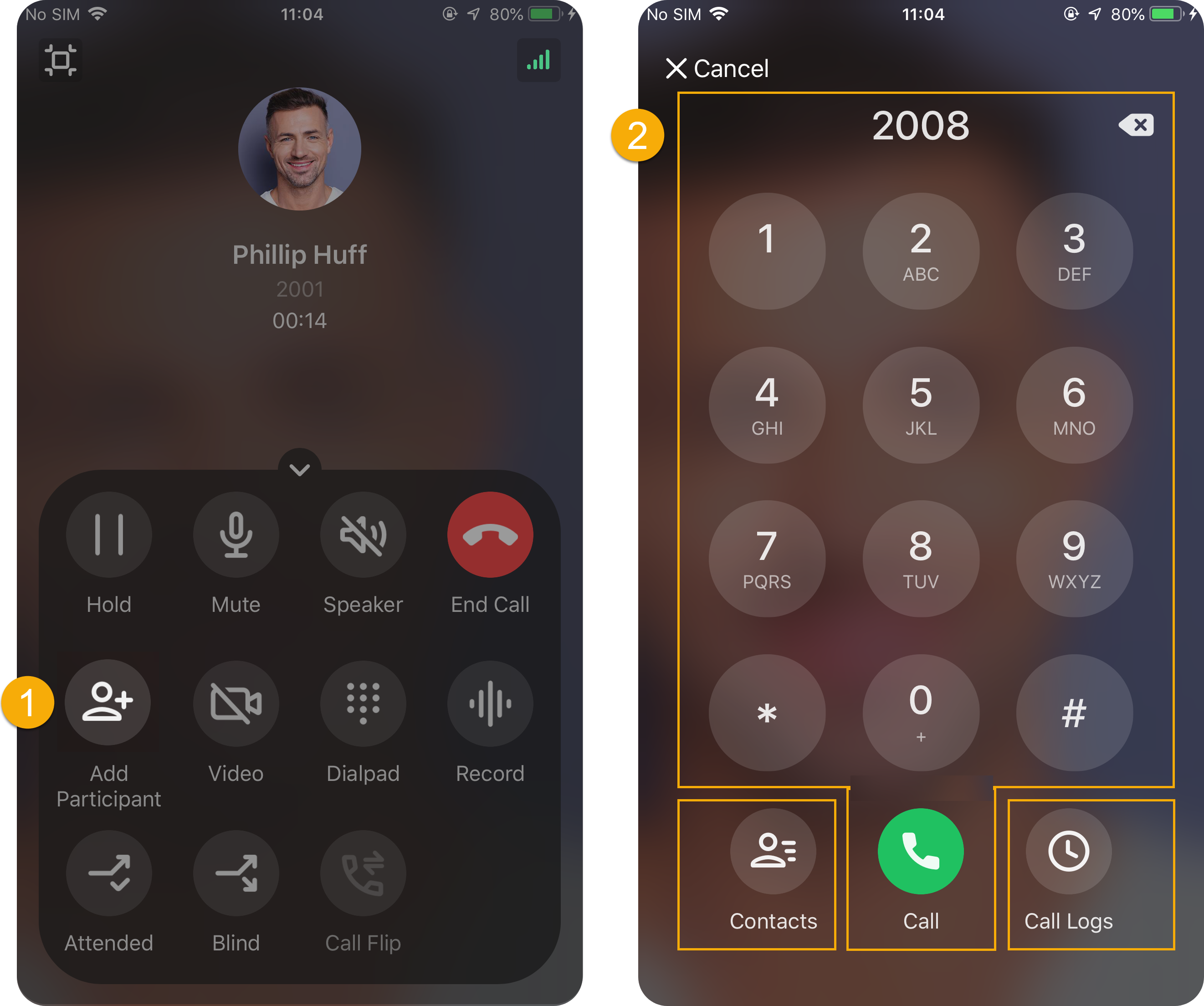
- While the call is active, tap
 (Add Participant) on the call screen.
 - Bring people in using any of these methods:
- Contacts: Choose someone from your Cloud Voice App directory. Tap the person you want, and the invitation call goes out right away.
- Dialpad: Reach someone by number. Type the number on the dialpad, tap
 , and the invitation call goes out right away.
 - Call Logs: Pick someone from your recent calls. Tap the entry you want, and the invitation call goes out right away.
What you see on the call
Section titled “What you see on the call”-
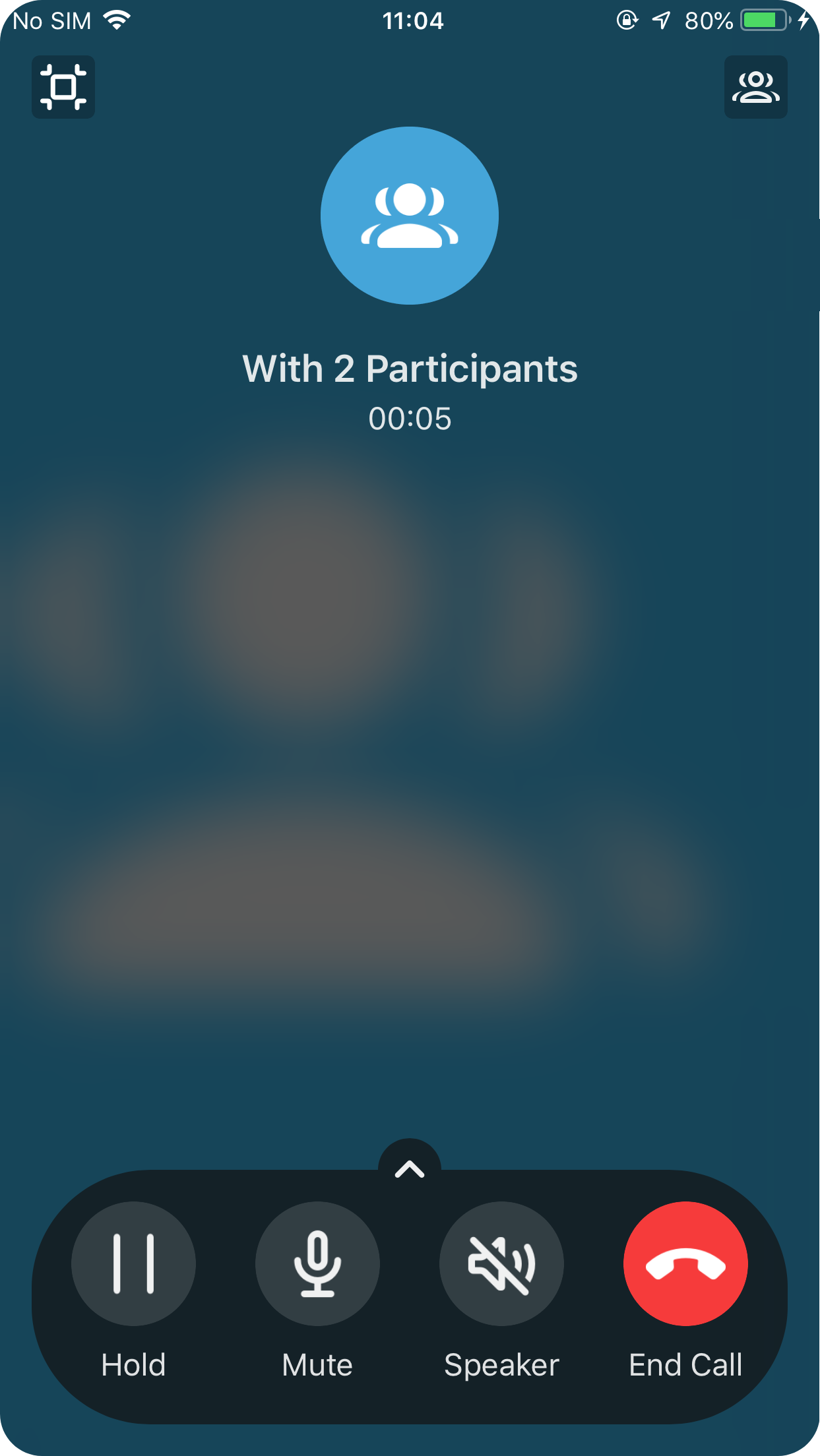
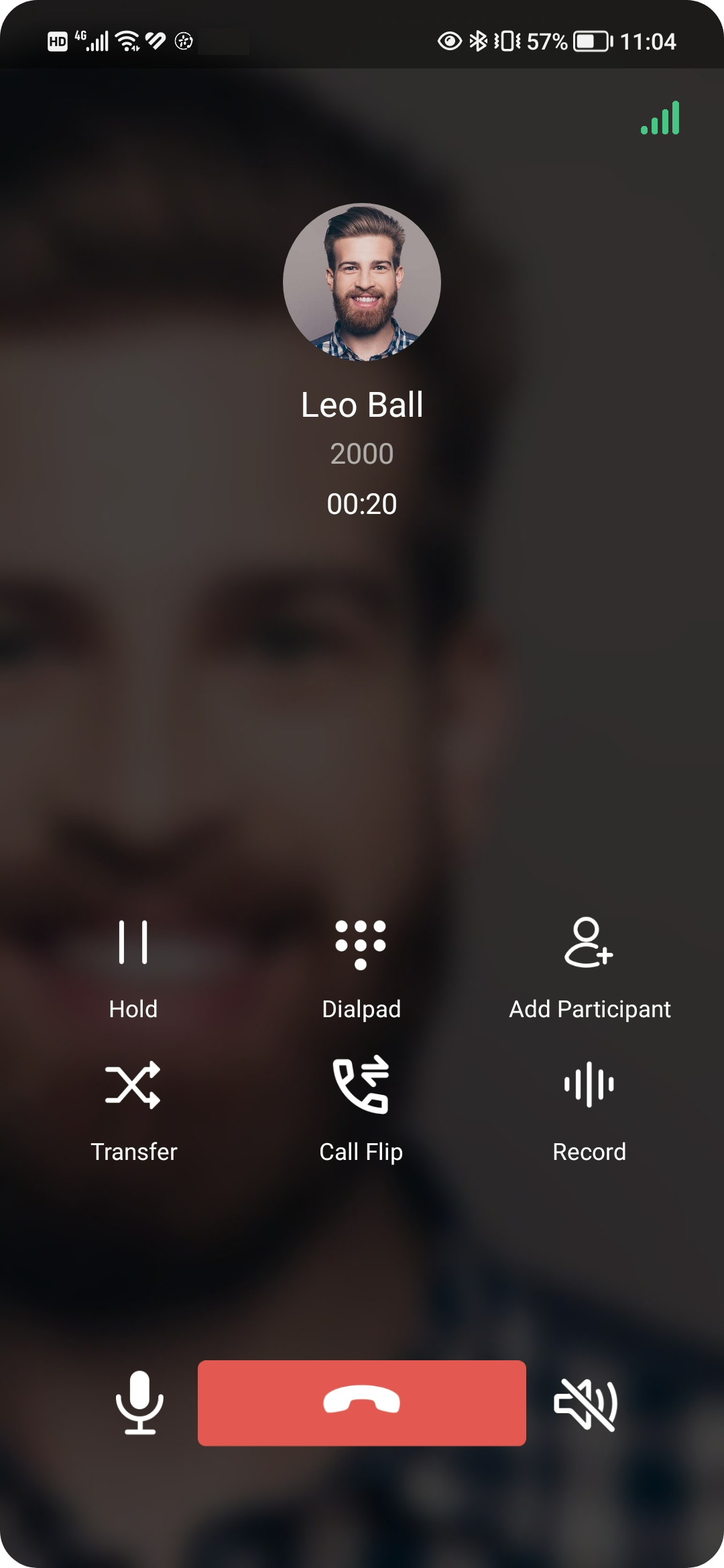
Your call screen lists everyone on the call. Each of the other participants, however, sees only your details as the person who set up the call.
Your call screen
What other participants see
-
Tap
 in the top-right corner to open the participant controls. From there you can:
- Tap
 to mute or unmute a participant.
 - Tap
 to drop a participant from the call.
- Tap
Question about this page?
Ask the AI assistant. It starts from this page, then searches the rest of the docs.
Ask Cloud Voice AI
Answers are AI-generated from the docs and may contain mistakes. Verify with the linked pages.