
Cloud Voice App Desktop Client Quick Start Guide
The Cloud Voice App desktop client puts your extension, calls, chats, contacts, and call center tools into a single application on your computer. An extension is the internal phone identity your administrator assigns you (for example 1001), and it is what the client signs in as. This guide walks you from installation through the tasks you will use every day, so you can be up and running in a few minutes.
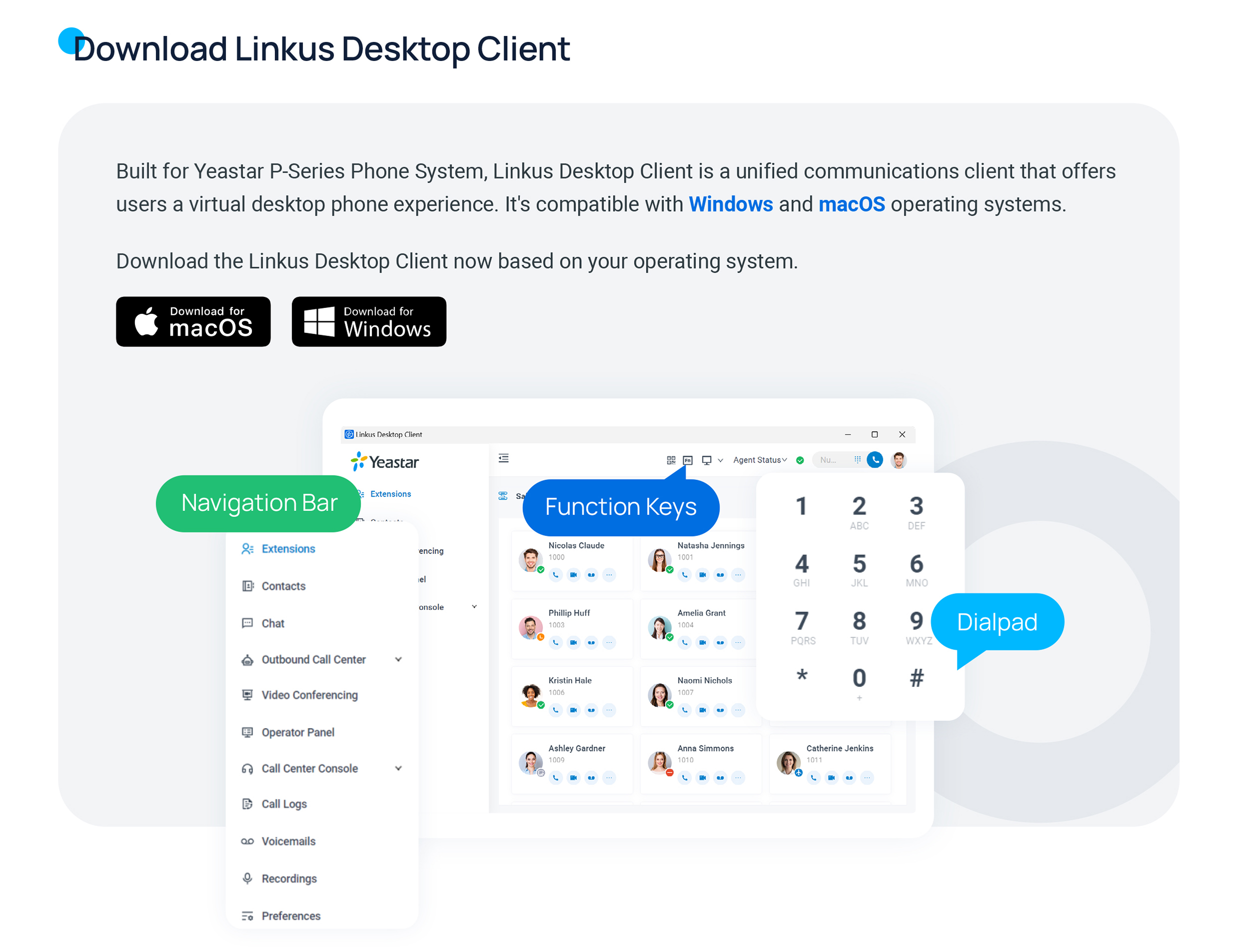
Download and install
Section titled “Download and install”The desktop client is available for both Windows and macOS. Download the installer that matches your operating system, run it, and follow the prompts to finish setup. When the install completes, launch the app to sign in.
Sign in
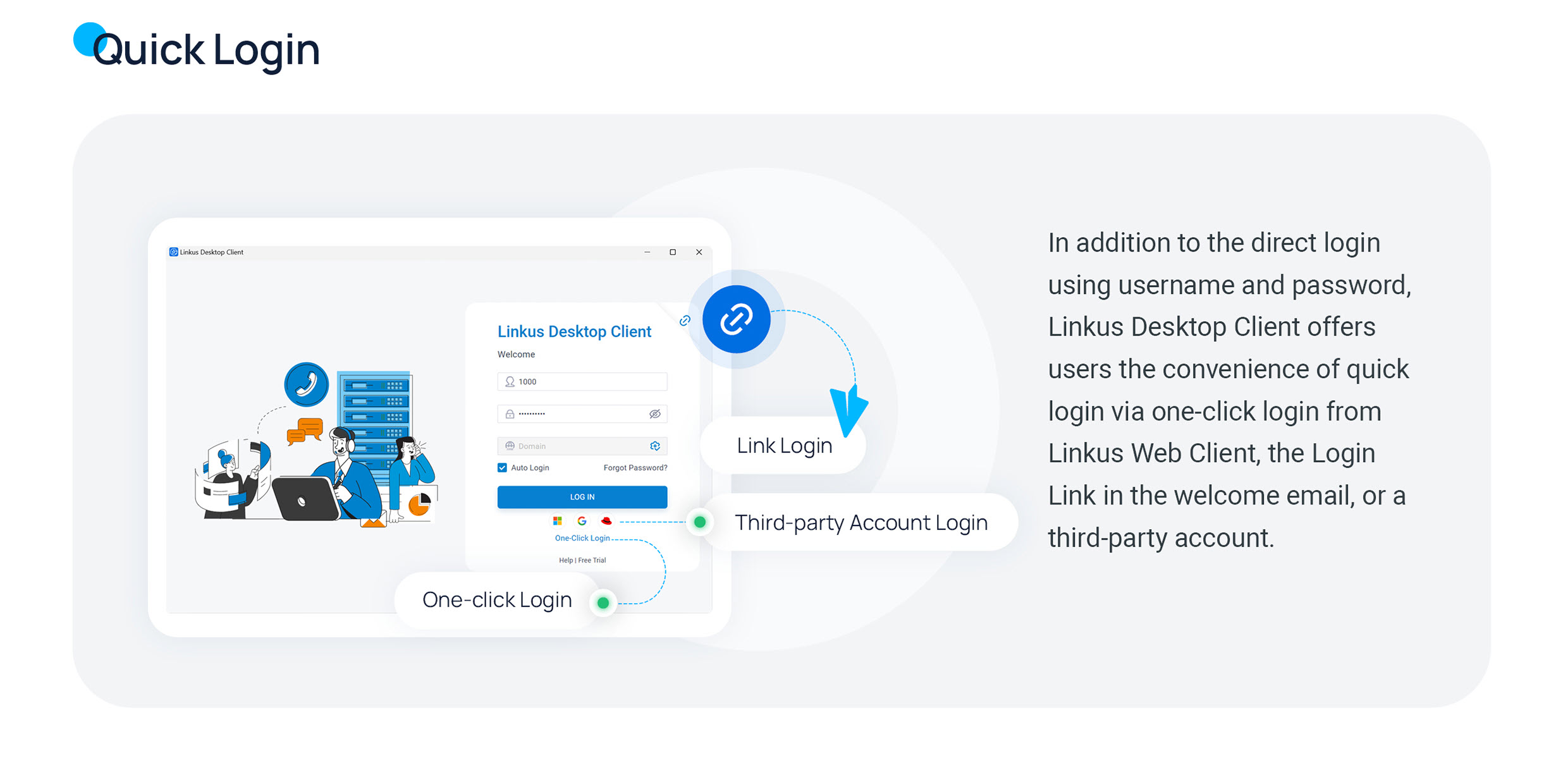
Section titled “Sign in”Open the app and sign in with the extension account your administrator issued you. You have three ways to sign in:
- Open the login link from your welcome email, which signs you in automatically.
- Sign in with one click if you are already signed in to Cloud Voice in your web browser.
- Enter your username, password, and server details by hand.
Once you are in, your workspace loads with every feature within reach.
Find colleagues and contacts
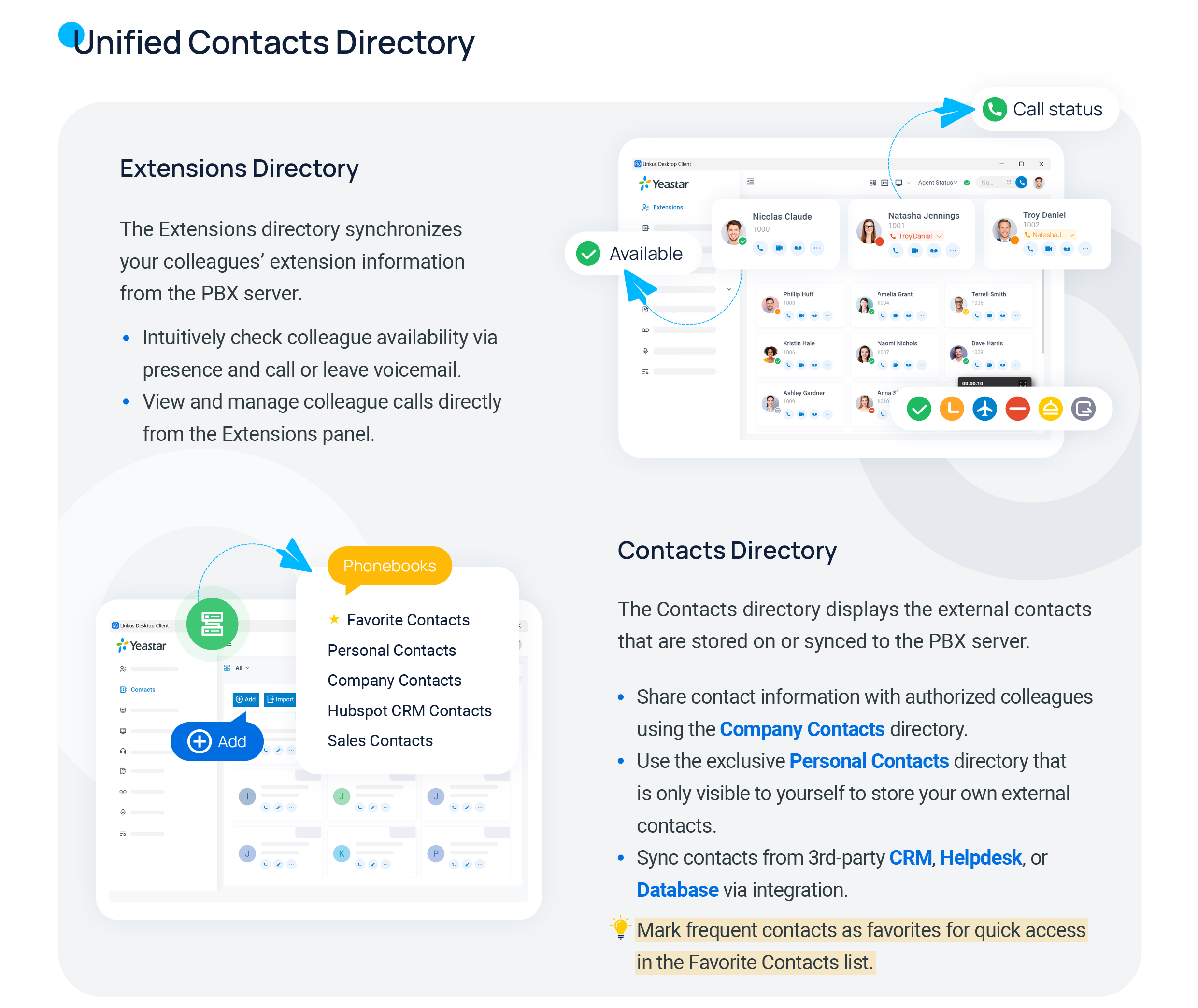
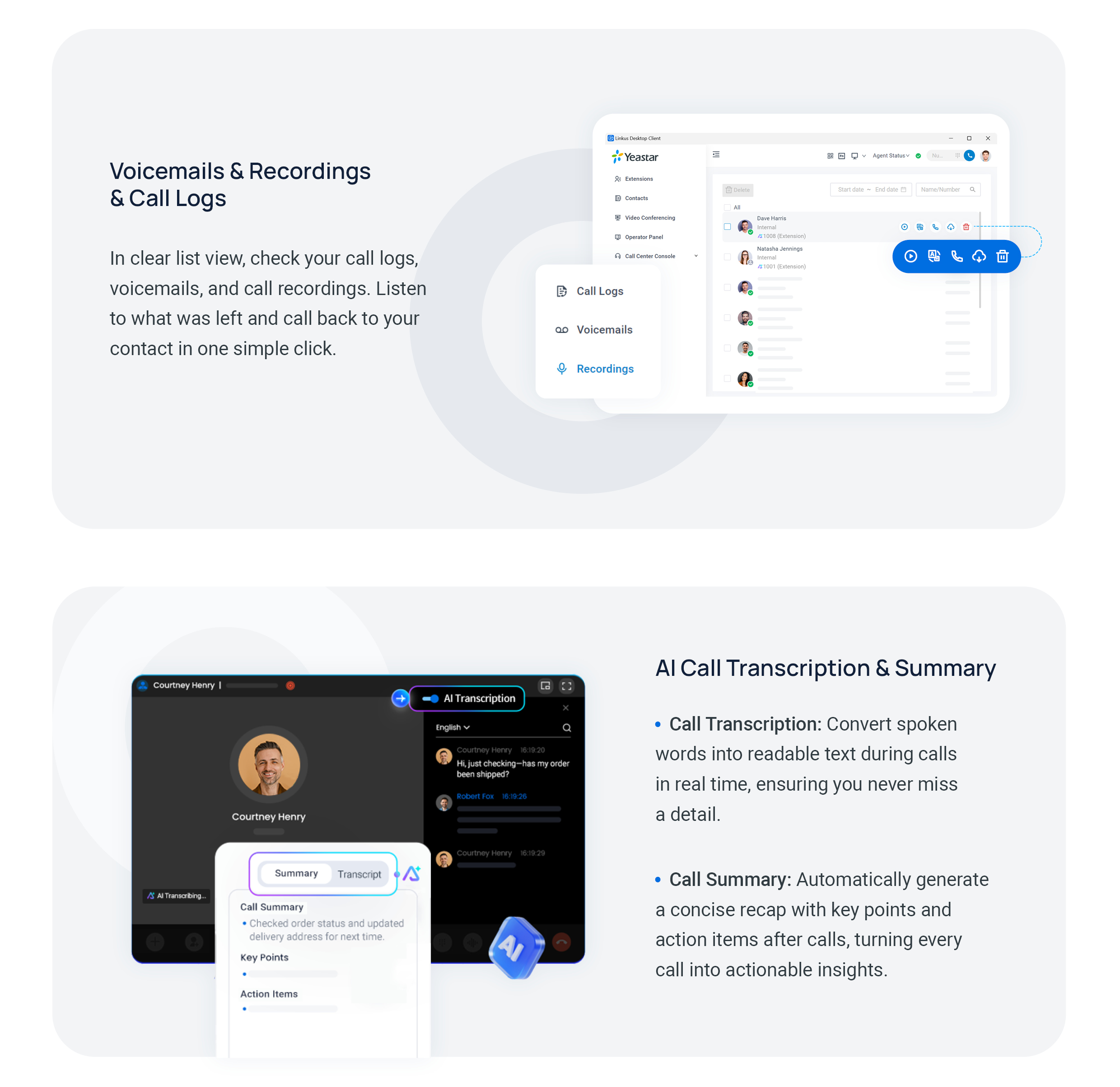
Section titled “Find colleagues and contacts”The directory brings your teammates (extensions) and saved external contacts together in one list. From here you can see who is available and reach anyone with a single click.
Make and manage calls
Section titled “Make and manage calls”Place audio or video calls right from the app, then manage each live call with the on-screen controls for hold, transfer, recording, and more.
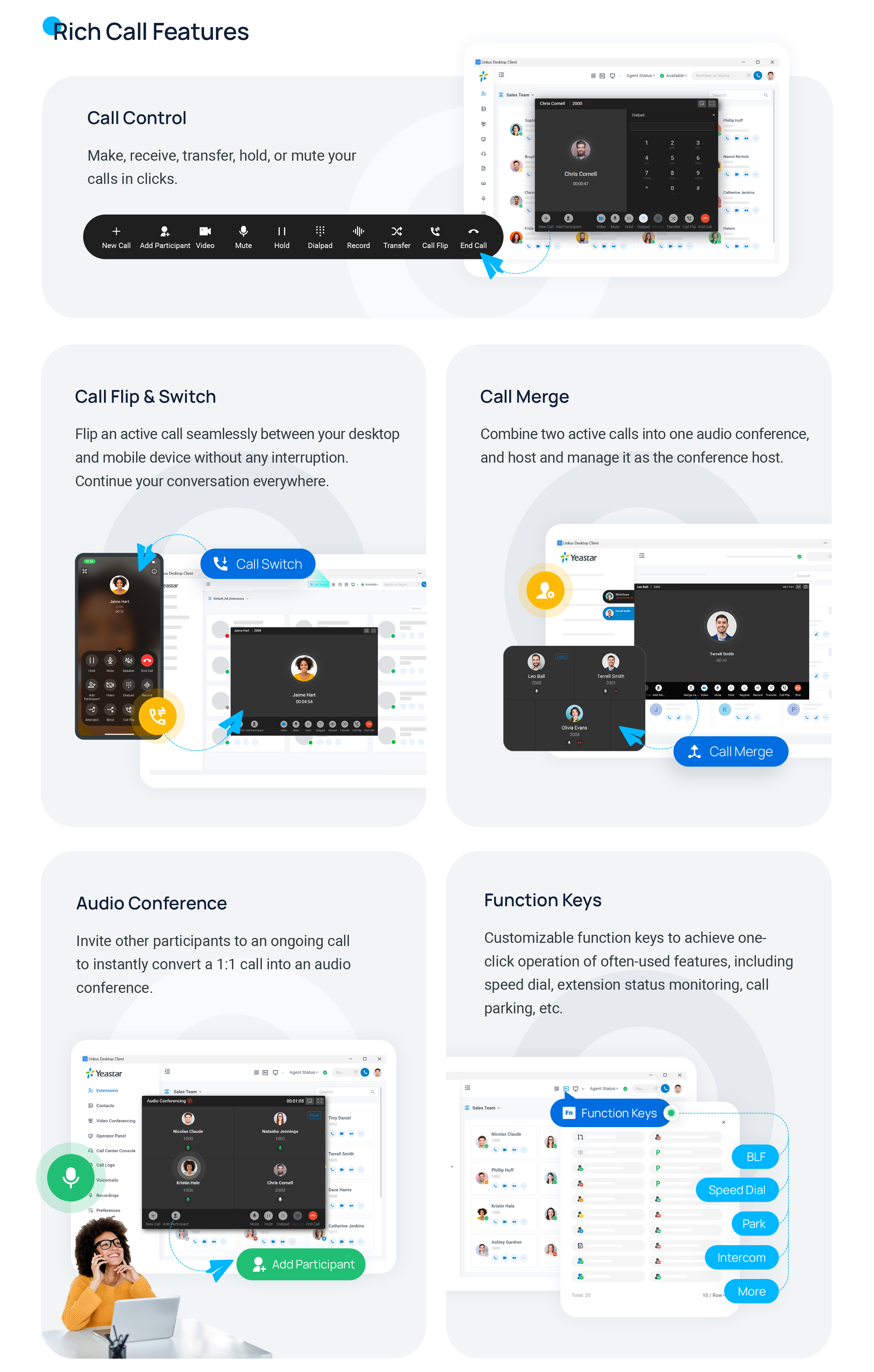
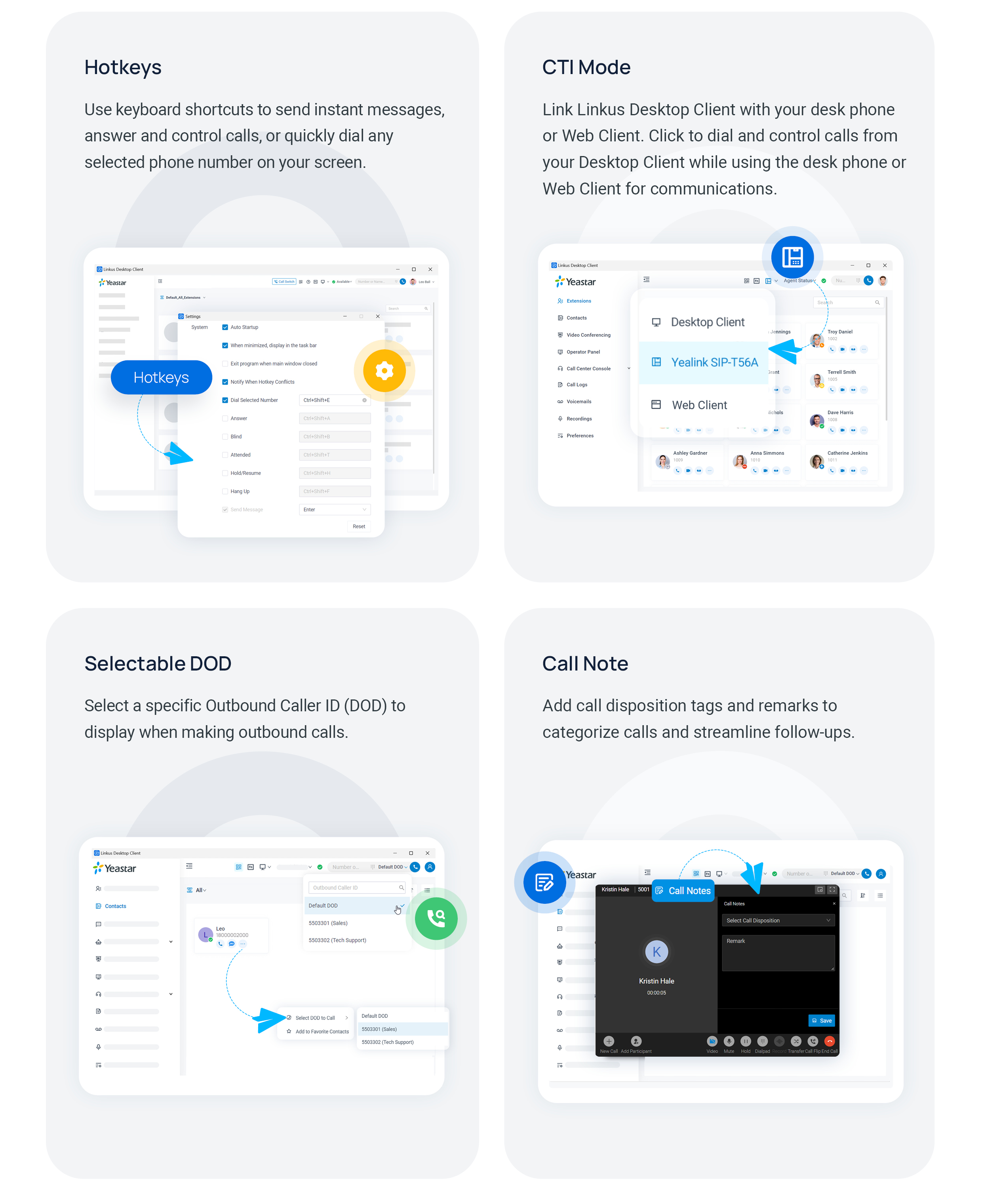
During a connected call you can transfer it to a colleague. A blind (unattended) transfer sends the caller straight to the other person, while an attended transfer lets you speak to that person first and then complete the handoff.
Chat and share files
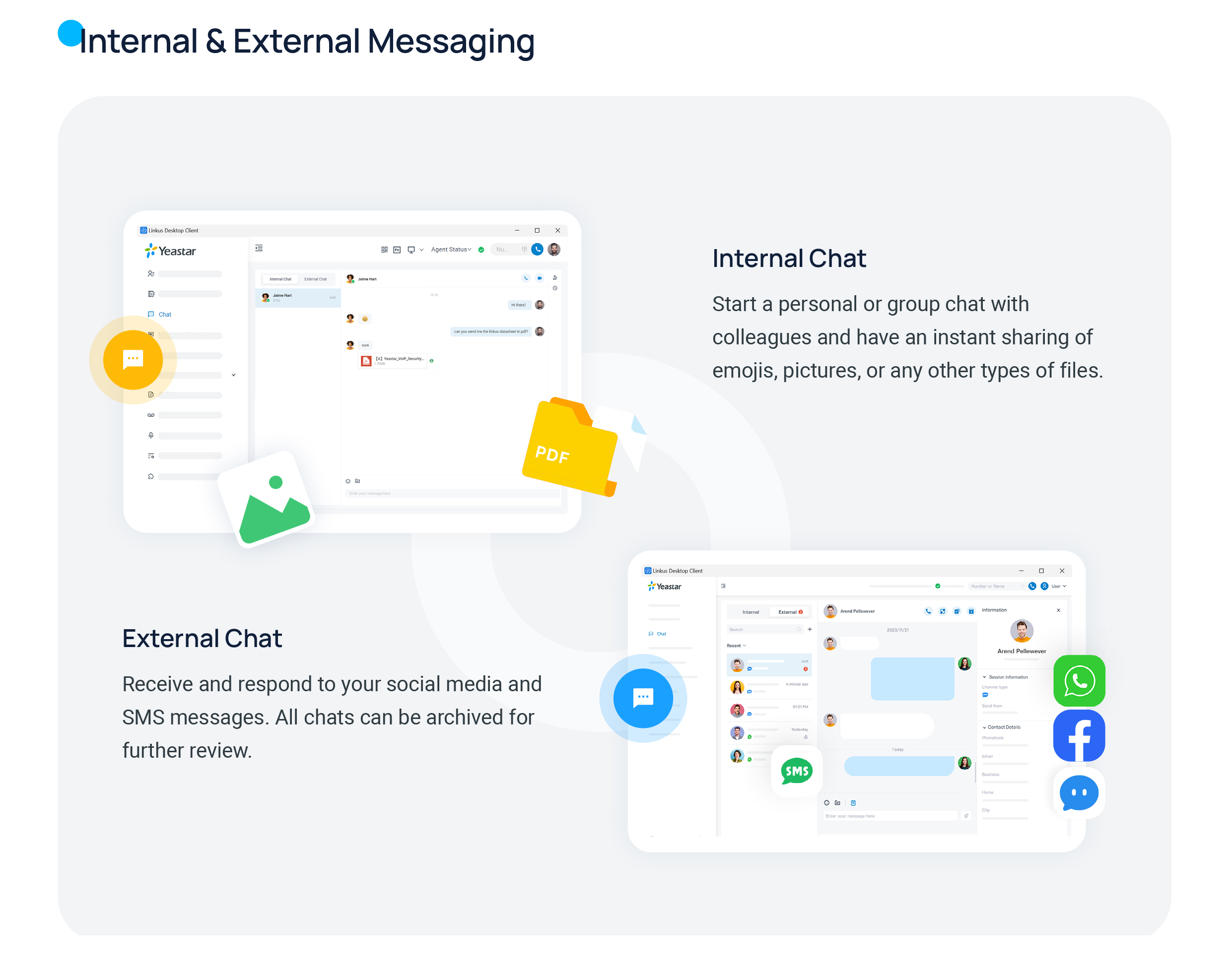
Section titled “Chat and share files”Send instant messages to individuals or groups, and drop files straight into the conversation to keep everyone working from the same information.

Work the call center
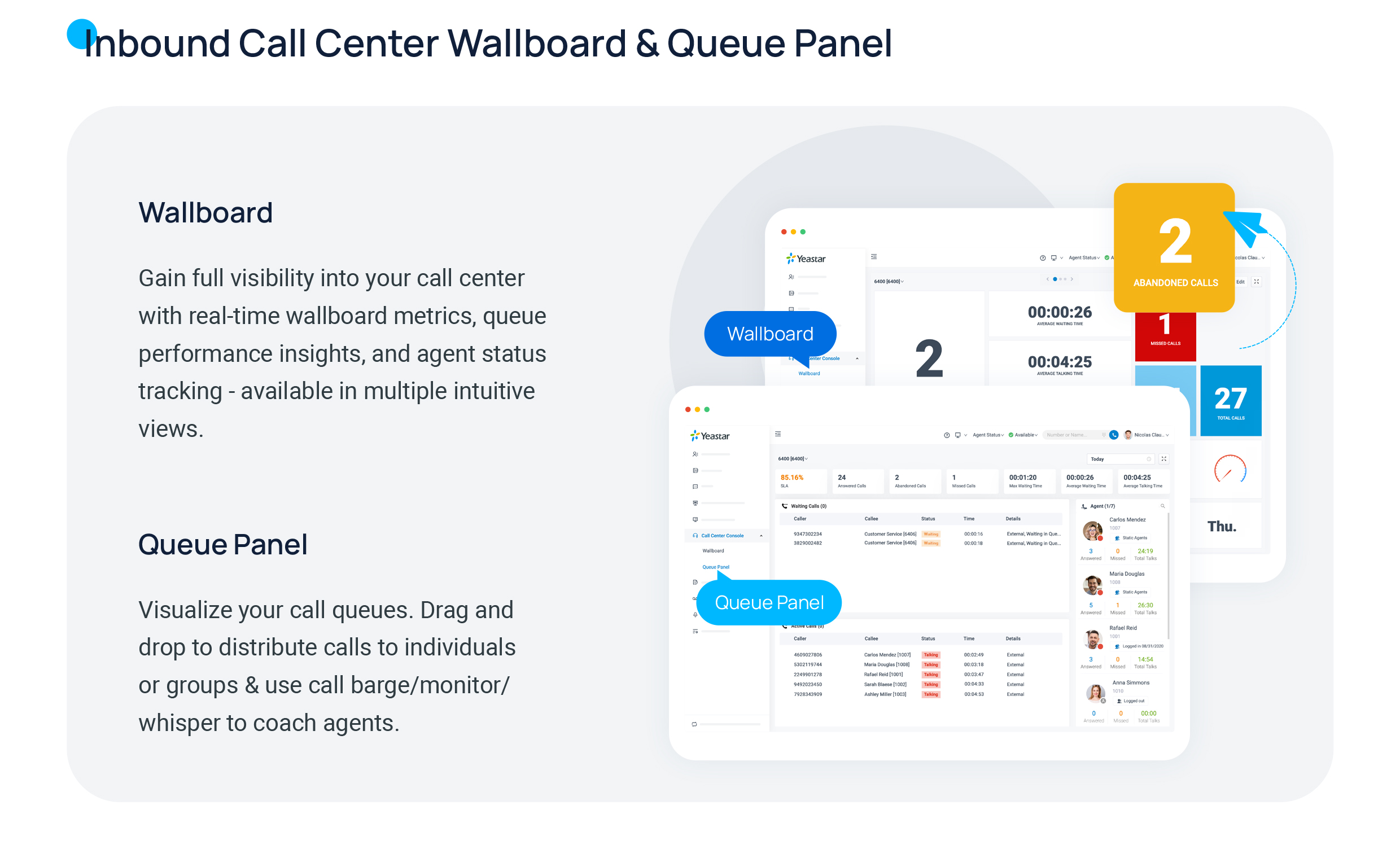
Section titled “Work the call center”If your role includes call center duties, the console gathers your queue calls alongside live monitoring, reporting, and call-handling tools.
Personalize the appearance
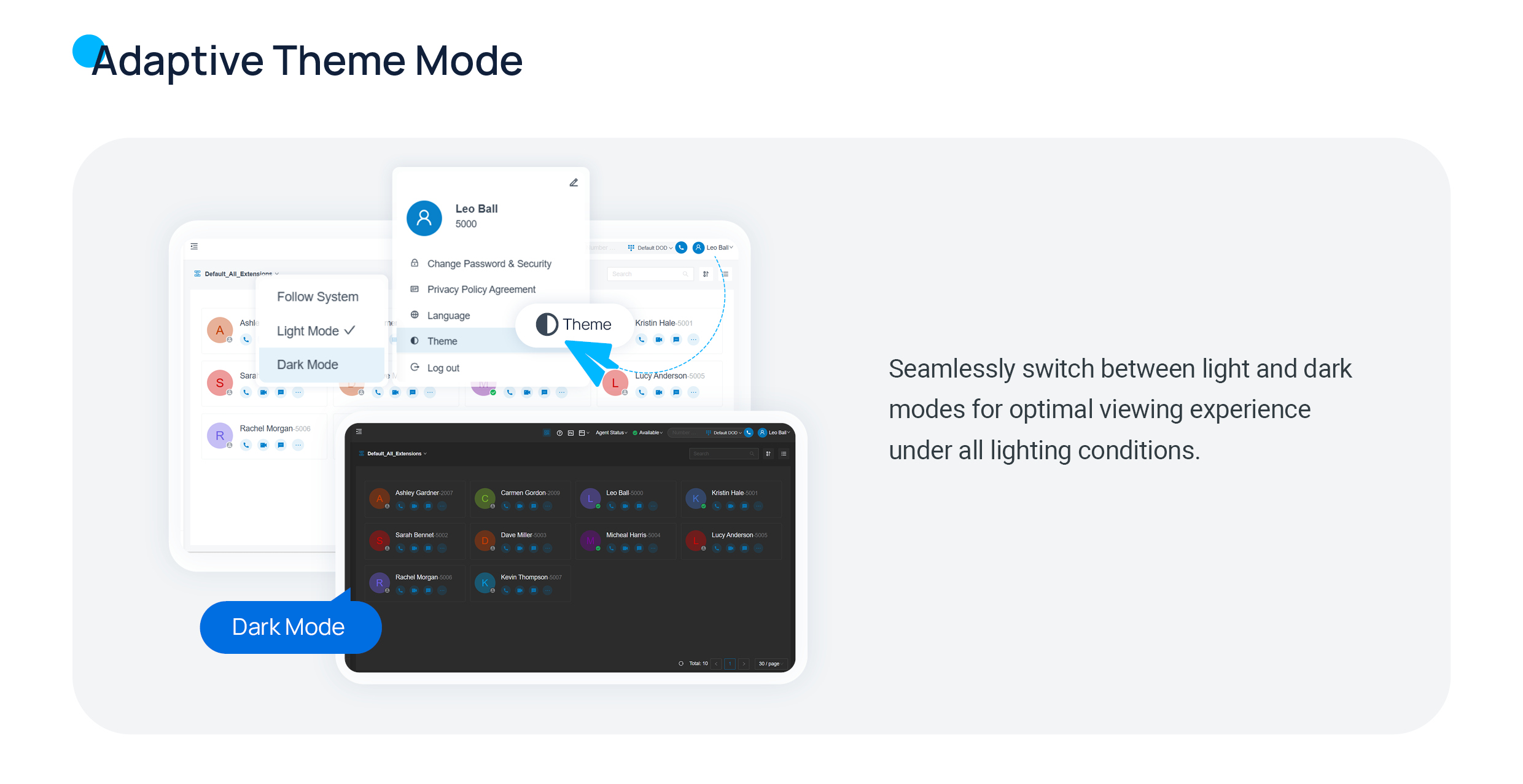
Section titled “Personalize the appearance”Adjust the app to suit your preferences, including switching between light and dark display modes to match your surroundings.
Connect your other tools
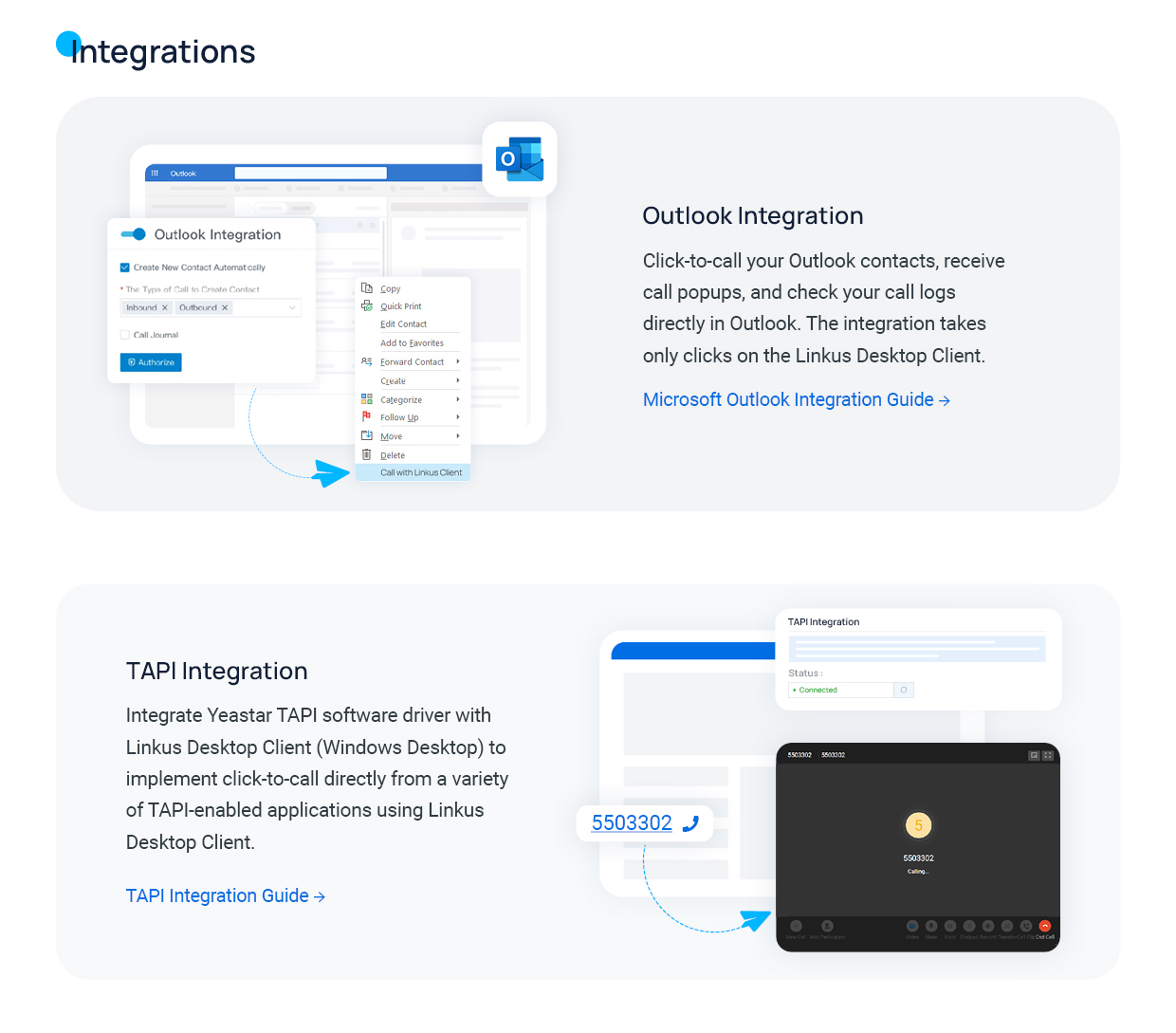
Section titled “Connect your other tools”The desktop client can work alongside the applications you already use:
- Microsoft Outlook integration matches incoming callers to your Outlook contacts and lets you dial a contact straight from Outlook, so you spend less time looking numbers up.
- TAPI integration connects the client through TAPI (Telephony Application Programming Interface), a Windows standard that lets other TAPI-aware programs place and control calls through your extension.
Question about this page?
Ask the AI assistant. It starts from this page, then searches the rest of the docs.
Ask Cloud Voice AI
Answers are AI-generated from the docs and may contain mistakes. Verify with the linked pages.