
Add Multiple Accounts to the Cloud Voice App
If you use more than one extension for work, you can keep each account signed in to the Cloud Voice App at the same time and jump between them on demand. An extension is your internal phone identity on the phone system (the number colleagues dial to reach you). Keeping several extensions signed in saves you from logging out and back in every time you change roles or desks. The steps below apply to the mobile client.
Add an account
Section titled “Add an account”-
On the Calls screen, tap your account name in the top-left corner.
-
Open Account Management.
-
Tap Add Account.
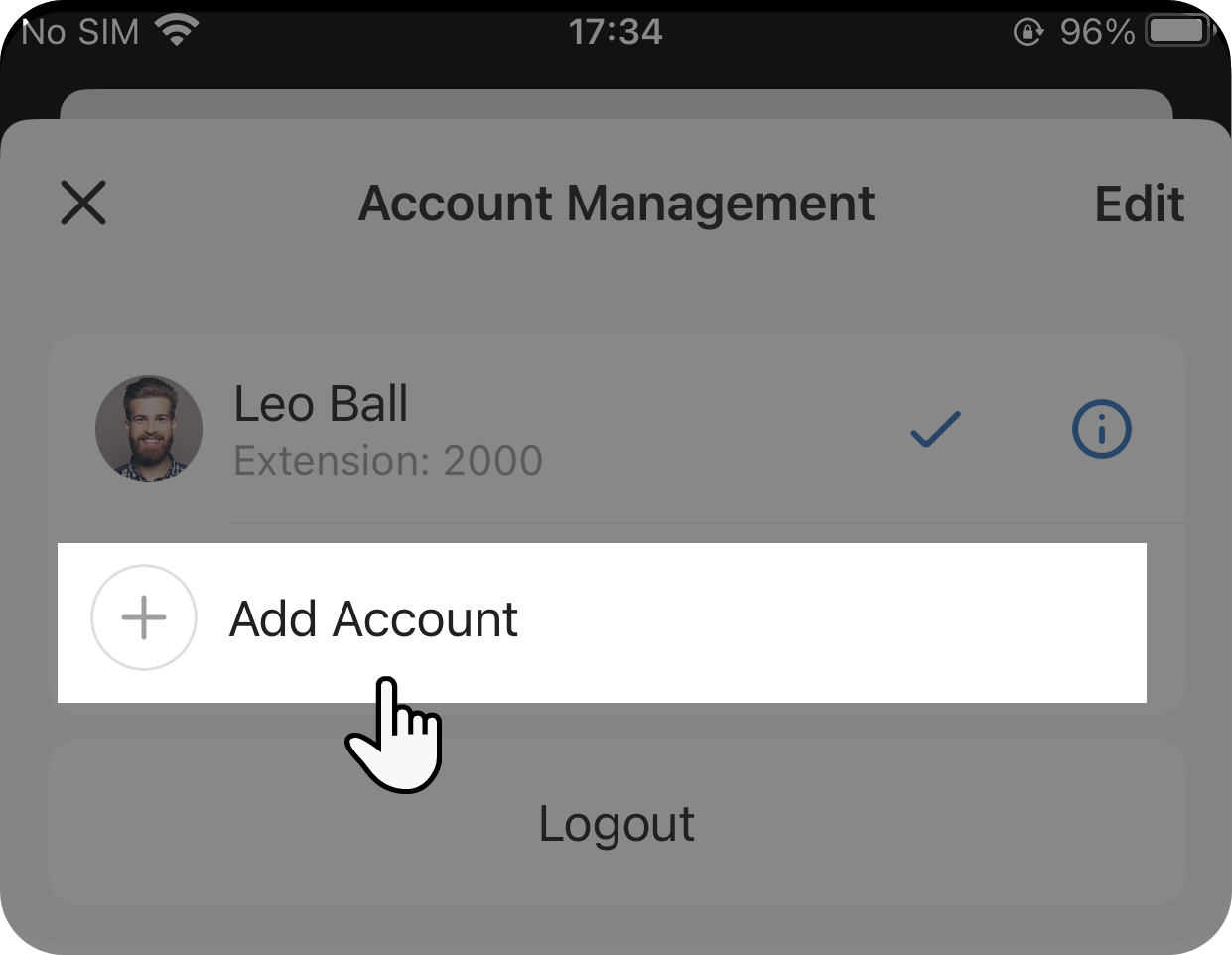
The app opens the Cloud Voice App sign-in page.
Result
Section titled “Result”Once you finish signing in:
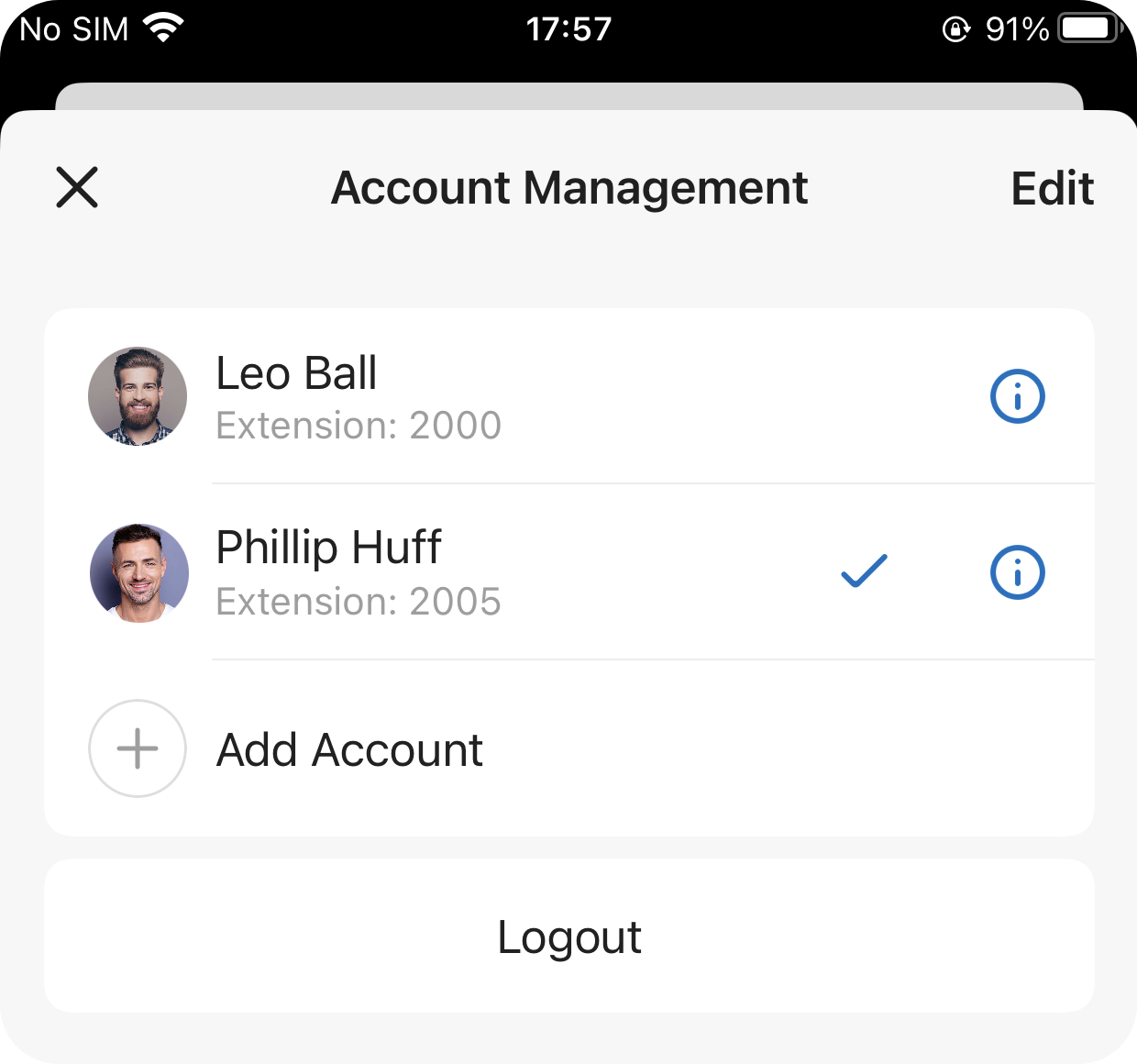
- You are now active on the newly added account.
- Every account you have added appears in the list on the Account Management screen, ready for you to switch to at any time.
Question about this page?
Ask the AI assistant. It starts from this page, then searches the rest of the docs.
Ask Cloud Voice AI
Answers are AI-generated from the docs and may contain mistakes. Verify with the linked pages.