
Add a Personal Contact
Personal contacts belong to you alone. They sync automatically across every Cloud Voice App you sign in to, and no one else in your organization can see them.
The Cloud Voice App gives you several ways to build your personal contact list:
- Add a contact manually
- Save a number from a call log, voicemail, or recording
- Copy a contact from your company directory
Add a contact manually
Section titled “Add a contact manually”-
In the Cloud Voice App, open Contacts.
-
In the top-left corner, click the
 icon, then choose Personal Contacts from the drop-down list.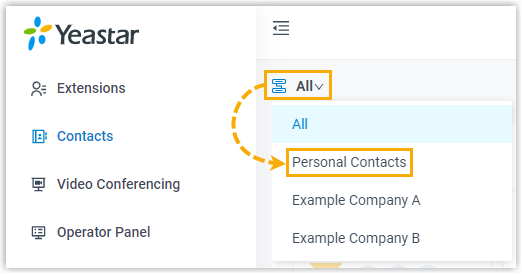
-
Click Add.
-
On the contact details page, fill in the contact’s information.
-
Click Save.
Save a number from a call log, voicemail, or recording
Section titled “Save a number from a call log, voicemail, or recording”When an unknown number shows up in your history, you can turn it into a personal contact without retyping it. The steps are the same whether you start from Call Logs, Voicemails, or Recordings.
- In the Cloud Voice App, open Call Logs, Voicemails, or Recordings.
- Right-click the entry you want to save.
- Do one of the following, depending on whether the contact already exists.
Create a new contact
-
Click Add New Contact. The contact details page opens with the number already added to the number list.
-
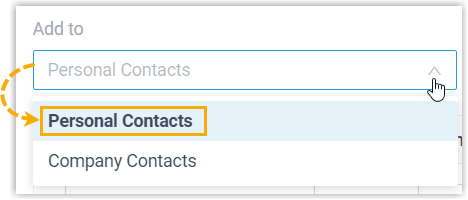
From the Add to drop-down list, select Personal Contacts.
-
Set the number type, then fill in the rest of the contact’s information as needed.
-
Click Save.
Add the number to an existing contact
-
Click Add to Existing Contact.
-
In the pop-up window, click the
icon in the top-left corner, then select Personal Contacts.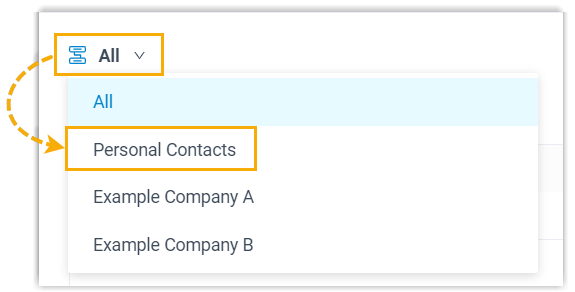
-
Find and select the contact you want, then click Confirm. The contact details page opens with the number added to the number list.
-
Adjust the type of the new number and update the contact’s details as needed.
-
Click Save.
Copy a contact from your company directory
Section titled “Copy a contact from your company directory”-
In the Cloud Voice App, open Contacts.
-
In the top-left corner, click the
icon, then select Company Contacts or the specific phonebook that holds the contact.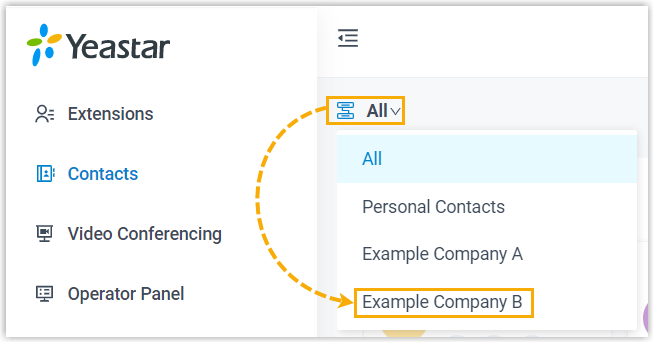
-
On the contact card, click the
 icon, then click Add to Personal Contacts. An “Added successfully” message confirms the contact is now in your Personal Contacts.
Question about this page?
Ask the AI assistant. It starts from this page, then searches the rest of the docs.
Ask Cloud Voice AI
Answers are AI-generated from the docs and may contain mistakes. Verify with the linked pages.