
Log in to the Cloud Voice App with an Active Directory Domain Account
When your administrator connects Cloud Voice to Active Directory (AD), you can sign in to the desktop app with your AD domain account directly, without a separate set of Cloud Voice credentials.
Before you begin
Section titled “Before you begin”Check the following before you sign in:
- Your administrator has integrated the server with Active Directory and turned on Single Sign-on (SSO).
- Your Cloud Voice App is running a supported version:
- Windows Desktop: 1.4.9 or later
- Mac Desktop: 1.4.9 or later
You also need the network details of the Cloud Voice server. Ask your administrator for them if you don’t already have them.
Sign in
Section titled “Sign in”Open the Cloud Voice App to the login screen, then follow the steps that match the network details you received.
Using a domain name
Section titled “Using a domain name”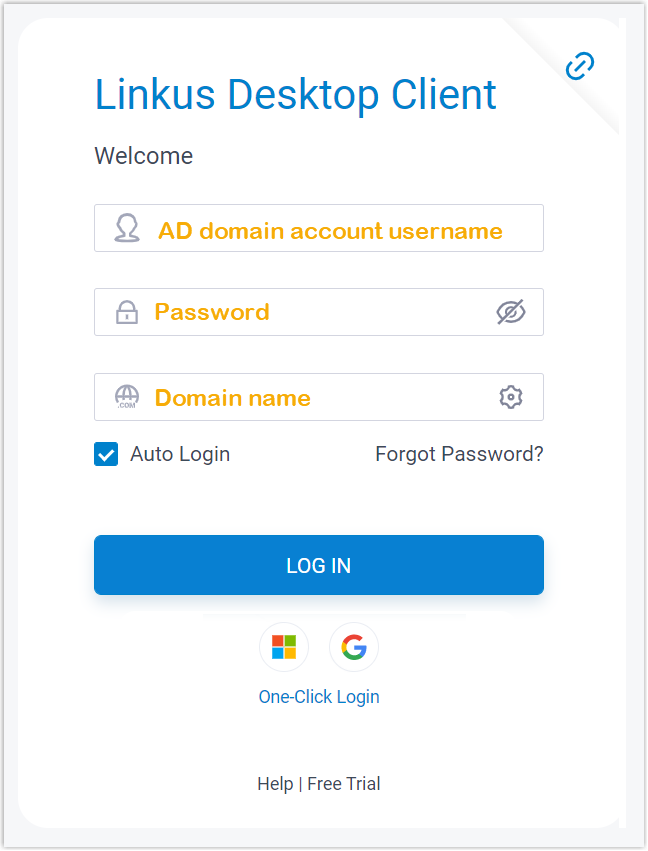
- In the Username field, enter your AD domain account, using the format
username@domainname. - In the Password field, enter the password for that account.
- In the SN/Domain field (SN is the server’s serial number), enter the domain name.
- Click Login.
Using IP addresses and ports
Section titled “Using IP addresses and ports”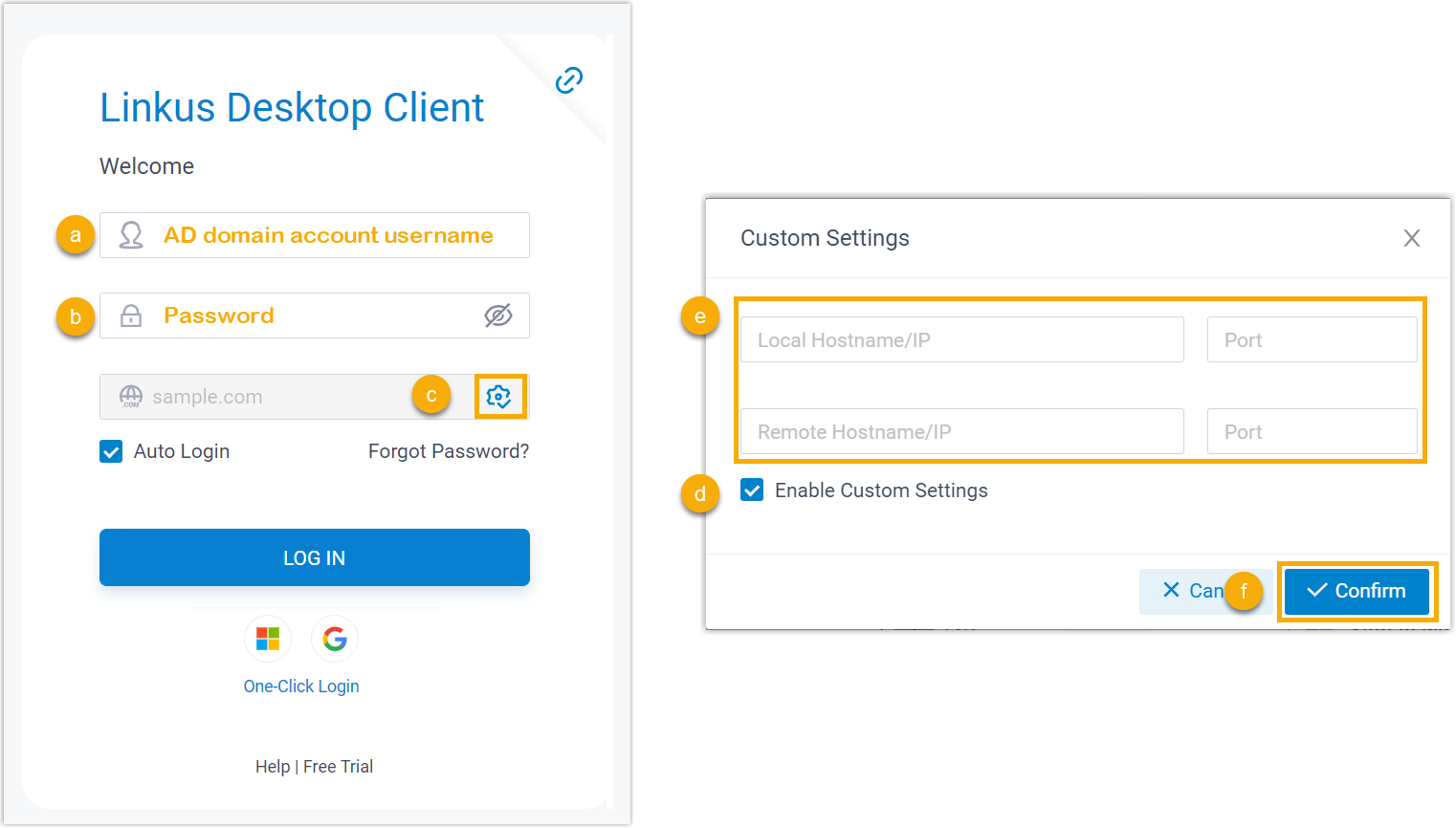
- In the Username field, enter your AD domain account, using the format
username@domainname. - In the Password field, enter the password for that account.
- Click the custom settings icon
 .
. - Select Enable Custom Settings.
- Enter the IP addresses and ports for the server.
- Click Confirm.
- Click Login.
Question about this page?
Ask the AI assistant. It starts from this page, then searches the rest of the docs.
Ask Cloud Voice AI
About
Answers are AI-generated from the docs and may contain mistakes. Verify with the linked pages.