
Choose Email Client
When you email call details for follow-up, whether during a call or after it ends, the Cloud Voice App desktop client does not send the message itself. It hands the message off to an email client (the app or web page that actually composes and sends the email) so you can review the draft and send it. This page shows you how to choose which email client it uses.
Before you begin
Section titled “Before you begin”Your PBX (Private Branch Exchange: the phone system server that routes your calls) must be running firmware version 84.21.0.66 or later.
Set your email client
Section titled “Set your email client”-
Sign in to the Cloud Voice App desktop client and open Preferences > Features > Call Follow-Up Via Email.
-
Open the Choose Email Client drop-down and pick the client you want to use to compose and send call details.
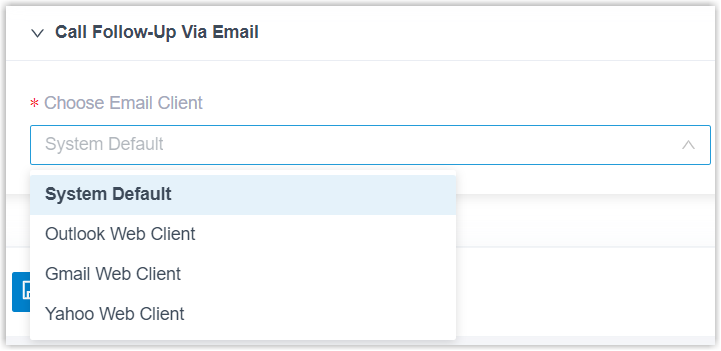
Option What it does System Default Uses whichever email client is set as the default in your computer’s operating system (usually a desktop mail app such as Outlook or Apple Mail). Outlook Web Client Composes and sends through the Outlook web client, opened in your browser. Gmail Web Client Composes and sends through the Gmail web client, opened in your browser. Yahoo Web Client Composes and sends through the Yahoo web client, opened in your browser. -
Click Save. Your selection does not take effect until you save it.
Result
Section titled “Result”Your choice applies to the Send Call Details to Email Addresses feature. From now on, every follow-up email you send is composed and delivered through the client you selected.
Question about this page?
Ask the AI assistant. It starts from this page, then searches the rest of the docs.
Ask Cloud Voice AI
Answers are AI-generated from the docs and may contain mistakes. Verify with the linked pages.