
Select Outbound Caller ID (DOD) to Call
The outbound caller ID a called party sees is set by a Direct Outward Dialing (DOD) number. In the Cloud Voice App you can decide which DOD to present: apply a single DOD to every outbound call, or pick a DOD individually for each call. This page covers how to arrange your available DODs and the different ways to choose one when you dial.
Before you begin
Section titled “Before you begin”To select outbound caller IDs from the Cloud Voice App, make sure the following are in place:
- Cloud Voice App (desktop): Version 1.6.0 or later.
- Platform: Cloud Voice must be running version 84.21.0.16 or later. This is maintained by IZT.
- Extension: Your administrator has granted your extension permission to select outbound caller IDs. If the DOD options described below are missing, ask your administrator to enable this.
Customize how your DODs appear
Section titled “Customize how your DODs appear”You can label each DOD assigned to your extension and change the order they appear in. These settings control how the DODs are listed throughout the Cloud Voice App.
-
In the Cloud Voice App, open Preferences > User > Outbound Caller ID (DOD).
Every DOD you are allowed to use appears in the list.
-
Adjust the entries as needed.
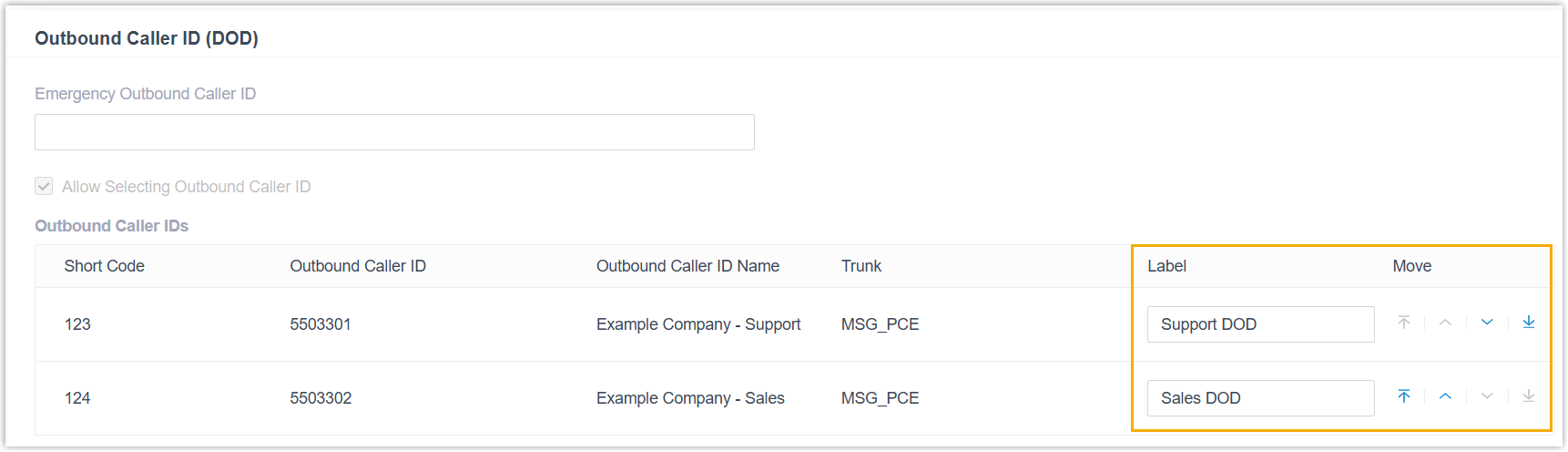
- Label: Add a short description for the number. For example, labelling DOD 5503301 as
Support DODmakes it show up as 5503301 (Support DOD) wherever DODs are listed in the Cloud Voice App. - Move: Use the reorder arrows next to an entry to move it up, down, to the top, or to the bottom of the list. The order here is the order the DODs appear in when you place a call.
- Label: Add a short description for the number. For example, labelling DOD 5503301 as
-
Click Save.
Choose which DOD to use when calling
Section titled “Choose which DOD to use when calling”Unless you choose otherwise, outbound calls use the default DOD your administrator configured. You can either fix one DOD for all your calls or select a DOD per call.
Use one DOD for all outbound calls
Section titled “Use one DOD for all outbound calls”Set a preferred DOD that stays in effect for every outbound call, using either of these methods.
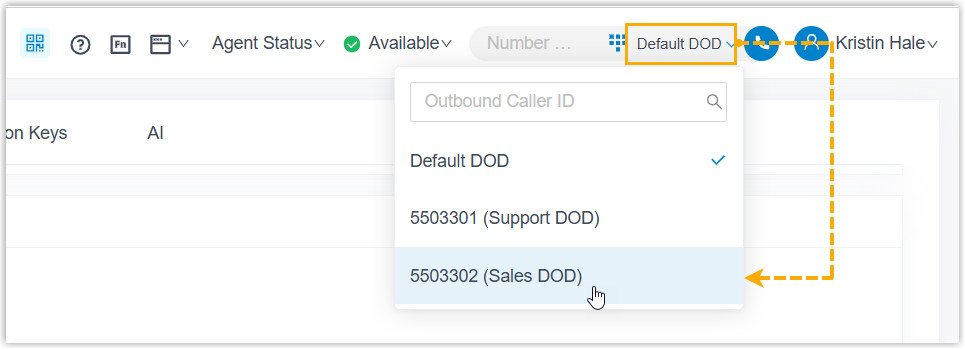
Select from the list
At the top-right corner, choose the DOD you want from the drop-down list beside the Dialpad. That number is then used for your outbound calls.
Dial a feature code
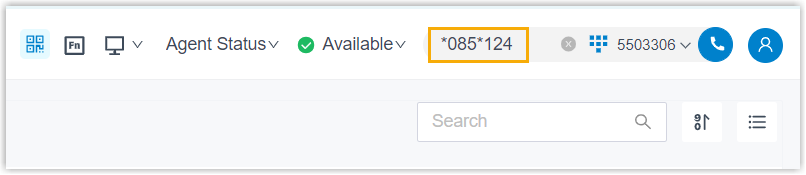
- On the Dialpad, enter the feature code followed by the short code (or the full DOD number). The format is
{dod_prefix_feature_code}*{short_code}/{specific_dod_number}, for example,*085*124or*085*5503302. The slash in the format means you enter one value or the other, not both, and you never type the slash itself. - Click the call button or press Enter.
Select a DOD for a single call
Section titled “Select a DOD for a single call”Pick a specific DOD just before you place one call, without changing your default. You can do this from the Contacts, Call Logs, Voicemails, or Recordings pages, or by dialing a feature code.
From the Contacts page
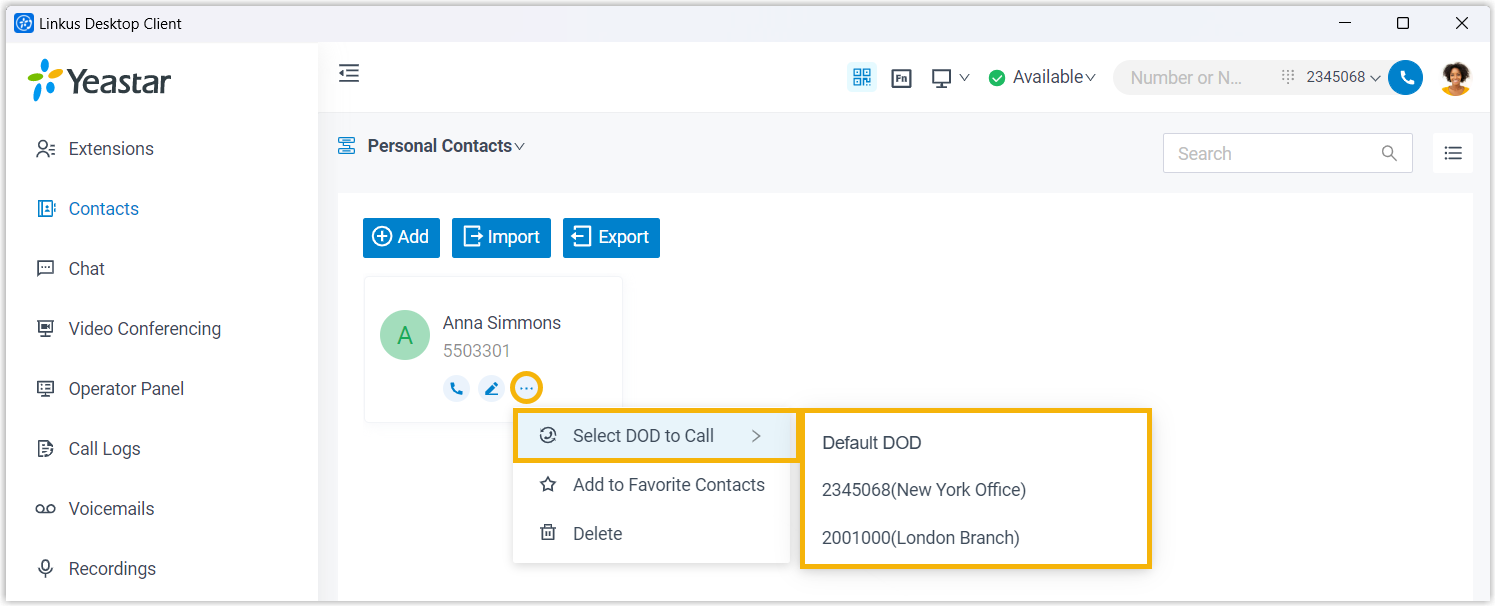
- Open Contacts and locate the contact you want to call.
- Click the more icon, then choose Select DOD to Call and pick the DOD number.
From the Call Logs, Voicemails, or Recordings page
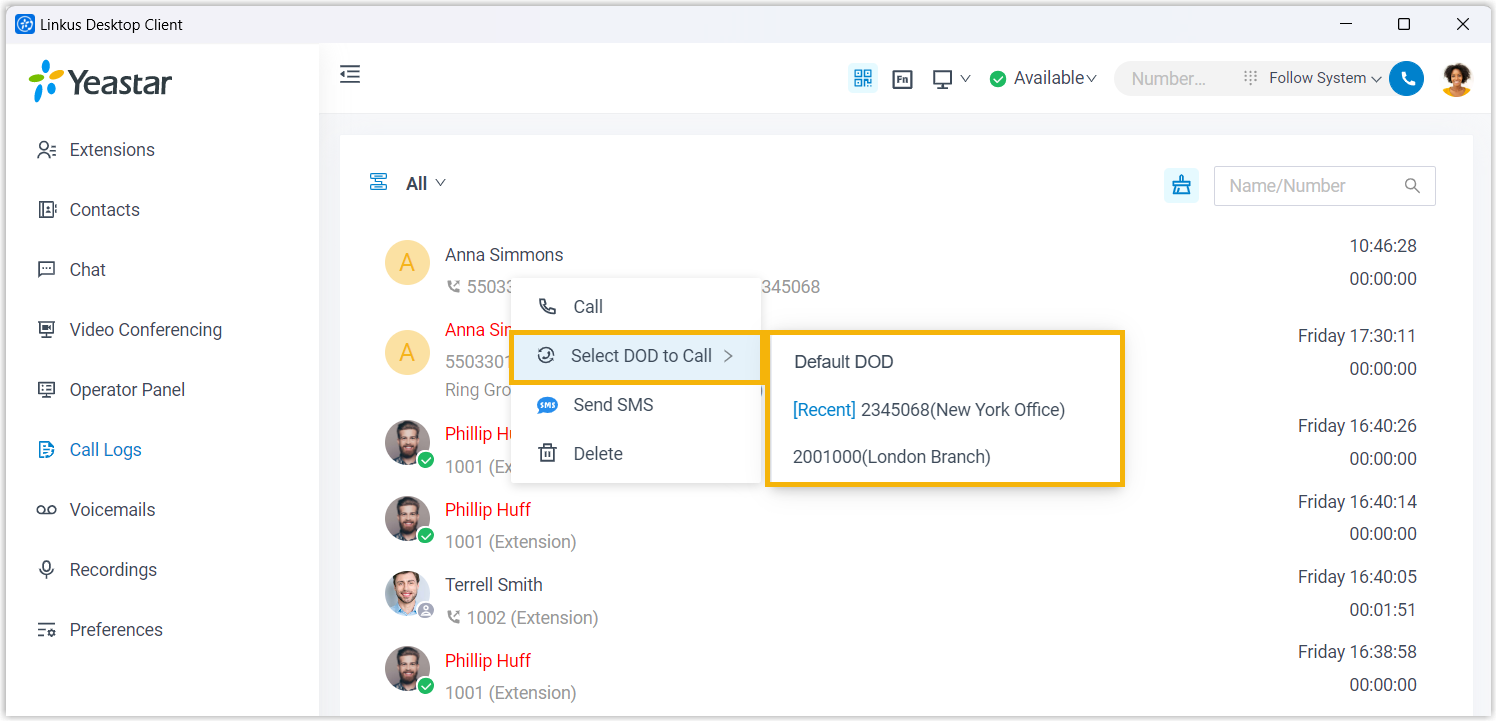
- Open Call Logs, Voicemails, or Recordings.
- Right-click the record you want to call back.
- Choose Select DOD to Call, then pick the DOD number.
Dial a feature code
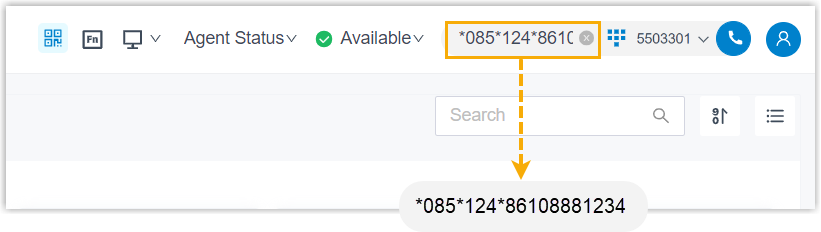
- Dial the feature code and the short code (or full DOD number), followed by the destination number. The format is
{dod_prefix_feature_code}*{short_code}/{specific_dod_number}*{destination_number}, for example,*085*124*861088881234or*085*5503302*861088881234. As above, the slash marks a choice between the short code and the full DOD number: enter just one and leave the slash out. - Click the call button or press Enter.
Question about this page?
Ask the AI assistant. It starts from this page, then searches the rest of the docs.
Ask Cloud Voice AI
Answers are AI-generated from the docs and may contain mistakes. Verify with the linked pages.