
Manage Chat Sessions
Your internal chat list can be managed in a few different ways depending on what you want to keep. You can hide a conversation without touching its messages, wipe a window on your own device while leaving the record intact elsewhere, or erase a conversation everywhere for good. The sections below walk through each option.
Remove a chat session from the list
Section titled “Remove a chat session from the list”If a conversation is cluttering your internal chat list, you can take it off the list without losing any messages.
-
Sign in to the Cloud Voice App.
-
In the left navigation bar, click Chat, then open the Internal Chat tab.
-
Right-click the conversation you want to hide and choose Remove.
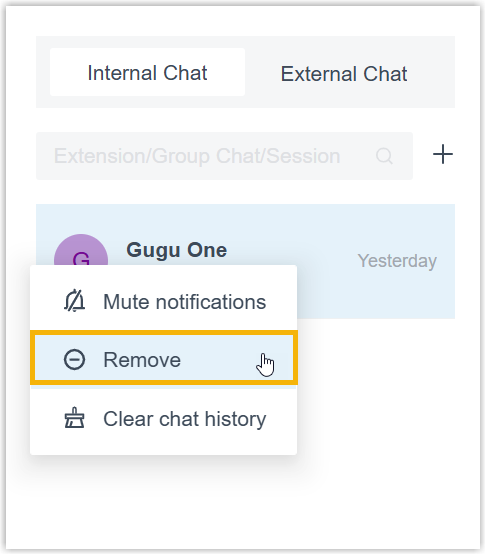
-
Confirm by clicking OK in the dialog that appears.
The session drops off your list. The next time you message that contact, or they message you, the conversation returns to the list with all of its earlier history still in place.
Clear local chat history for a chat session
Section titled “Clear local chat history for a chat session”Use this when you want to empty a chat window on your device but keep the ability to look the messages up again later.
-
Sign in to the Cloud Voice App.
-
In the left navigation bar, click Chat, then open the Internal Chat tab.
-
Clear the window as follows:
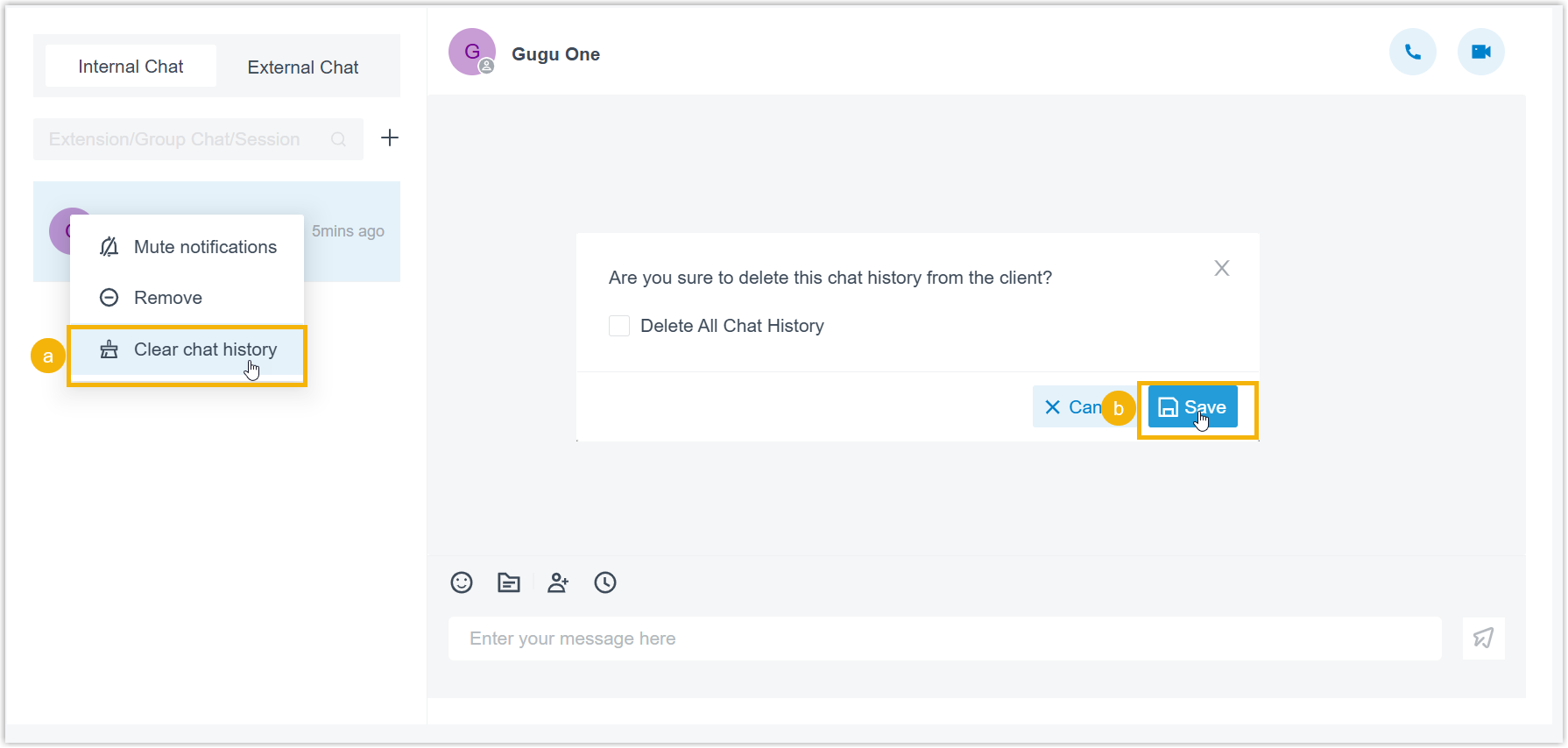
a. Right-click the conversation and choose Clear chat history.
b. Click OK in the confirmation dialog. The messages in the current chat window are removed.
Permanently delete chat history for a chat session
Section titled “Permanently delete chat history for a chat session”When privacy or security calls for it, you can wipe a conversation’s entire history so that nothing remains.
-
Sign in to the Cloud Voice App.
-
In the left navigation bar, click Chat, then open the Internal Chat tab.
-
Delete the history as follows:
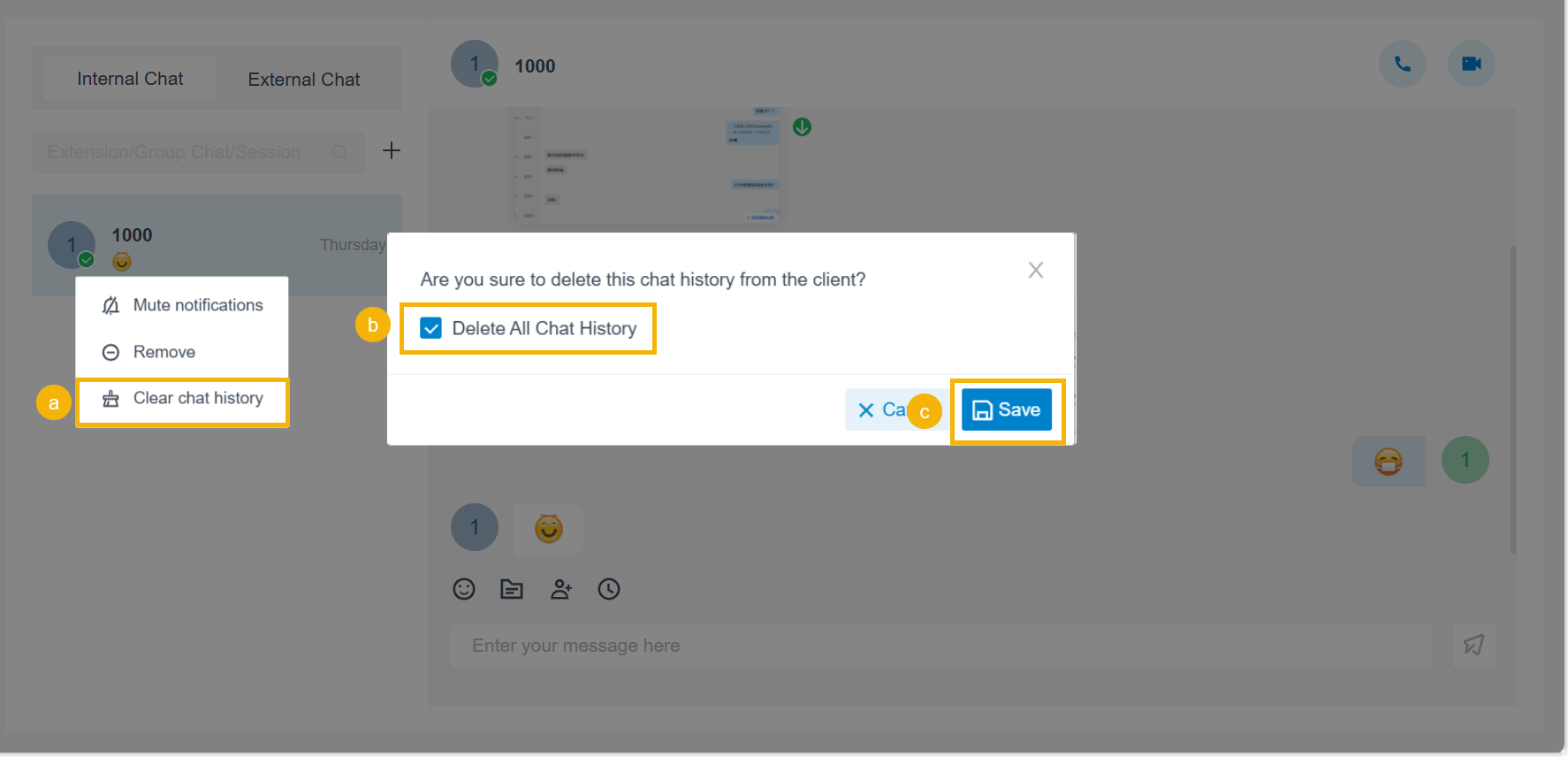
a. Right-click the conversation and choose Remove chat history.
b. Select the Delete All Chat History checkbox.
c. Click Save in the dialog to confirm.
Question about this page?
Ask the AI assistant. It starts from this page, then searches the rest of the docs.
Ask Cloud Voice AI
Answers are AI-generated from the docs and may contain mistakes. Verify with the linked pages.