
Check and Manage Voicemails
The Cloud Voice App keeps all of your voicemails in one place on your phone, so you can play them back, read a transcript, mark them read or unread, pass them along to a colleague, or clear them out. This page walks through each of those actions.
Open your voicemail list
Section titled “Open your voicemail list”On the Cloud Voice App, tap Calls, then open the Voicemail tab.
Filter by read status
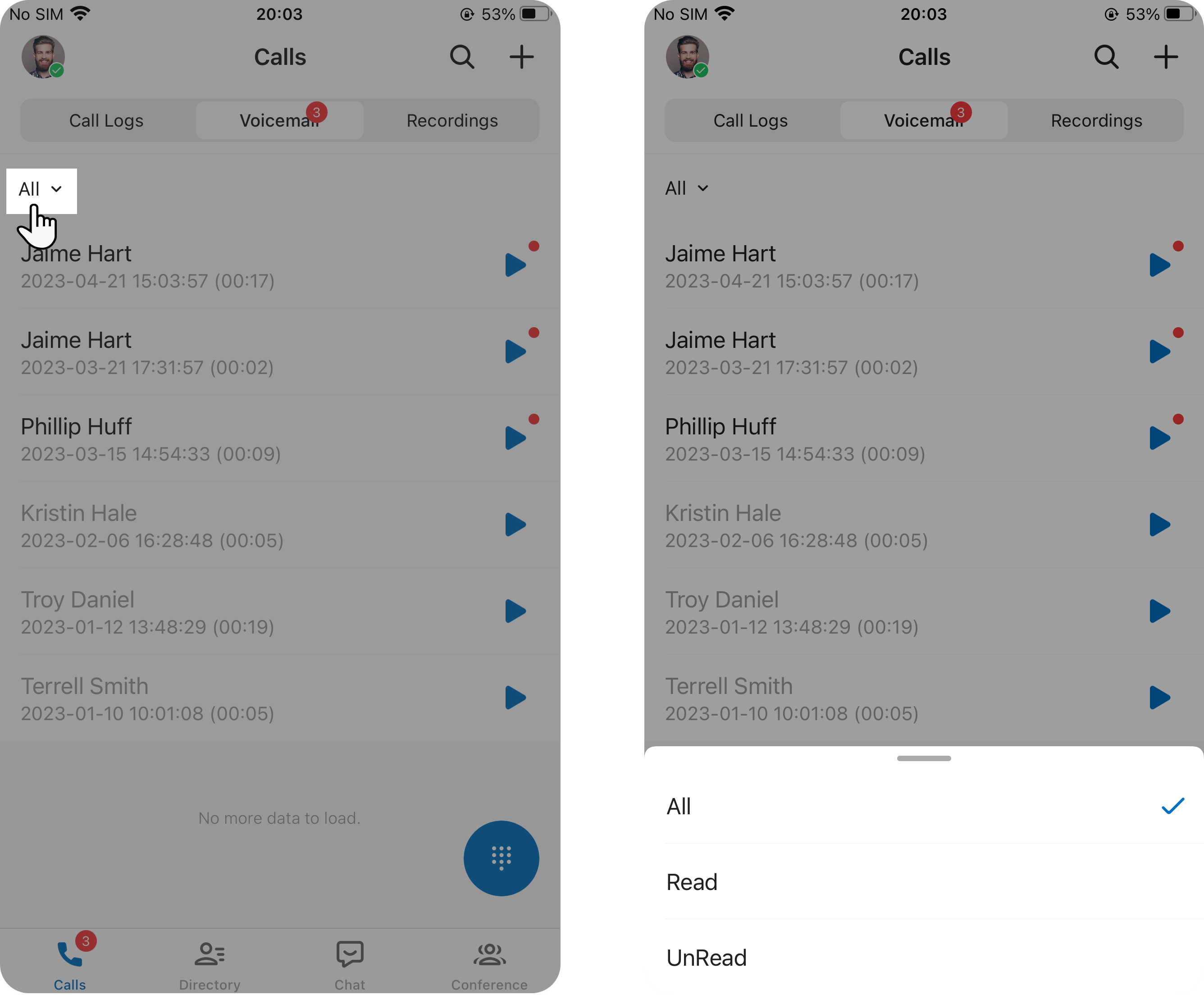
Section titled “Filter by read status”To narrow the list, tap the filter control in the top-left corner and choose a read status. This is helpful when you only want to see new messages or review ones you have already heard.
Work with a voicemail
Section titled “Work with a voicemail”From the list you can play a message, read and edit its transcript, change whether it is marked read, forward it, or delete it.
Play a voicemail
Section titled “Play a voicemail”Tap  next to the message to listen to it. Playing an unread voicemail marks it as read.
View and edit a transcript
Section titled “View and edit a transcript”-
Tap the voicemail you want to read.
-
In the panel that expands, tap
 . The transcribed text appears in the text box beneath the message, and an unread voicemail is marked as read.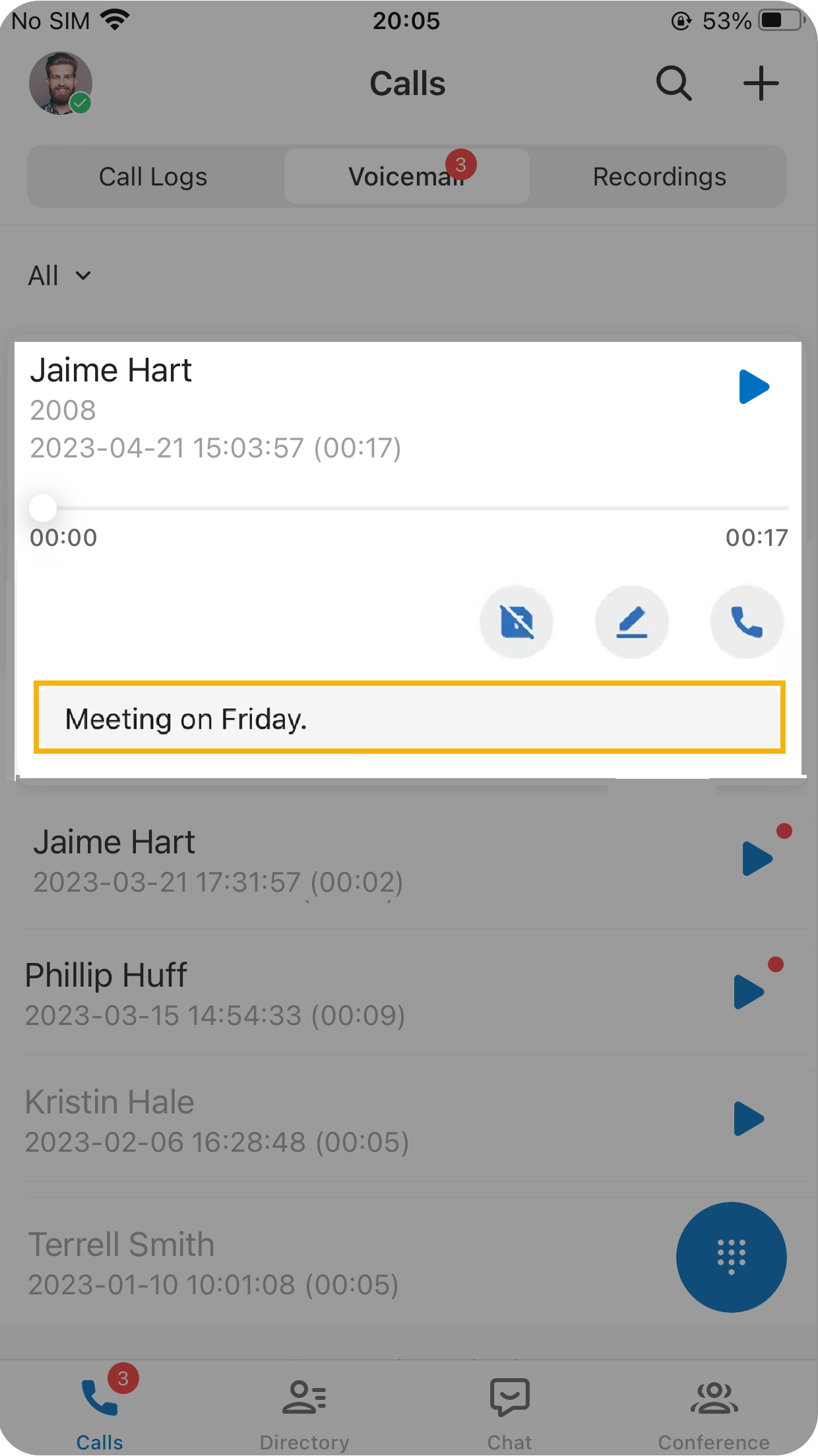
-
To correct the transcript, tap
 and make your changes.
 -
Tap Save in the top-right corner.
Change the read status
Section titled “Change the read status”-
Press and hold the voicemail you want to update.
-
In the pop-up menu, tap Unread or Read. Unread messages carry a red dot (
 ); read messages appear grayed out.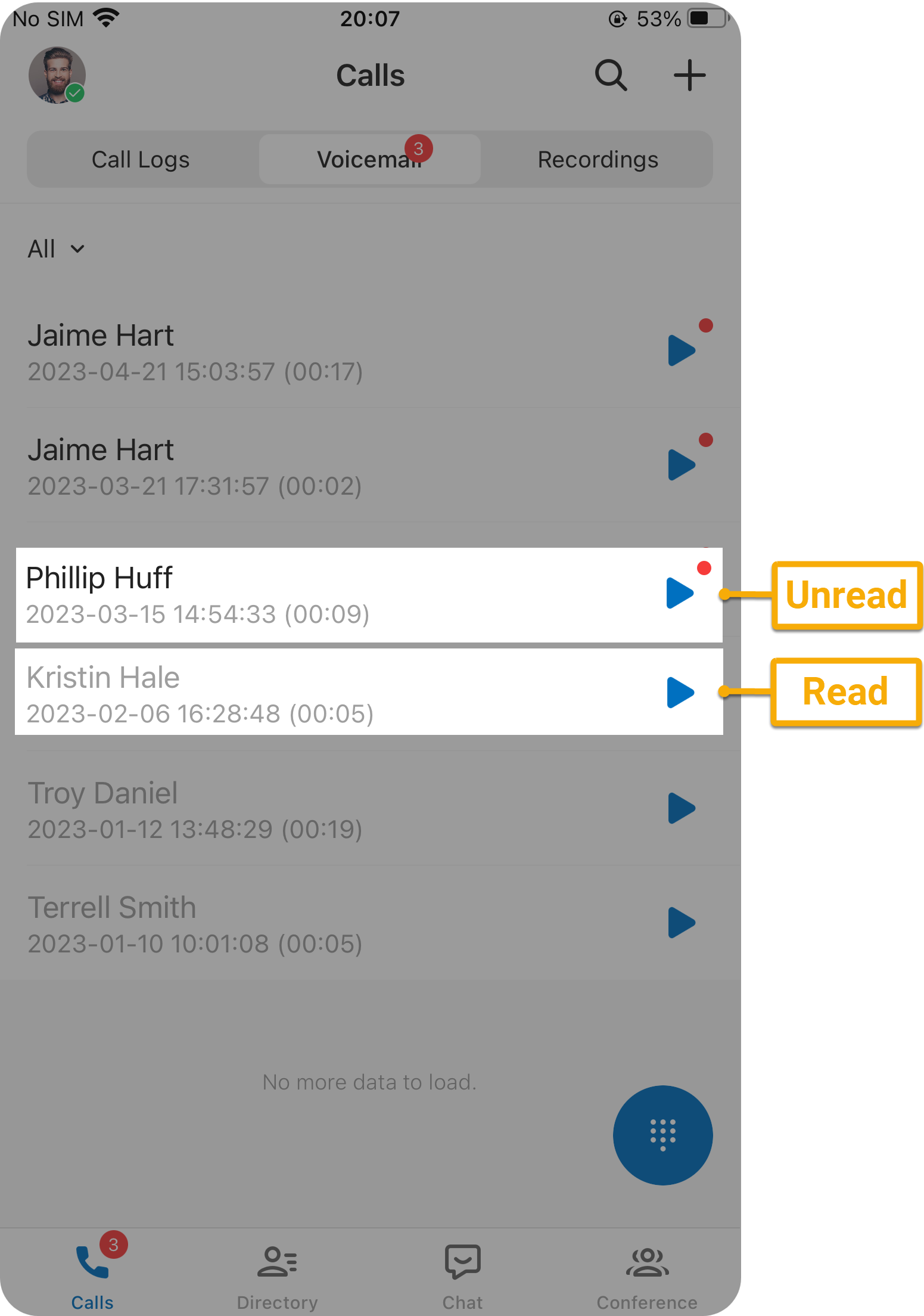
Forward a voicemail
Section titled “Forward a voicemail”- Press and hold the voicemail you want to send.
- In the pop-up menu, tap Forward.
- From the extension list, choose one or more recipients.
- Tap OK at the bottom. A “Voicemail forwarded successfully.” confirmation appears. Your copy stays in your voicemail list, and you can keep managing it as usual.
Delete a voicemail
Section titled “Delete a voicemail”- Press and hold the voicemail you want to remove.
- In the pop-up menu, tap Delete.
Question about this page?
Ask the AI assistant. It starts from this page, then searches the rest of the docs.
Ask Cloud Voice AI
Answers are AI-generated from the docs and may contain mistakes. Verify with the linked pages.