
Manually Switch Presence
Your presence controls how incoming calls are handled and how coworkers see your availability. You can change it yourself at any time, either setting a fixed status that stays until you change it again, or a temporary status that reverts automatically after a period you define.
Switch to a fixed status
Section titled “Switch to a fixed status”A fixed status remains in effect until you manually select a different one. There are two ways to set it.
From the Cloud Voice App
Section titled “From the Cloud Voice App”- Sign in to the Cloud Voice App.
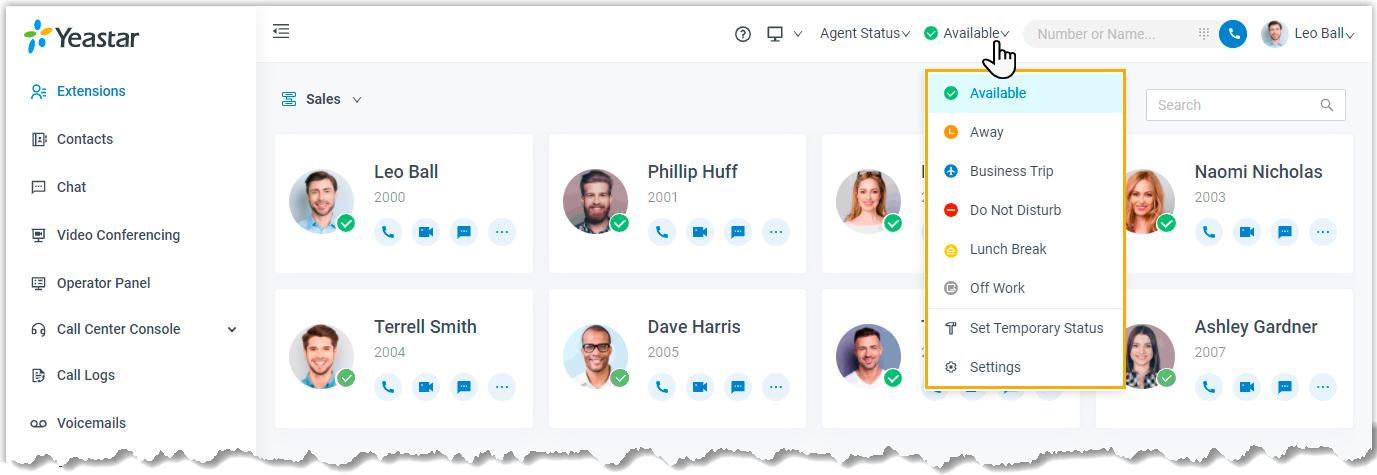
- In the top bar, open the Presence drop-down list and choose the status you want.
The presence settings tied to that status are applied immediately.
By dialing a feature code
Section titled “By dialing a feature code”Each presence status has its own feature code. On the dialpad, dial the code for the status you want to switch to.
Switch to a temporary status
Section titled “Switch to a temporary status”A temporary status is useful when you know exactly how long you will be unavailable. For example, if you are heading into a meeting and cannot take calls, you can route them to a fallback destination for the meeting’s duration and have your normal presence restored automatically afterward. This saves you from remembering to switch back.
Set the status
Section titled “Set the status”- Sign in to the Cloud Voice App.
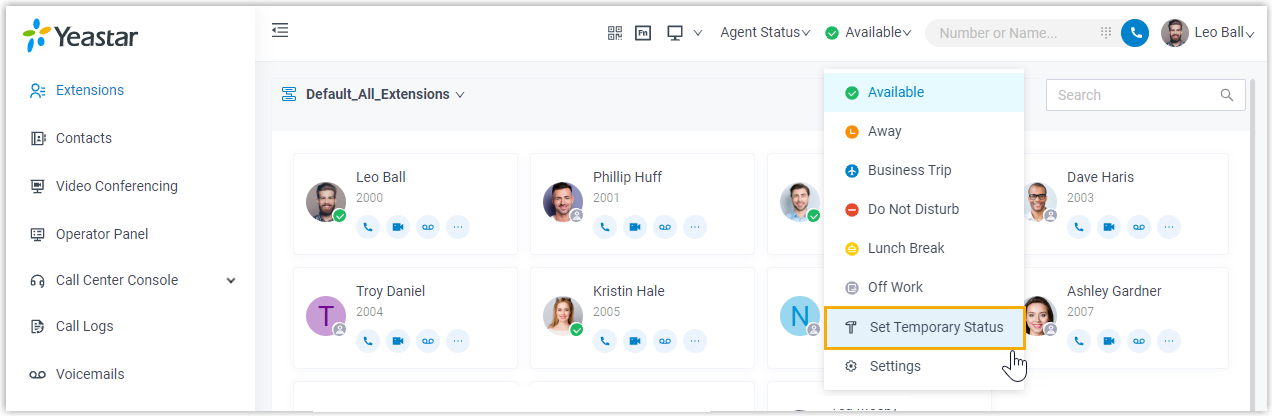
- In the top bar, open the presence drop-down list and select Set Temporary Status.
-
In the window that opens, fill in the following:
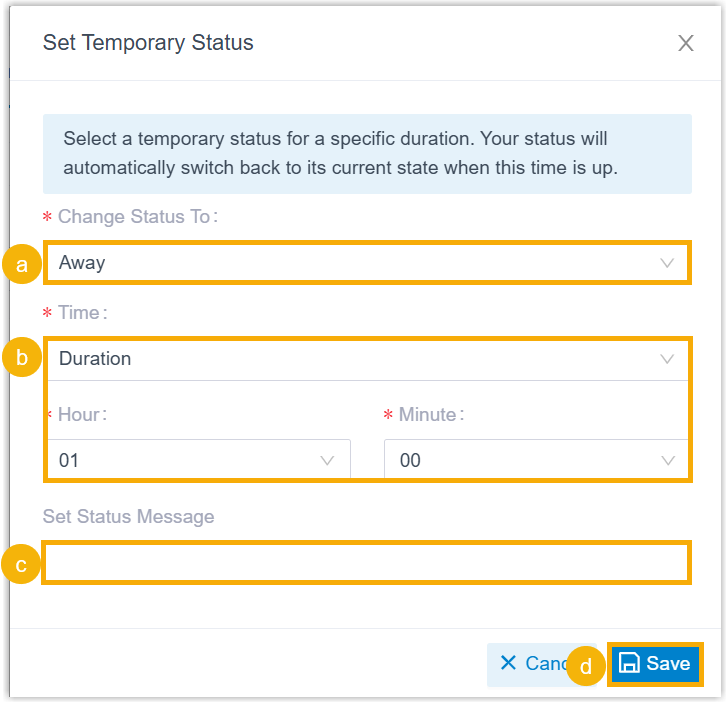
a. Under Change Status To, pick the temporary status you want to apply.
b. Under Time, choose how the status should expire:
- Duration: The status lasts for a set length of time. Set the length using the Hour and Minute drop-down lists.
- Date: The status lasts until a specific date and time. Set it in the Date field.
c. Optionally, add a personal note in the Set Status Message field.
d. Click Save.
The presence settings for the chosen status take effect right away.
Check when it expires
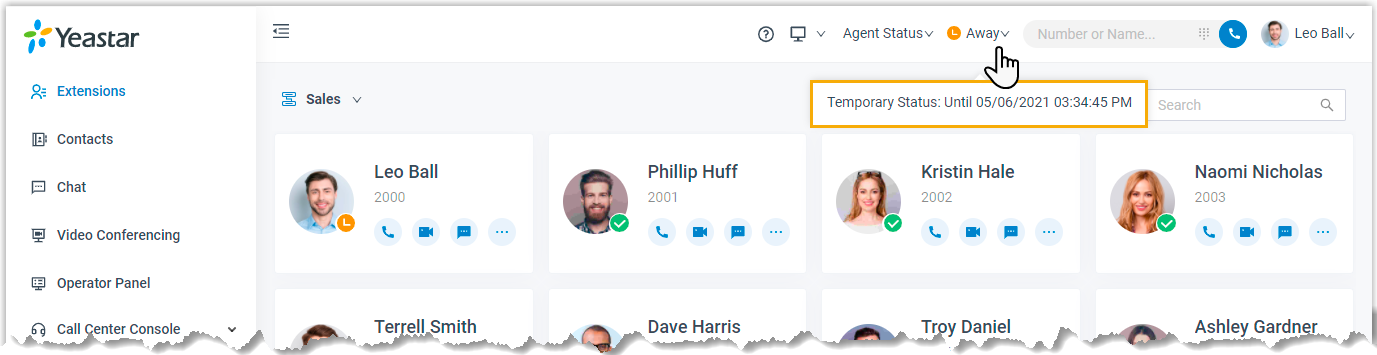
Section titled “Check when it expires”Hover over your presence in the top bar to see when the temporary status will end. At that point, your presence and its associated settings automatically return to whatever they were before.
Question about this page?
Ask the AI assistant. It starts from this page, then searches the rest of the docs.
Ask Cloud Voice AI
Answers are AI-generated from the docs and may contain mistakes. Verify with the linked pages.