
Manage Your Voicemails
The Voicemails page in the Cloud Voice App web client gathers all of your messages in one place, where you can play them back, read AI transcriptions, return calls, forward messages to colleagues, and tidy up your inbox.
Open your voicemails
Section titled “Open your voicemails”- Sign in to the Cloud Voice App web client.
- In the left navigation bar, click Voicemails.
Find a specific voicemail
Section titled “Find a specific voicemail”If your list is long, narrow it down before you start:
-
Choose the message status you want to see.
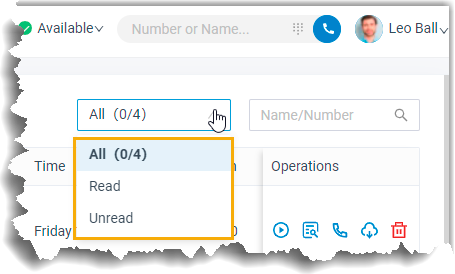
-
Type a caller’s name or number into the search bar.
Work with your messages
Section titled “Work with your messages”Each row represents one message. Use the actions below on any voicemail, either from its inline buttons or by right-clicking the row.
Play a message
Section titled “Play a message”Click the play icon  to listen. An unread message is marked as read once you play it.
Read a transcription
Section titled “Read a transcription”Click the transcript icon  or the AI transcription icon
  to see the message written out as text.
Call the caller back
Section titled “Call the caller back”Double-click a record, or click the call icon  , to dial the person who left the message.
Start a chat
Section titled “Start a chat”Right-click a record and choose Chat to message the caller.
Download a message
Section titled “Download a message”Click the download icon  to save the audio file to your device.
Forward messages to other extensions
Section titled “Forward messages to other extensions”Forwarding sends a copy to your colleagues; your own message stays in your list afterward, so you can keep managing it as usual.
One message
- Click the forward icon
 next to the message.
 - In the extension list that opens, select one or more extensions.
- Click OK in the lower-right corner.
Several messages at once
- Select the checkboxes of the messages you want to send.
- Click Forward in the top menu.
- In the extension list that opens, select one or more extensions.
- Click OK in the lower-right corner.
Mark messages as read
Section titled “Mark messages as read”Select the checkboxes of the messages you want, then click Mark as read.
Delete messages
Section titled “Delete messages”- One message: click the delete icon
 next to it, then click OK to confirm.
 - Several messages: select their checkboxes, click Delete in the top menu, then click OK to confirm.
Question about this page?
Ask the AI assistant. It starts from this page, then searches the rest of the docs.
Ask Cloud Voice AI
Answers are AI-generated from the docs and may contain mistakes. Verify with the linked pages.