
Send Call Details via Email
When you need to hand off or follow up on a call, the Cloud Voice App can package the call’s details, including the contact information, any call notes, and the AI call summary, into an email for you. You can trigger this while the call is still in progress or after it has ended.
Requirements
Section titled “Requirements”Your PBX (Private Branch Exchange, the phone system that routes your calls) server must be running firmware version 84.21.0.66 or higher.
Before you begin
Section titled “Before you begin”Choose the email client you want the Cloud Voice App to use, and make sure it is ready to send:
- For your operating system’s default email client, set that client as the system default and sign in to an account.
- For a web-based email client, open its web interface and sign in to an account.
Send the details
Section titled “Send the details”-
Open the email action that matches your situation.
During an active call:
-
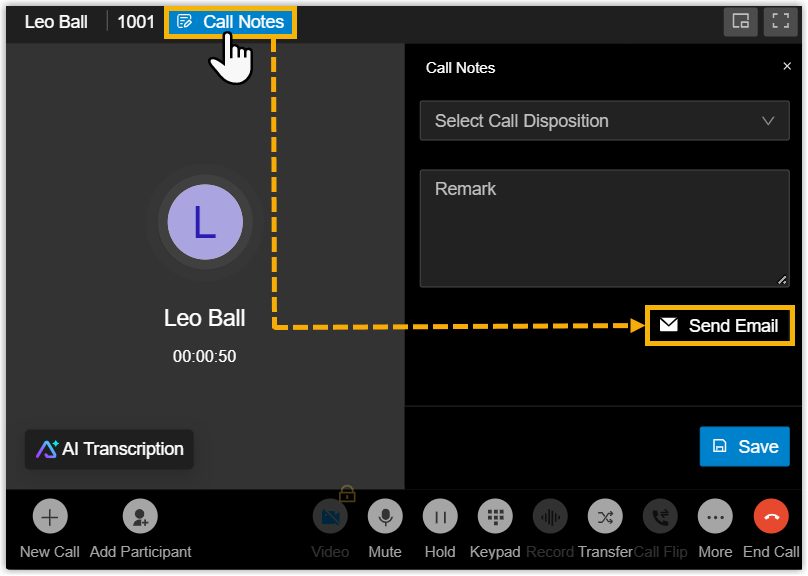
If call notes are enabled, open Call Notes and choose Send Email.
-
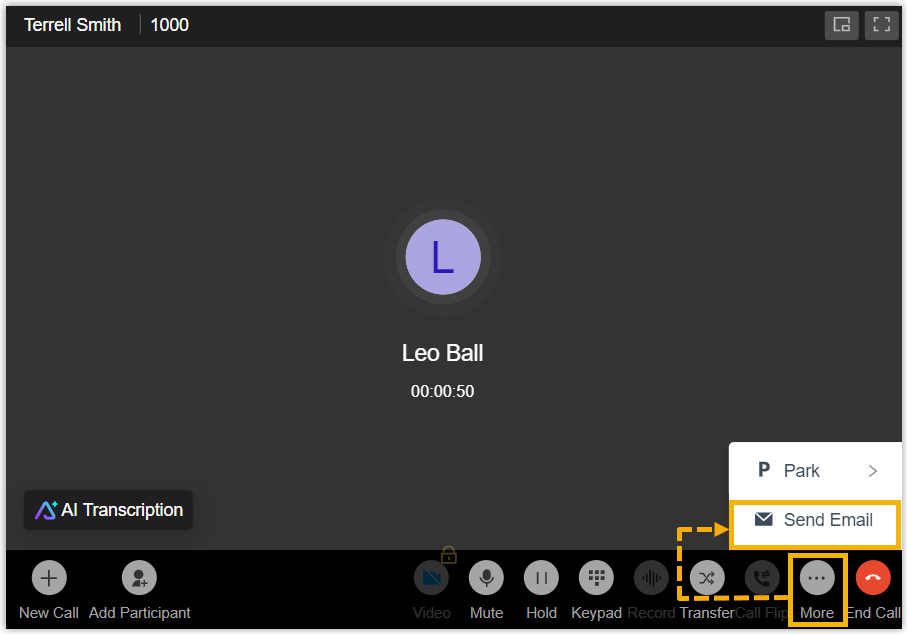
If call notes are not available, open More and choose Send Email.
After the call ends:
-
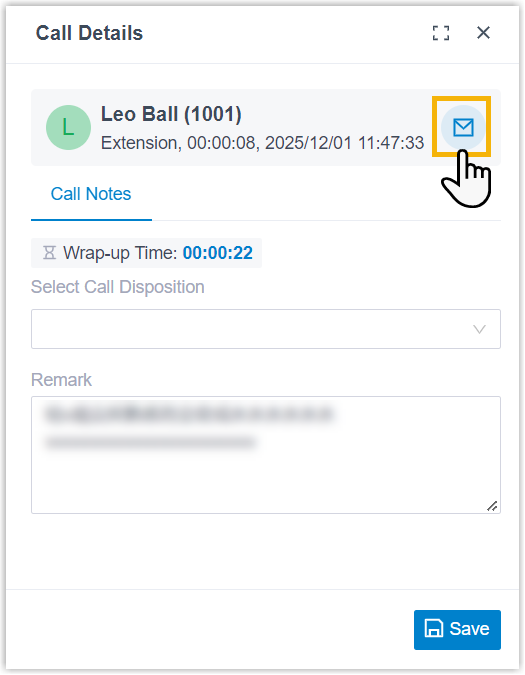
In the post-call pop-up, select the email icon
 .
.
-
In your call logs, select the email icon
next to the call you want to send.
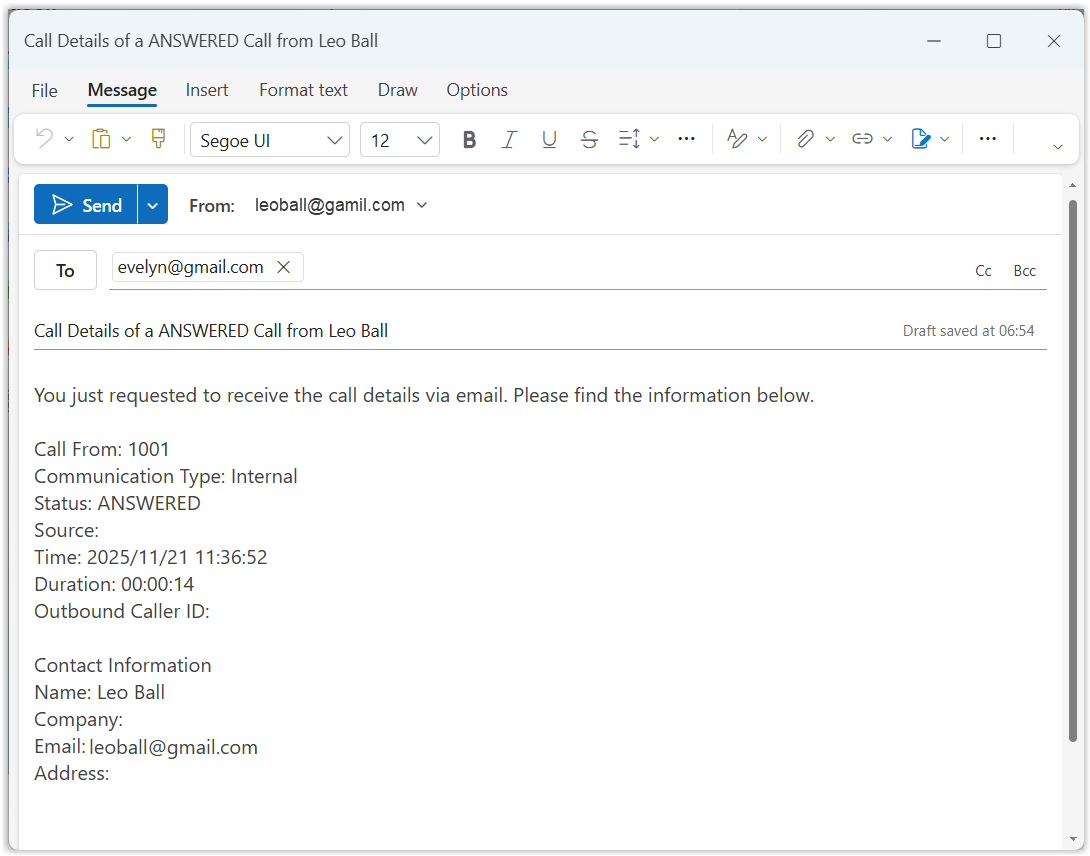
The Cloud Voice App opens your chosen email client, whether a desktop program or a web app, and drafts a new message that already contains a recipient address, a subject line, and a body filled in with the call details.
-
-
In the draft, add any additional recipients and adjust the subject or body as needed.
-
Select Send.
Result
Section titled “Result”The call details are delivered to the recipients you specified.
Question about this page?
Ask the AI assistant. It starts from this page, then searches the rest of the docs.
Ask Cloud Voice AI
Answers are AI-generated from the docs and may contain mistakes. Verify with the linked pages.