
Configure Theme Setting
Out of the box, the Cloud Voice App for desktop mirrors your operating system, showing a light or dark interface to match whatever your system is using at the time. If you would rather lock the app to one look, you can force it to stay in light or dark mode no matter what your system does. This setting only changes the app’s appearance, so it is safe to switch back and forth at any time.
Before you begin
Section titled “Before you begin”Confirm that both of the following are in place:
- Your system administrator has updated the phone system server to version 84.21.0.117 or newer.
- Your Cloud Voice App desktop version is 1.19.3 or newer.
Set the theme
Section titled “Set the theme”-
Open the desktop app’s settings. How you get there depends on your operating system:
-
Windows: Right-click the Cloud Voice App icon
 in the system tray and choose Settings. (The system tray is the row of small icons near the clock, usually at the bottom-right of the screen.)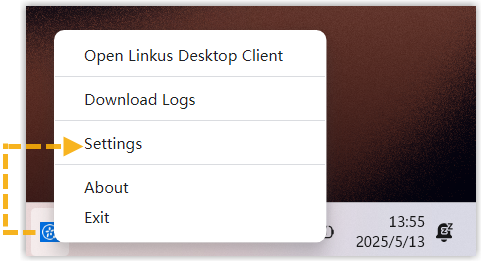
-
macOS: In the menu bar, click Cloud Voice App, then choose Settings. (The menu bar is the strip of menus along the top of the screen.)
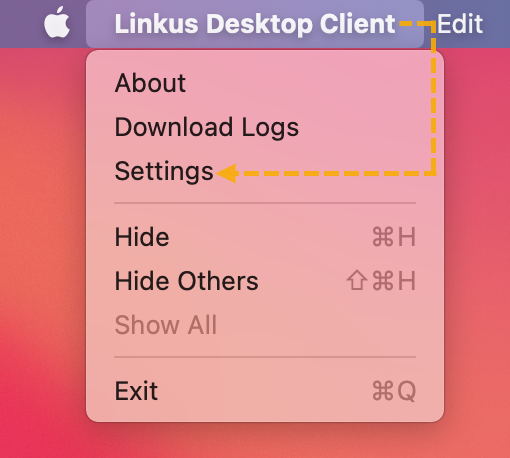
-
-
Open the Theme drop-down list and pick the mode you want:
Mode What it does Follow System Keeps the app in step with your operating system’s current theme. Light Mode Always shows the light theme. Dark Mode Always shows the dark theme.
Your choice takes effect right away, and the interface repaints in the colors for the mode you selected.
Question about this page?
Ask the AI assistant. It starts from this page, then searches the rest of the docs.
Ask Cloud Voice AI
Answers are AI-generated from the docs and may contain mistakes. Verify with the linked pages.