
Configure AI Call Transcription
AI (artificial intelligence) call transcription turns a two-party conversation into readable text and, once the call wraps up, produces a summary that pulls out the main points and any follow-up items. This page walks through enabling and tuning that feature from the Cloud Voice App on your phone.
Before you begin
Section titled “Before you begin”Confirm the following before you look for these settings:
- Your phone system is running firmware 84.20.0.74 or later.
- Your administrator has switched on Call Transcription for your extension.
- Your Cloud Voice App is current enough for your platform:
- iOS: 5.18.15 or later
- Android: 5.18.12 or later
Turn on transcription
Section titled “Turn on transcription”-
From the Calls page, tap your account icon in the top-left corner.
-
Open Settings > AI.
-
Under Call Transcription, adjust the options below to suit how you work.
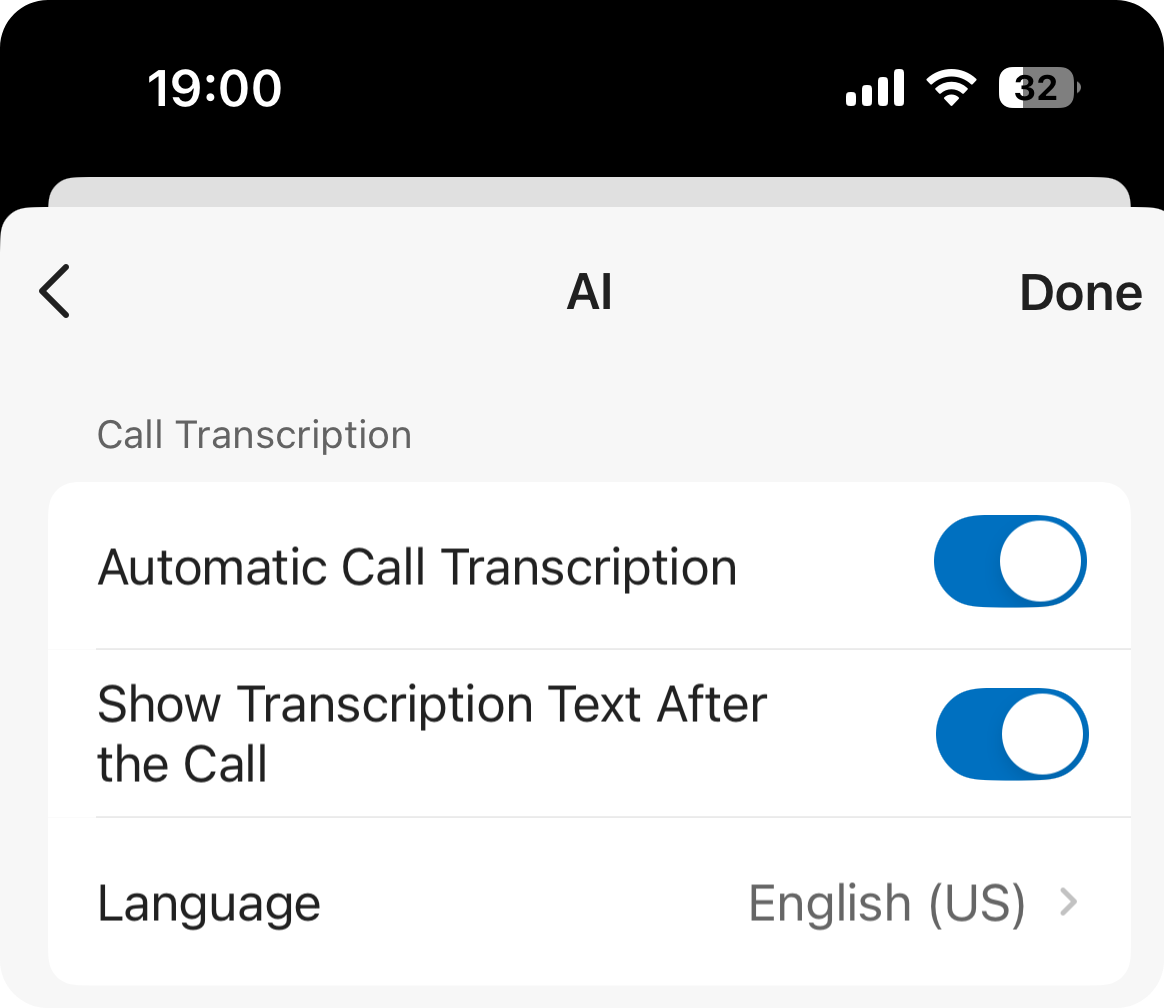
Setting What it does Automatic Call Transcription Decides whether your calls are transcribed live without any action from you. Leave it off if you would rather start transcription by hand on individual calls from the call screen. See Transcribe a Call. Show Transcription Text After the Call Decides whether the transcript and summary open automatically once the call ends. Language Sets the language the audio is transcribed into. -
Tap Done in the top-right corner.
What happens next
Section titled “What happens next”- During calls, audio is recognized and written out in your chosen language in real time, and a summary is generated once the call ends.
- The transcript and summary for any transcribed call stay in your call logs, so you can open them whenever you need to look back.
Question about this page?
Ask the AI assistant. It starts from this page, then searches the rest of the docs.
Ask Cloud Voice AI
About
Answers are AI-generated from the docs and may contain mistakes. Verify with the linked pages.