
Log in to the Desktop App with an Extension Account by Entering Credentials
Sign in to the Cloud Voice App for desktop by typing your extension credentials directly on the login page. Use this method when you have your username, password, and server domain on hand.
Before you begin
Section titled “Before you begin”Ask your system administrator for the following details:
- Your username
- Your password
- The domain name of your server
Log in
Section titled “Log in”-
Open the Cloud Voice App and, on the login page, fill in your credentials.
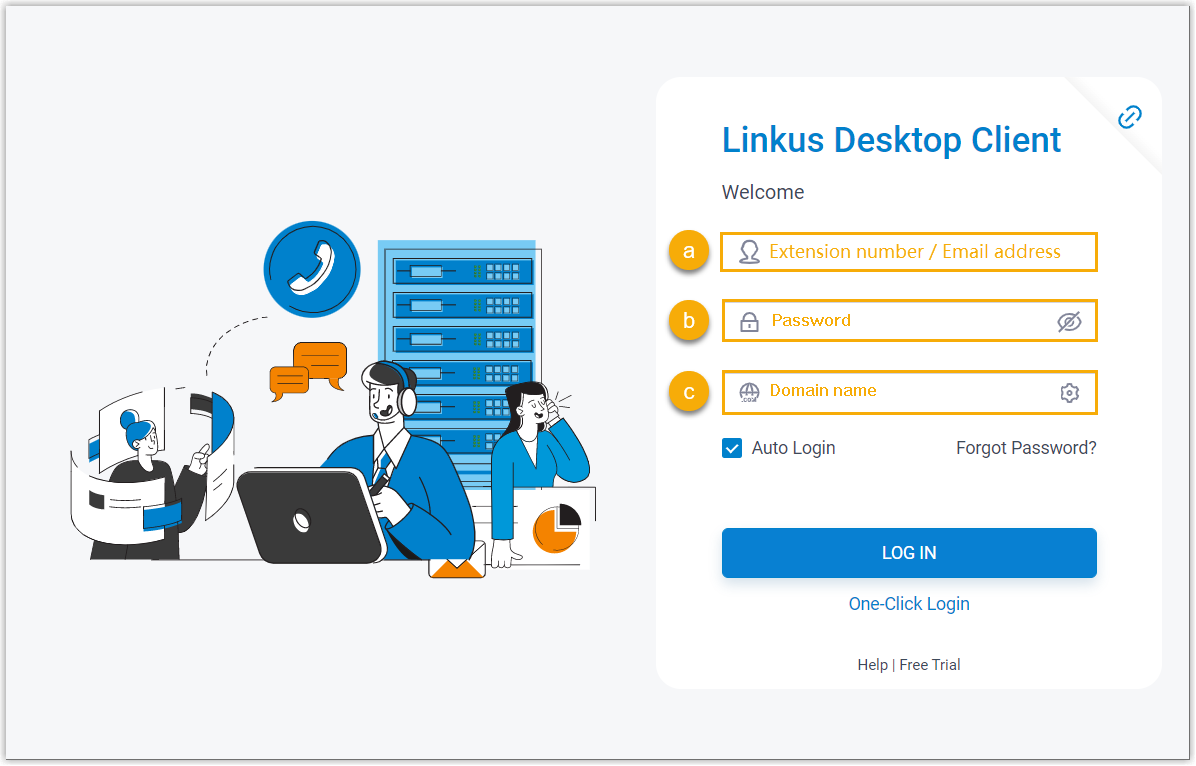
a. In the Username field, type your extension account username.
b. In the Password field, type the password that goes with that username.
c. In the Domain field, type your server’s domain name.
-
Optional: Turn the Auto Login option on or off to control whether the app signs you in to this account automatically the next time you open it.
-
Click LOG IN.
-
If you have configured two-factor authentication (2FA), supply an authentication code when prompted.
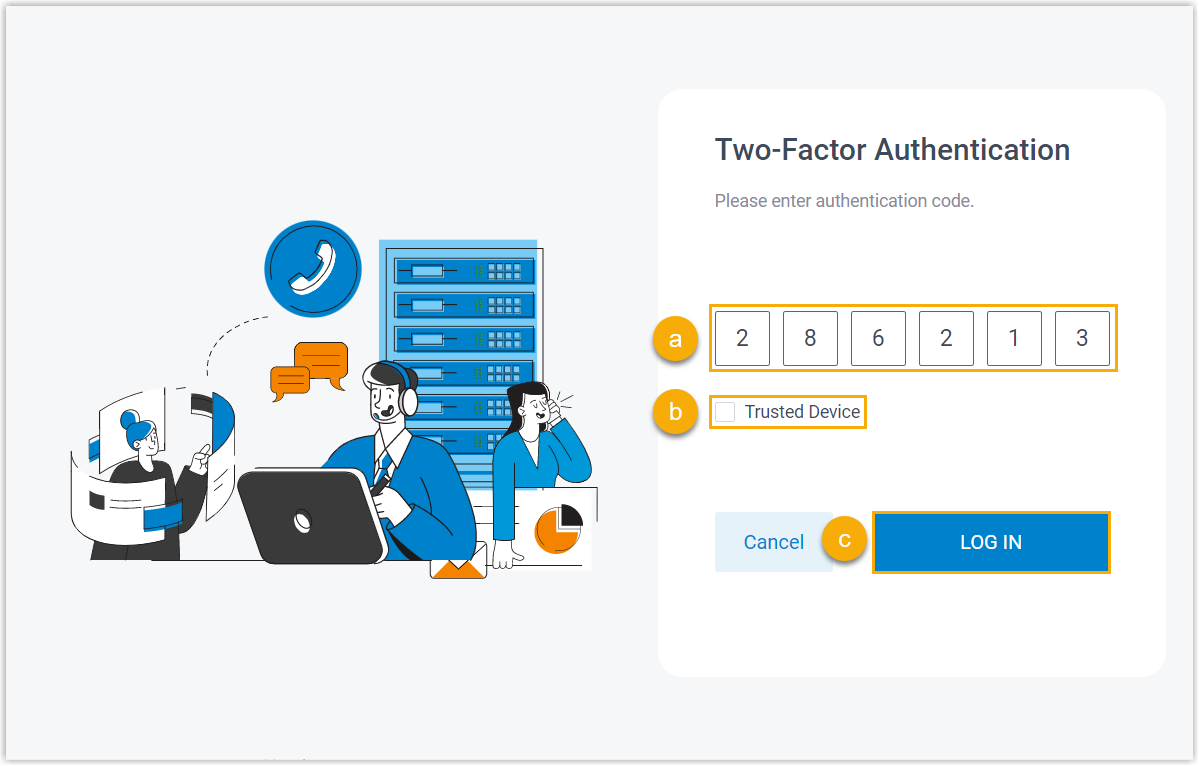
a. Enter the authentication code from your authenticator app or from your email.
b. Optional: Select the Trusted Device checkbox.
c. Click LOG IN.
Question about this page?
Ask the AI assistant. It starts from this page, then searches the rest of the docs.
Ask Cloud Voice AI
Answers are AI-generated from the docs and may contain mistakes. Verify with the linked pages.