
Allow web browser notifications on your computer
When you use the Cloud Voice App in a web browser, your computer’s operating system controls whether that browser is allowed to raise desktop notifications. If pop-ups for incoming calls, chats, or voicemails never appear, the browser is likely blocked at the system level. Follow the steps for your operating system (Windows or macOS) to turn notifications back on for the browser you use, such as Chrome, Edge, Firefox, or Safari.
Windows
Section titled “Windows”- Open the Start menu and select Settings (the gear icon).
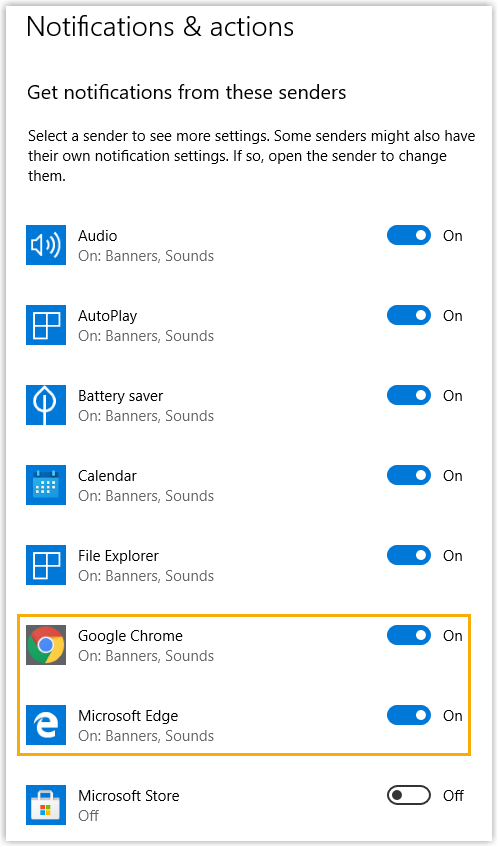
- Choose System, then Notifications & actions.
- Under Get notifications from these senders, find the browser you use for the Cloud Voice App and switch it on.
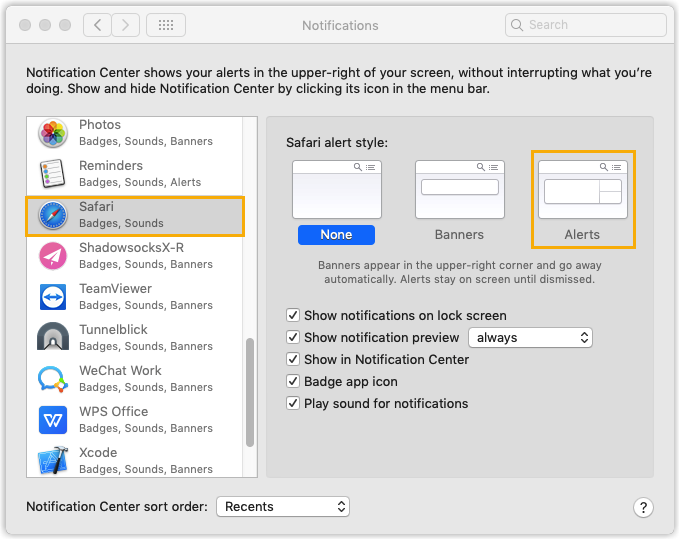
- From the Apple menu, open System Preferences, then Notifications.
- In the list on the left, select the browser you use to open the Cloud Voice App.
- Set the alert style to Alerts.
Question about this page?
Ask the AI assistant. It starts from this page, then searches the rest of the docs.
Ask Cloud Voice AI
About
Answers are AI-generated from the docs and may contain mistakes. Verify with the linked pages.