
Video Conference Call Operations
Once a video conference is under way, the controls you can use depend on your role. Hosts have full command of the meeting, while participants manage their own audio, video, and screen sharing. This page lists what each role can do and walks through the in-meeting interface.
What each role can do
Section titled “What each role can do”The table below summarizes the actions available to hosts and participants during a live meeting.
| Action | Host | Participant |
|---|---|---|
| Turn your own microphone on or off, or change audio settings | Yes | Yes |
| Mute everyone at once | Yes | No |
| Mute an individual participant | Yes | No |
| Ask a participant to unmute | Yes | No |
| Turn your own camera on or off, or change camera settings | Yes | Yes |
| Turn off an individual participant’s camera | Yes | No |
| Ask a participant to turn on their camera | Yes | No |
| Share your screen | Yes | Yes |
| Leave the meeting | Yes | Yes |
| End the meeting for everyone | Yes | No |
| Open the participants list | Yes | Yes |
| Invite others to join | Yes | Yes |
| Remove a participant | Yes | No |
The in-meeting interface
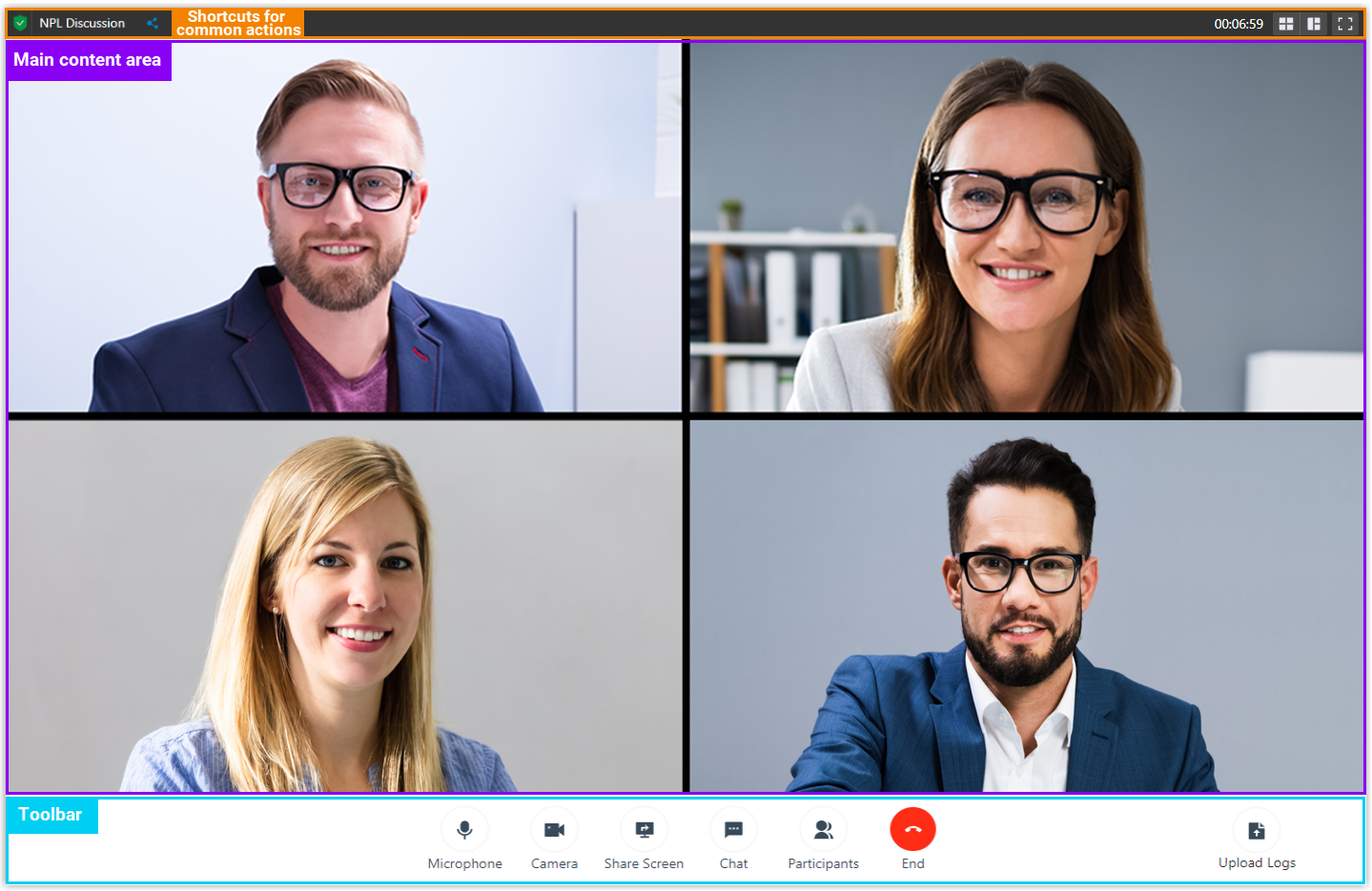
Section titled “The in-meeting interface”A live meeting is made up of a main content area that shows everyone’s video, a toolbar of meeting controls, and a set of view shortcuts.
View shortcuts
Section titled “View shortcuts”Use these controls to change how the meeting is laid out and to grab the join details:
 Open the invitation details so you can share them.
 Gallery view, showing a thumbnail of every participant.
 Active speaker view, showing a large window for whoever is currently talking.
 Full-screen mode.
Main content area
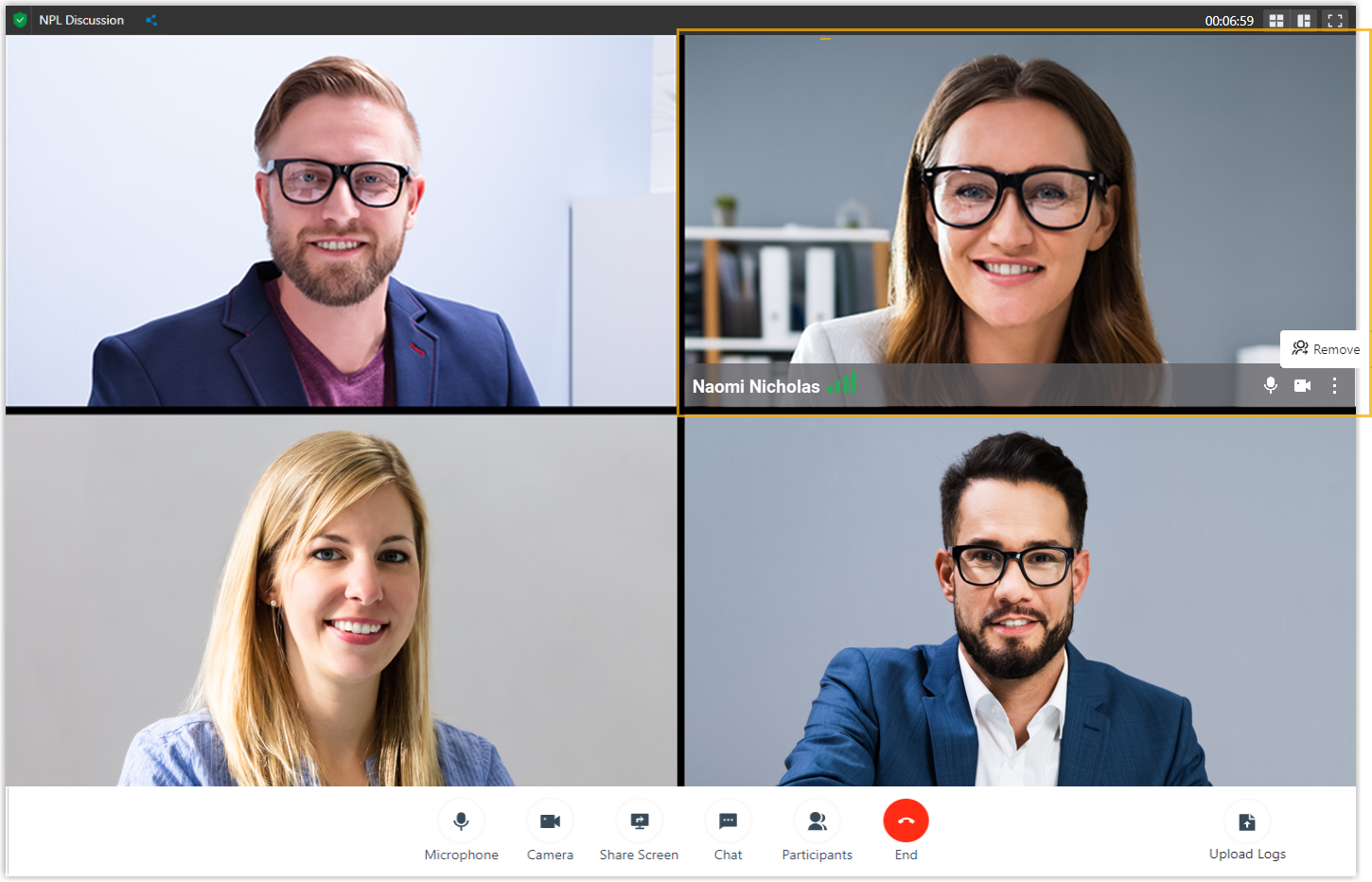
Section titled “Main content area”The main area displays the video feed of everyone in the meeting. Hover over your own tile to check your network signal strength and to toggle your microphone or camera.
Toolbar
Section titled “Toolbar”The toolbar gives you access to the Cloud Voice video conferencing controls.
Microphone
- Mute or unmute yourself.
- Choose which microphone or speaker to use.
Camera
- Turn your camera on or off.
- Choose which camera to use.
Share Screen
Share your whole screen, a single browser tab, or one application window with the meeting.
Chat
Send messages to participants in real time.
Participants
- See everyone currently in the meeting.
- Manage your own microphone and camera.
- Copy the invitation details.
As the host, you also get controls for each participant’s microphone and camera:
 or
or  , turn a participant’s microphone or camera off directly.
 or
or  , send a request asking the participant to turn their microphone or camera back on.
- Mute All: mute every participant at once.
End
- Leave the meeting.
- End the meeting.
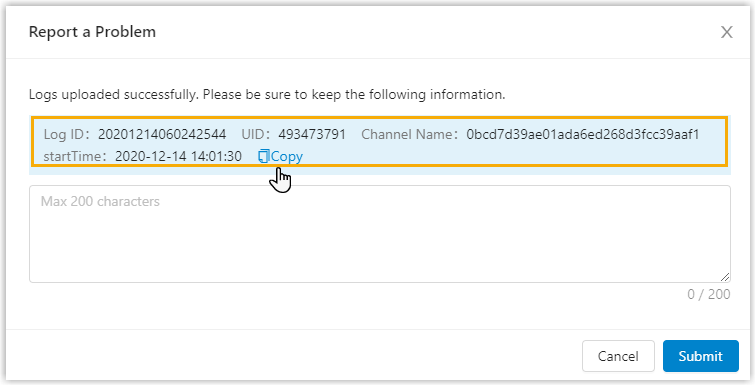
Upload logs
Report a problem that happens during the meeting.
Question about this page?
Ask the AI assistant. It starts from this page, then searches the rest of the docs.
Ask Cloud Voice AI
Answers are AI-generated from the docs and may contain mistakes. Verify with the linked pages.