
Enable Call Quality Monitoring
Call quality monitoring records diagnostic data about your calls (things like packet loss, jitter, and delay) while your extension is on a call. That data gives technical support the detail they need to pinpoint and resolve call problems quickly, so you normally turn it on only while you are trying to reproduce a call issue. This page shows how to enable the feature for your own extension from the Cloud Voice App.
Requirements
Section titled “Requirements”Both the phone system and your app must meet these minimum versions.
| Item | Requirement |
|---|---|
| PBX Server | Version 84.23.0.123 or later |
| Cloud Voice App | iOS: Version 5.27.18 or later Android: Version 5.27.12 or later |
Before you begin
Section titled “Before you begin”Your system administrator must have granted you permission to enable call quality monitoring on your own extension.
Turn on monitoring
Section titled “Turn on monitoring”-
Sign in to the Cloud Voice App.
-
On the Calls page, tap your account in the top-left corner.
-
Configure and enable monitoring:
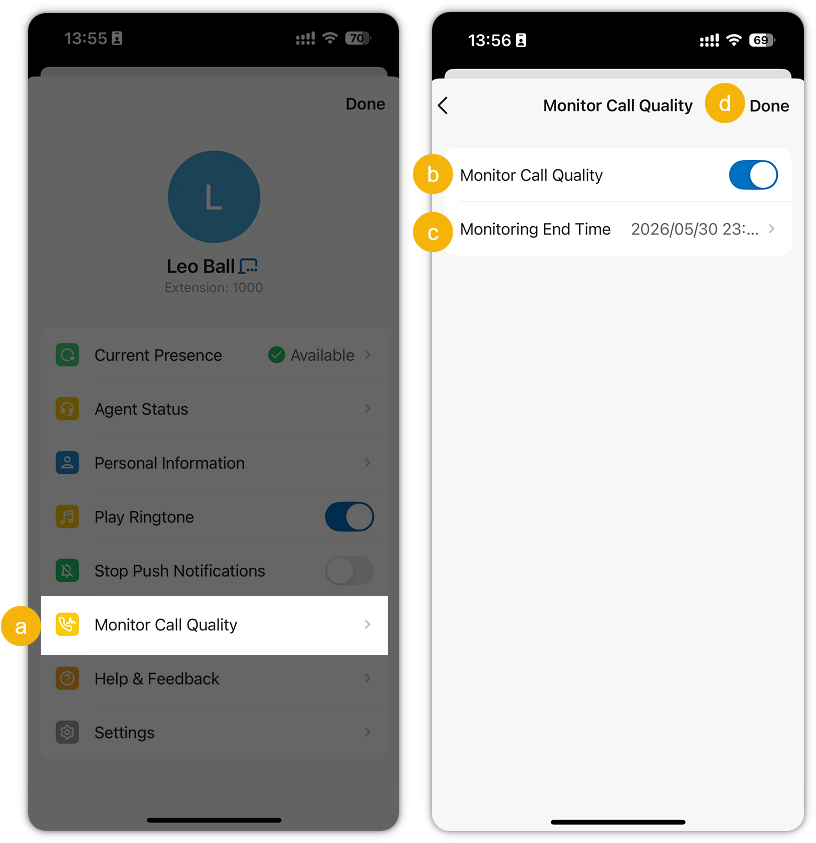
- Tap Monitor Call Quality.
- Turn on the Monitor Call Quality switch.
- From the Monitoring End Time drop-down list, choose when monitoring should stop.
- Tap Done in the top-right corner.
Result
Section titled “Result”While your extension is on a call in the Cloud Voice App, call quality data is collected automatically and a report is built for that call. You can open the report from its matching call log.
For details, see Access Call Quality Monitoring Report.
Question about this page?
Ask the AI assistant. It starts from this page, then searches the rest of the docs.
Ask Cloud Voice AI
Answers are AI-generated from the docs and may contain mistakes. Verify with the linked pages.