
Update Client Secret for Microsoft Entra ID Integration
Every client secret you create for a Microsoft Entra application carries an expiration date. Once that secret lapses, Cloud Voice can no longer authenticate against Microsoft Entra ID and directory synchronization stops. To keep contacts and users in sync, generate a fresh secret and apply it to Cloud Voice before the current one expires.
Before you start
Section titled “Before you start”Make sure you have:
- Connected Cloud Voice to Microsoft Entra ID through the legacy method.
- Created a new client secret for the Microsoft Entra application and copied its value.
Apply the new secret
Section titled “Apply the new secret”-
Sign in to the Cloud Voice web portal and open Integrations > Collaboration.
-
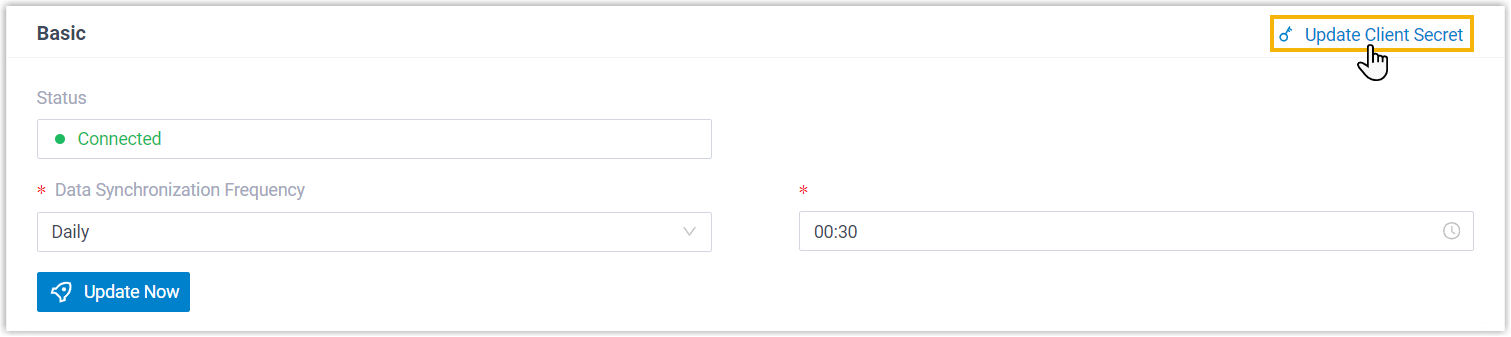
In the top-right corner of the Basic section, click Update Client Secret.
-
In the dialog that appears, do the following:
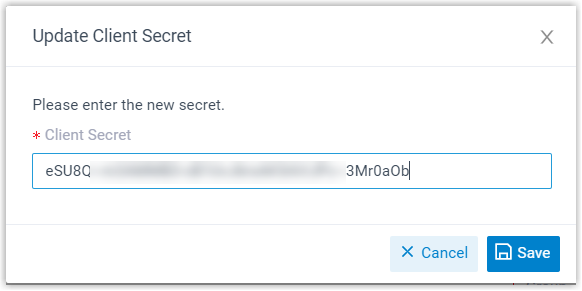
a. Paste the new value into the Client Secret field.
b. Click Save.
Cloud Voice now authenticates with the updated secret, and directory synchronization continues without interruption.
Question about this page?
Ask the AI assistant. It starts from this page, then searches the rest of the docs.
Ask Cloud Voice AI
Answers are AI-generated from the docs and may contain mistakes. Verify with the linked pages.