
Configure Dial Plans in Microsoft Teams
For Teams users to place outbound calls over your Cloud Voice trunk (the connection that carries calls between Cloud Voice and the outside phone network), Microsoft Teams needs a dial plan rule that permits the numbers those users dial. This page walks you through adding that rule.
Before you begin
Section titled “Before you begin”- You need an account that can sign in to the Microsoft Teams admin center with permission to edit dial plans.
- The Cloud Voice and Microsoft Teams integration must already be set up. That integration is what creates the default Call2Teams rule described below.
Why the default rule is not enough
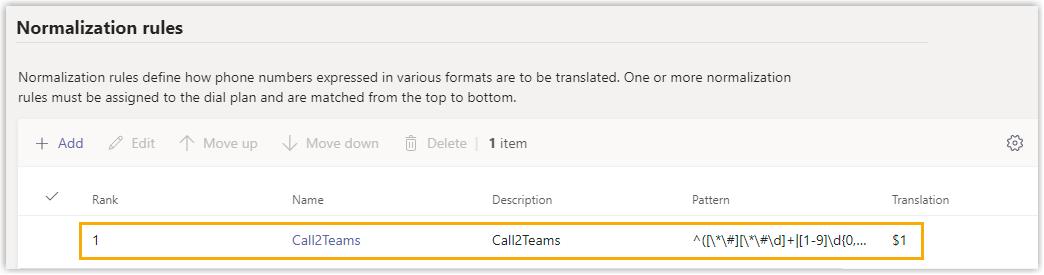
Section titled “Why the default rule is not enough”When you integrate Cloud Voice with Microsoft Teams, a normalization rule called Call2Teams is created automatically. Its pattern is:
^([\*\#][\*\#\d]+|[1-9]\d{0,5})$This pattern is restrictive: it only accepts numbers of up to six digits that begin with a digit from 1 to 9. Anything longer, such as a full external phone number, is rejected, so you need to add a broader rule of your own.
Add a normalization rule
Section titled “Add a normalization rule”-
Sign in to the Microsoft Teams admin center.
-
In the left navigation, go to Voice > Dial plans.
-
Open the default dial plan, Global (Org-wide default).
-
Under Normalization rules, click +Add to create a rule.
-
On the Add new rule page, configure the rule:
- In Name, enter a name for the rule.
- Optionally, add a note in the Description field.
- Choose Advanced.
- Under If condition, in The number dialed matches this regular expression, enter
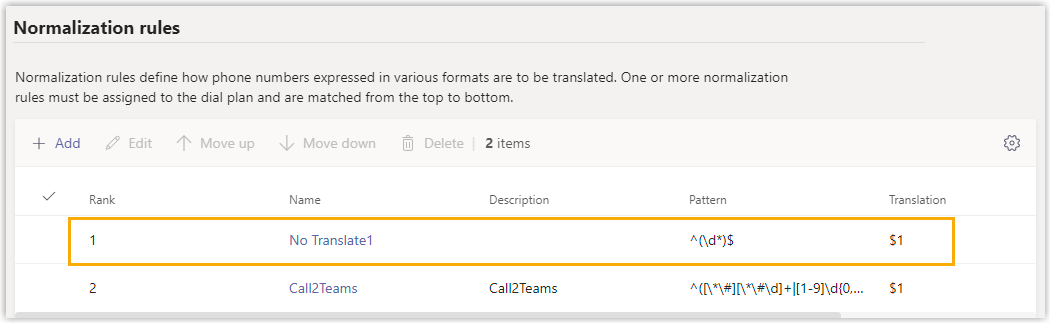
^(\d*)$. This lets Teams users dial any number. - Under Then do this, in Translate the number based on this regular expression, enter
$1. Because this makes no change, Teams sends the dialed number out exactly as entered. - Under Test this rule, type a number in Enter a phone number to test and click Test to confirm it matches the pattern.
- Click Save.
-
Move the new rule to the top of the list:
- In the selection column, select the rule you just created.
- On the menu bar, click Move up until the rule reaches the top.
- Click Save.
Result
Section titled “Result”Teams users can now dial external numbers, and calls follow the dial pattern defined in your Cloud Voice outbound route.
To verify calling works end to end, see Test Phone Calls on Microsoft Teams.
Question about this page?
Ask the AI assistant. It starts from this page, then searches the rest of the docs.
Ask Cloud Voice AI
Answers are AI-generated from the docs and may contain mistakes. Verify with the linked pages.