
Set up Contact Synchronization from Zoho Desk
Once Cloud Voice is connected to Zoho Desk, you can turn on a one-way synchronization that copies your Zoho Desk contacts into a dedicated Cloud Voice phonebook. Whenever an associated extension calls or receives a call from a Zoho Desk contact, the matching record is added to that phonebook for you.
Prerequisites
Section titled “Prerequisites”You have already integrated Cloud Voice with Zoho Desk.
Enable contact synchronization
Section titled “Enable contact synchronization”-
Sign in to the PBX (Private Branch Exchange, your phone system) web portal and go to Integrations > Helpdesk.
-
On the Zoho Desk integration page, turn on Synchronize Contacts Automatically.
-
Open the Synchronize Contacts From drop-down list and choose which record type(s) to bring over from Zoho Desk.
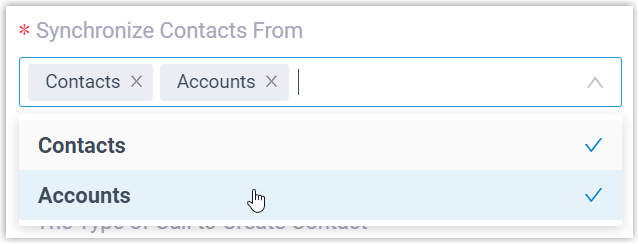
- Contacts: The individual people your Zoho Desk agents support. These live in the Zoho Desk Customers > Contact module.
- Accounts: The companies or organizations your Zoho Desk agents support. These live in the Zoho Desk Customers > Account module.
-
Open the Synchronize to Phonebook drop-down list and either select an existing empty phonebook or create a new one to hold the synced contacts.

-
Set the Always Query Helpdesk option to control whether Cloud Voice looks up contacts in the helpdesk in real time.

- Enabled: Cloud Voice queries the helpdesk in real time for contact details, and extension users get live dial-search results for helpdesk contacts in the Cloud Voice App.
- Disabled: Cloud Voice queries the helpdesk only when no matching record is found in the PBX company contacts.
-
Click Save.
Result
Section titled “Result”Under Contacts > Phonebooks, the destination phonebook now carries a helpdesk label.


From now on, when an associated extension takes an inbound call from a Zoho Desk contact or dials one, the matching contact details are copied into the phonebook automatically.
Troubleshoot failed contacts
Section titled “Troubleshoot failed contacts”If certain contacts never appear in the phonebook, the cause is usually missing information on the Zoho Desk side. Confirm that each affected contact has the following fields completed, then run the directory synchronization again:
- At least one of First name or Last name is filled in.
- At least one phone number field is filled in.
Question about this page?
Ask the AI assistant. It starts from this page, then searches the rest of the docs.
Ask Cloud Voice AI
Answers are AI-generated from the docs and may contain mistakes. Verify with the linked pages.