
Download Fax Data
Cloud Voice keeps a record of every fax your account sends and receives. From the fax log you can pull down a batch of entries together with their documents, or grab a single fax on its own. This page covers both.
All fax activity lives under Integrations > Fax > Fax Logs in the management portal.
Filter the fax log
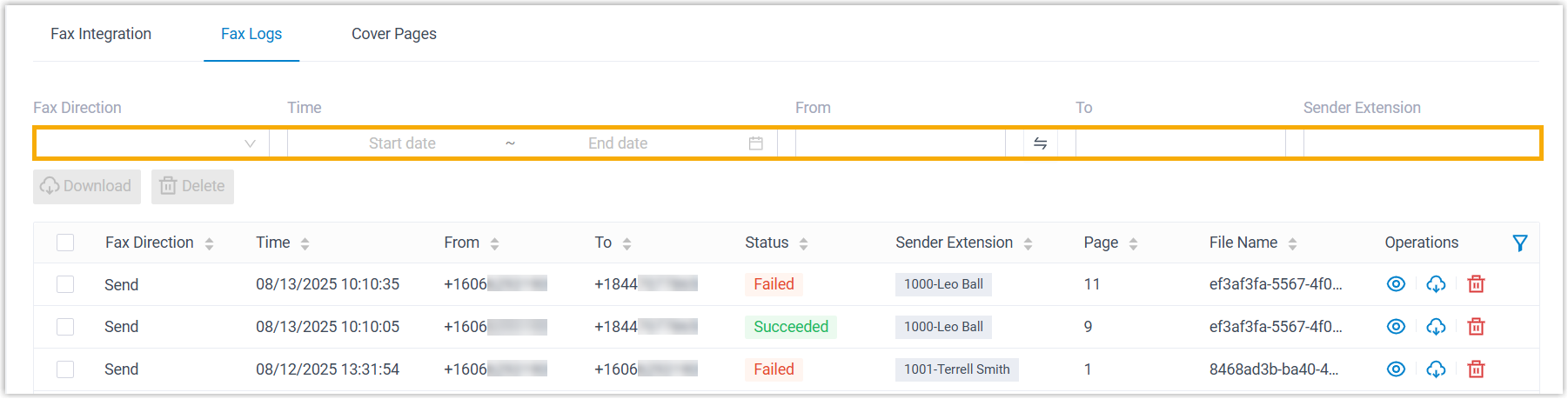
Section titled “Filter the fax log”Before downloading, narrow the list to the entries you care about using the filters along the top of the fax log.
Two of the filters expect a fax number in E.164 format: a plus sign, the country code, then the full number with no spaces, dashes, or parentheses (for example, +14155551234).
| Filter | What it does |
|---|---|
| Fax Direction | Choose Send to show outbound faxes or Receive to show inbound faxes. |
| Time | Limit results to faxes sent or received within a date and time range. |
| From | Match on the sender’s fax number, entered in E.164 format. |
| To | Match on the recipient’s fax number, entered in E.164 format. |
| Sender Extension | Match on a specific user by extension number or extension name. |
Download a batch of fax logs and files
Section titled “Download a batch of fax logs and files”-
Go to Integrations > Fax > Fax Logs.
-
(Optional) Apply the filters above to find the entries you want.
-
Select the checkbox next to each fax log you want, then click Download.
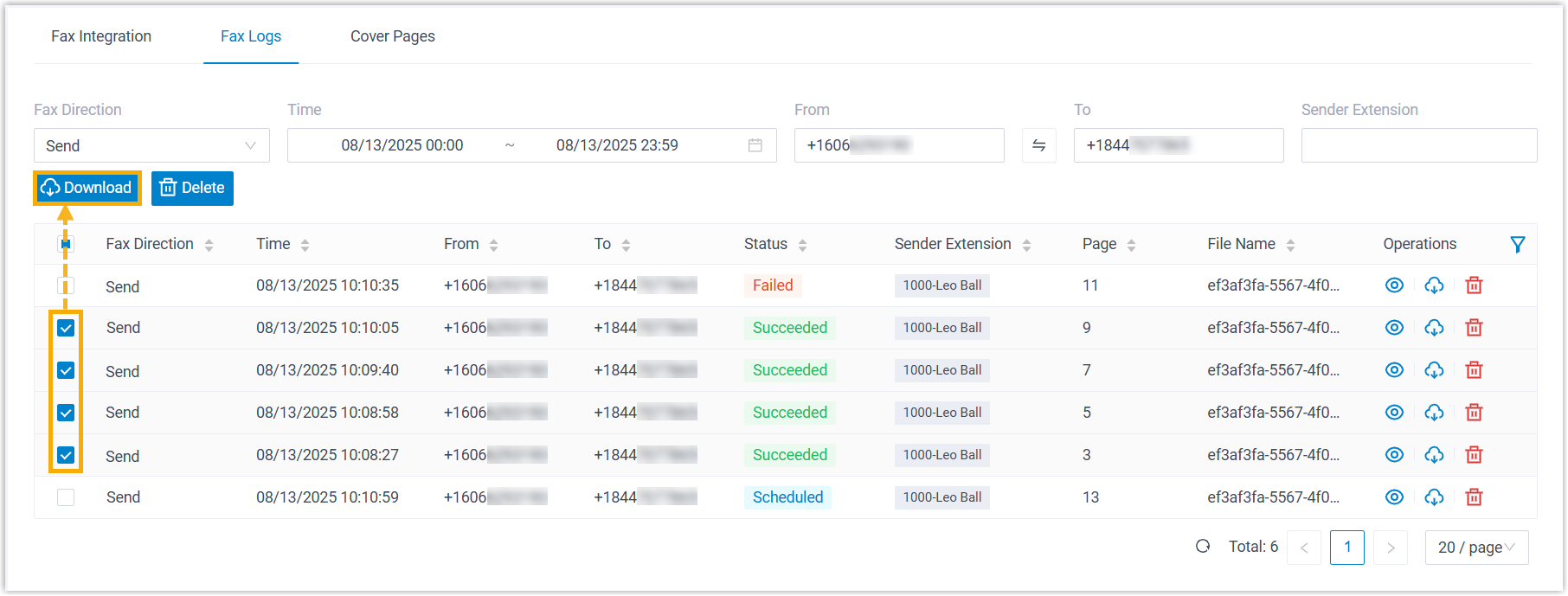
The export arrives as a single .zip archive. Inside you’ll find a .csv file listing the log details and one .pdf for each fax document.
Download a single fax file
Section titled “Download a single fax file”-
Go to Integrations > Fax > Fax Logs.
-
(Optional) Apply the filters above to locate the fax you’re after.
-
Click the download icon
 on that fax log’s row.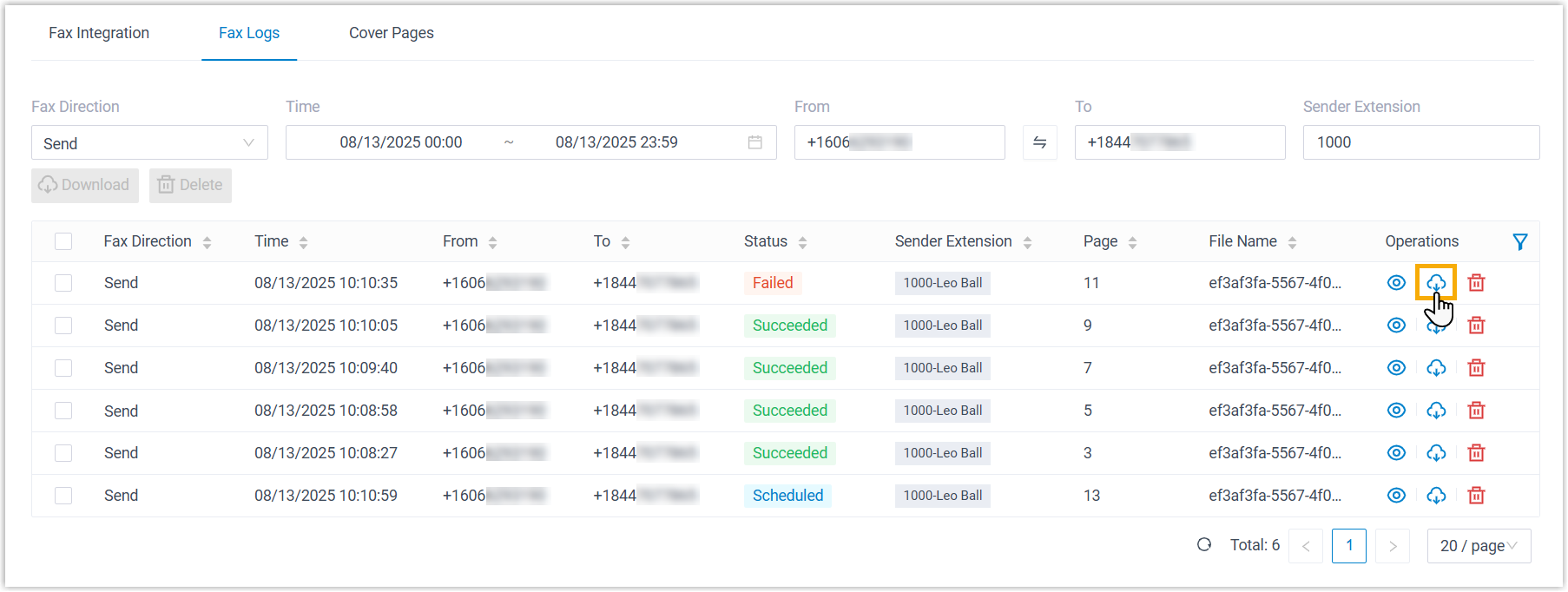
The fax is saved on its own as a .pdf file.
Question about this page?
Ask the AI assistant. It starts from this page, then searches the rest of the docs.
Ask Cloud Voice AI
Answers are AI-generated from the docs and may contain mistakes. Verify with the linked pages.