
Make Outbound Calls through a Designated 4G Trunk
When your TG400 gateway carries mobile (4G) trunks from more than one carrier, you can control which trunk each outbound call goes out on. Because many carriers offer plans with free or discounted calls to numbers on their own network, sending each call over the matching carrier’s trunk can noticeably reduce what you spend on calls. This page shows how to steer outbound calls to a chosen 4G trunk based on the number a user dials.
A 4G trunk is a line backed by a SIM card in the gateway, so calls placed over it use that carrier’s mobile network and its calling plan.
Scenario
Section titled “Scenario”The steps below follow this example. Numbers that begin with 92 should leave over Carrier A’s trunk, and numbers that begin with 10 should leave over Carrier B’s trunk.
| Dialed number | 4G trunk | Carrier |
|---|---|---|
Begins with 92 | 4G trunk 1 | Carrier A |
Begins with 10 | 4G trunk 2 | Carrier B |
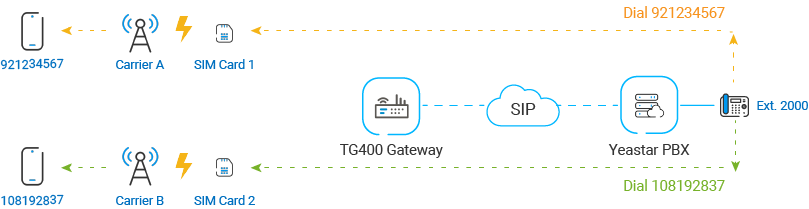
Setting this up takes three stages:
- Add an outbound route on Cloud Voice that hands the calls to the gateway.
- Add two IP to Mobile routes on the TG400 gateway, one per carrier, that match the dialed number and pick the correct 4G trunk.
- Place test calls to confirm each prefix uses the trunk you expect.
Step 1. Create an outbound route on Cloud Voice
Section titled “Step 1. Create an outbound route on Cloud Voice”An outbound route is the rule that lets your extensions dial out. Add one here so extensions can reach the outside world through the TG400 gateway.
-
Sign in to the Cloud Voice PBX (Private Branch Exchange, your phone system) portal and go to Call Control > Outbound Route, then click Add.
-
Configure these settings and leave the rest at their defaults:
-
Name: A label that helps you recognize the route.
-
Dial Pattern: Set the patterns to suit your needs. In this example, set Pattern to
X., which lets users dial any number with no restriction.
-
Trunk: Choose the SIP account trunk that connects to the TG400 gateway. In this example, choose the
TG400trunk.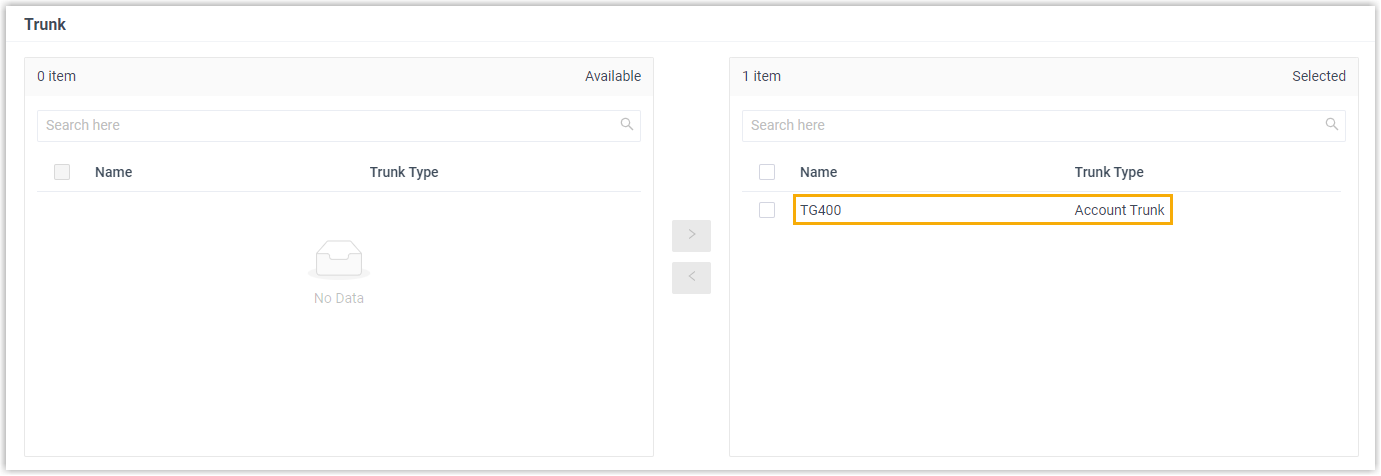
-
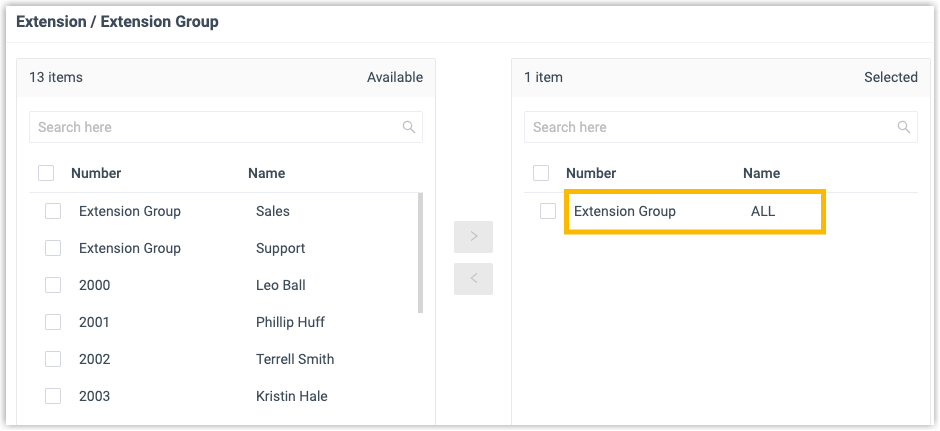
Extension/Extension Group: Choose which extensions may dial out through this route. In this example, all extensions are selected.
-
-
Click Save, then Apply.
Step 2. Create two IP to Mobile routes on the gateway
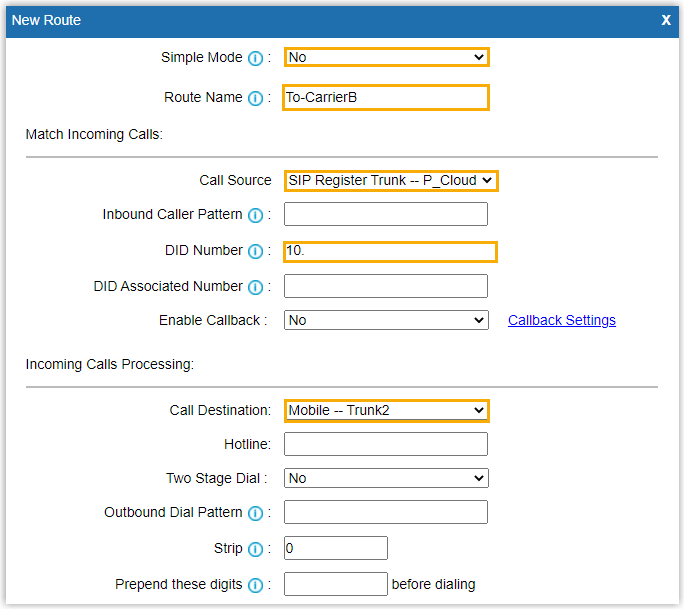
Section titled “Step 2. Create two IP to Mobile routes on the gateway”On the TG400 gateway, create one IP to Mobile route for Carrier A and another for Carrier B. Each route matches a number pattern coming from Cloud Voice and sends the call out over the 4G trunk you assign to it.
-
Sign in to the gateway’s web interface and go to Gateway > Route Settings > IP to Mobile, then click Add IP to Mobile Route.
-
In the dialog that opens, configure the route using the values below, then click Save and Apply Changes.
Setting Description Carrier A Carrier B Simple Mode Keep the basic settings or expand to show the full set. No No Route Name A label that helps you recognize the route. To-CarrierATo-CarrierBCall Source The SIP register trunk that connects back to Cloud Voice. SIP Register Trunk - CloudVoice SIP Register Trunk - CloudVoice DID Number The pattern or number that matches the dialed number arriving from Cloud Voice. 92.to match numbers with the92prefix10.to match numbers with the10prefixCall Destination The 4G trunk the call goes out on. Mobile - Trunk1 Mobile - Trunk2 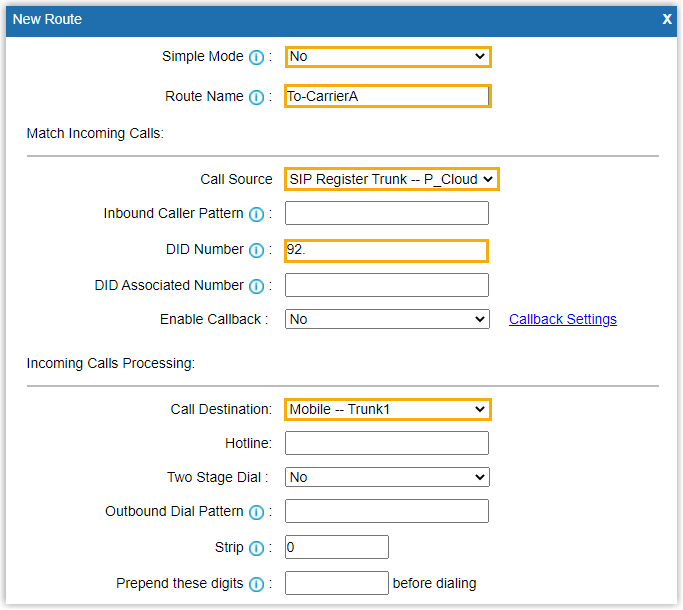
Step 3. Place test calls
Section titled “Step 3. Place test calls”Dial a couple of numbers from a Cloud Voice extension and confirm each one leaves over the expected trunk:
- Dialing
921234567sends the call out over 4G trunk 1. - Dialing
108192837sends the call out over 4G trunk 2.
Question about this page?
Ask the AI assistant. It starts from this page, then searches the rest of the docs.
Ask Cloud Voice AI
Answers are AI-generated from the docs and may contain mistakes. Verify with the linked pages.