
Add a Fax Cover Page
A fax cover page is the introductory sheet Cloud Voice places ahead of an outbound fax. It usually carries the essentials of the transmission, such as who is sending it, who should receive it, and a short accompanying message. This page walks an administrator through building a cover page from the Cloud Voice admin portal.
Who can create cover pages
Section titled “Who can create cover pages”Cover pages can come from two places:
- Administrators define system-wide cover pages in the admin portal. Any extension user who is permitted to send outbound faxes can then pick from these shared templates.
- Extension users who hold outbound fax permission can build their own private cover pages directly in the Cloud Voice App (Web or Desktop).
The steps below cover the administrator workflow. Extension users manage their personal cover pages from within the Cloud Voice App.
Limits
Section titled “Limits”You can store up to 20 system-wide cover pages.
Before you start
Section titled “Before you start”Have a cover page file ready that satisfies these requirements:
- Format:
.pdf - Size: under 5 MB
Add the cover page
Section titled “Add the cover page”-
Open the creation form.
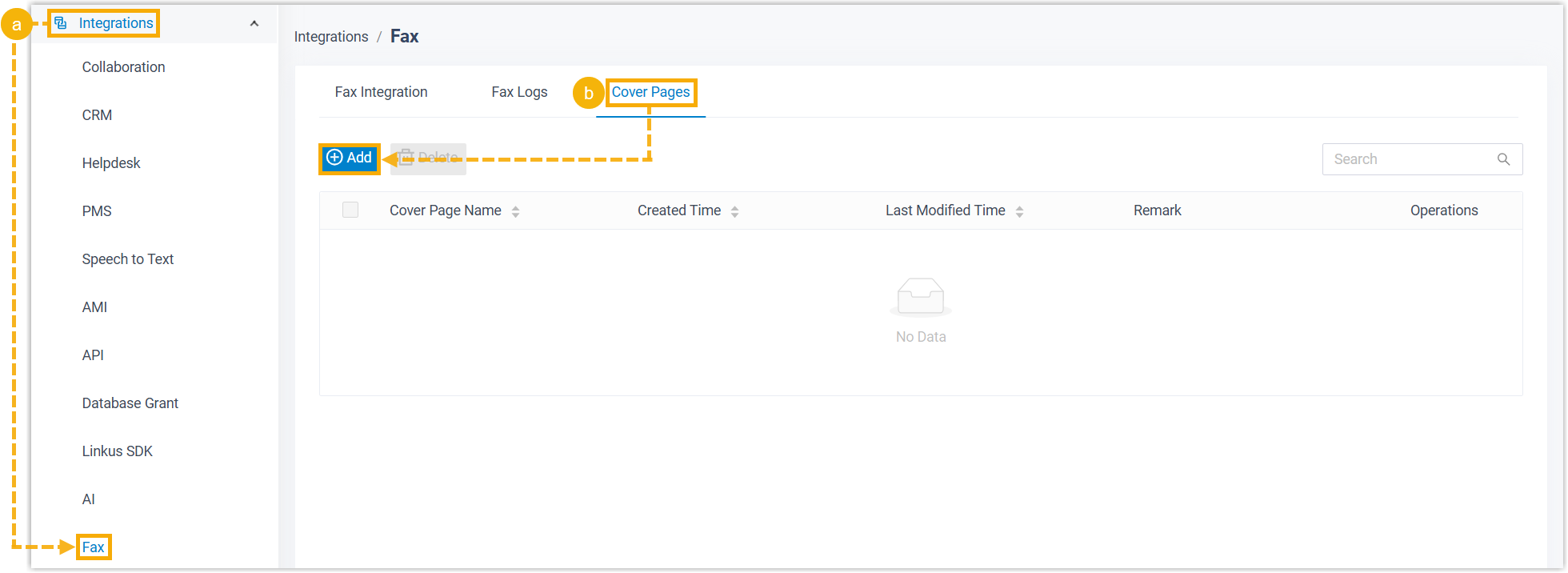
a. Sign in to the Cloud Voice admin portal and go to Integrations > Fax.
b. Select the Cover Pages tab and click Add.
-
Fill in the fields.
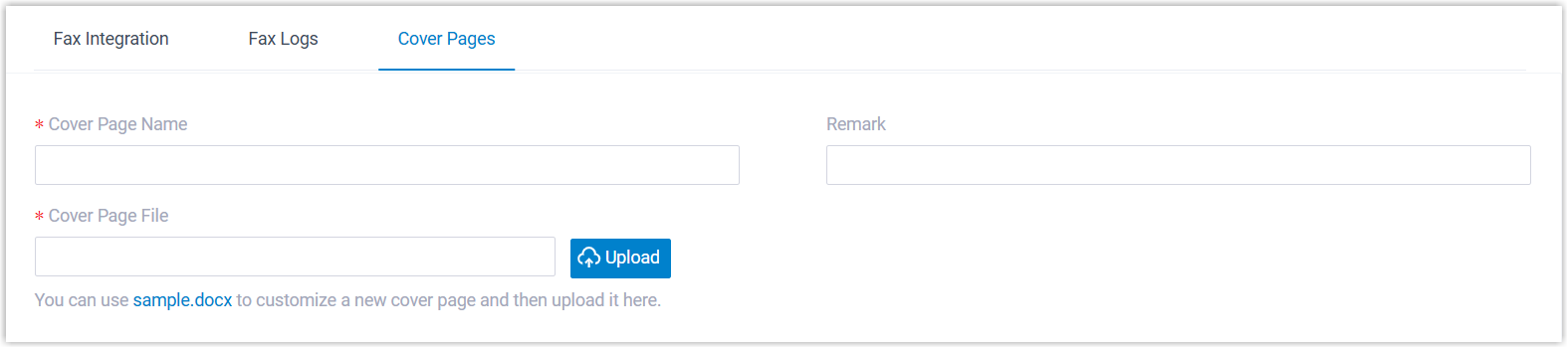
Setting What to enter Cover Page Name A label that helps you recognize this cover page. Remark A brief description. Cover Page File Click Upload and select your PDF. -
Click Save.
Result
Section titled “Result”-
The new cover page is saved and appears in the list.
-
Extension users with outbound fax permission can now see and apply this cover page from the Cloud Voice App.
Question about this page?
Ask the AI assistant. It starts from this page, then searches the rest of the docs.
Ask Cloud Voice AI
Answers are AI-generated from the docs and may contain mistakes. Verify with the linked pages.