
Pause Active Directory Synchronization
Once Active Directory (AD), Microsoft’s directory service for company users, groups, and organizational units, is connected to Cloud Voice, updates made in AD flow automatically into your phone system (the PBX, or Private Branch Exchange). There are times when you do not want that to happen, for example while you reorganize AD or make bulk edits that should not touch your extensions yet. Pausing synchronization freezes the current data in place, so incoming AD changes are ignored until you turn sync back on.
You can pause each type of sync independently: users, organizational units (OUs), and groups. Each one is controlled from Integrations > Collaboration in the management portal.
Pause user synchronization
Section titled “Pause user synchronization”-
Sign in to the management portal and open Integrations > Collaboration.
-
In the User Synchronization section, switch the toggle off.

-
Click Save.
-
In the confirmation dialog:
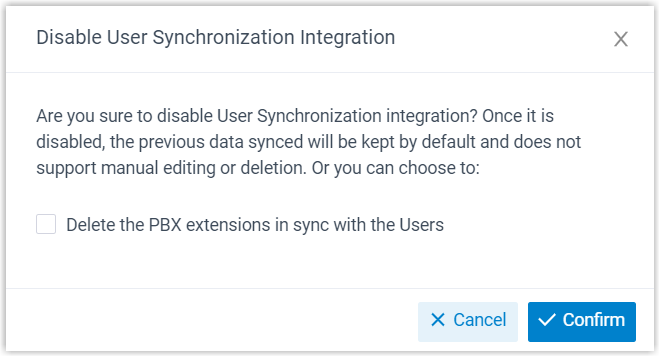
a. To remove the extensions that were created for the synced AD users, select Delete the PBX extensions in sync with the Users. Leave it clear to keep those extensions.
b. Click Confirm.
What happens next
- User synchronization stops.
- The User Synchronization settings are retained but become read-only.
- If you kept the associated extensions, you cannot edit their user details or delete them while sync is paused.
Pause organizational unit synchronization
Section titled “Pause organizational unit synchronization”-
Sign in to the management portal and open Integrations > Collaboration.
-
In the Organizational Unit Synchronization section, switch the toggle off.

-
Click Save.
-
In the confirmation dialog:
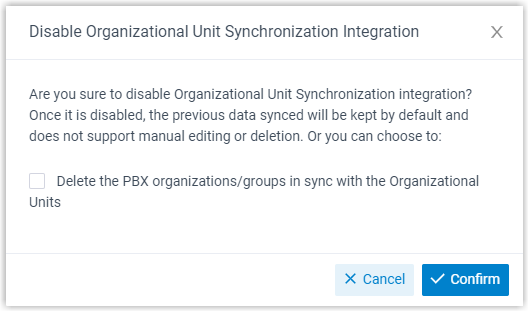
a. To remove the organizations and extension groups created for the synced AD organizational units, select Delete the PBX organizations/groups in sync with the Organizational Units. Leave it clear to keep them.
b. Click Confirm.
What happens next
- Organizational unit synchronization stops.
- The Organizational Unit Synchronization settings are retained but become read-only.
- If you kept the associated organizations and extension groups, you cannot edit or delete them while sync is paused.
Pause group synchronization
Section titled “Pause group synchronization”-
Sign in to the management portal and open Integrations > Collaboration.
-
In the Group Synchronization section, switch the toggle off.

-
Click Save.
-
In the confirmation dialog:
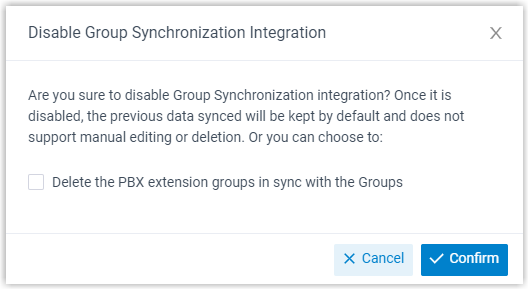
a. To remove the extension groups created for the synced AD groups, select Delete the PBX extension groups in sync with the Groups. Leave it clear to keep them.
b. Click Confirm.
What happens next
- Group synchronization stops.
- The Group Synchronization settings are retained but become read-only.
- If you kept the associated extension groups, you cannot change their name or membership, or delete them, while sync is paused.
Question about this page?
Ask the AI assistant. It starts from this page, then searches the rest of the docs.
Ask Cloud Voice AI
Answers are AI-generated from the docs and may contain mistakes. Verify with the linked pages.