
Test Phone Calls on Microsoft Teams
Once Microsoft Teams is connected to Cloud Voice, run a quick two-way test to confirm the integration works end to end: place an outbound call and answer an inbound one, both directly from Teams. Doing this proves that Teams can reach the outside world through Cloud Voice and that incoming calls land on the right extension before you hand the setup to a user.
Place an outbound call
Section titled “Place an outbound call”An outbound call leaves Teams, travels through Cloud Voice, and reaches an external number (for example, a mobile phone). This confirms your Teams user can dial out.
-
In the Teams left navigation bar, select Calls.
-
Choose Make a call.
-
Using the dialpad, type the number you want to reach.

-
Select Call to connect.
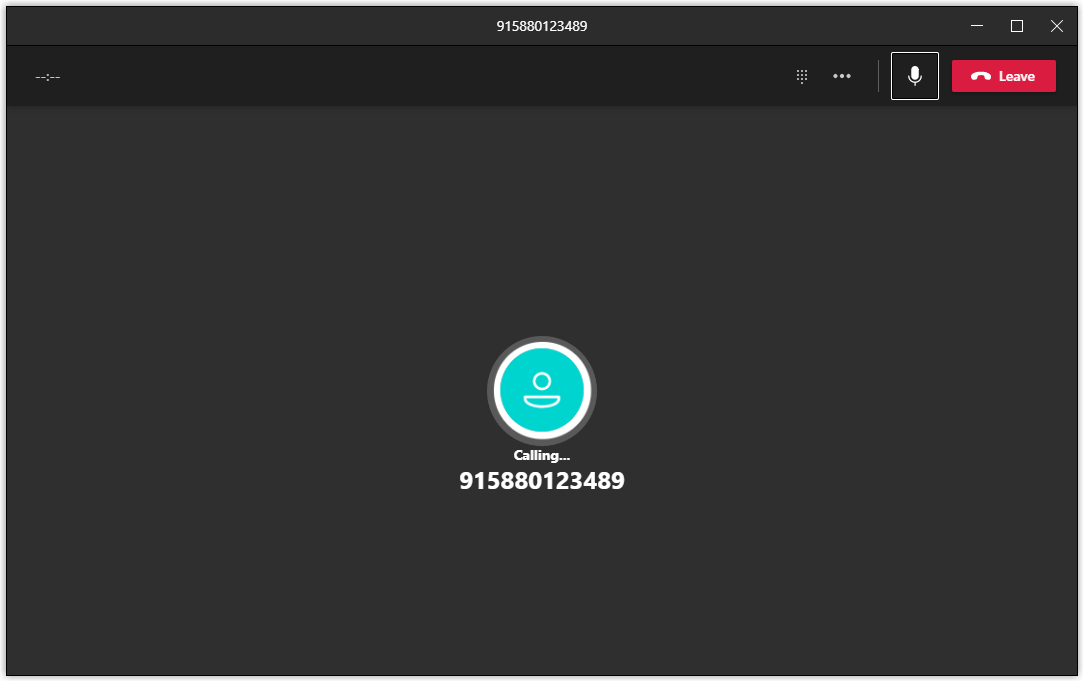
Answer an inbound call
Section titled “Answer an inbound call”An inbound call comes from outside, passes through Cloud Voice, and rings the extension that maps to your Teams user. This confirms the return path works.
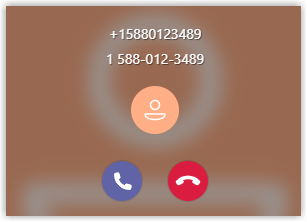
When a call reaches your extension, Teams displays a pop-up notification. From there you can choose to accept or decline the call.
Question about this page?
Ask the AI assistant. It starts from this page, then searches the rest of the docs.
Ask Cloud Voice AI
Answers are AI-generated from the docs and may contain mistakes. Verify with the linked pages.