
Disable Red Hat SSO Integration
When you are troubleshooting your phone system, you can pause the Red Hat SSO integration instead of removing it entirely. SSO (Single Sign-On) lets your Red Hat users sign in to Cloud Voice with the same credentials they already use for Red Hat, so no separate password is needed.
Disabling the connection keeps every setting you have already configured, so you can turn it back on later without rebuilding anything. This is different from disconnecting: disconnecting tears down the link, while disabling simply suspends it.
Disable the integration
Section titled “Disable the integration”-
Sign in to the Cloud Voice management portal and open Integrations > Collaboration.
-
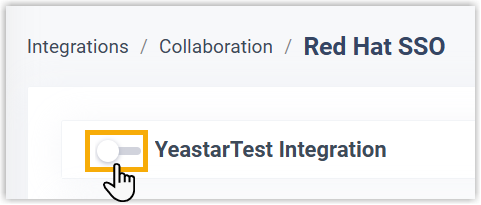
At the top of the integration page, switch the toggle off.
-
Click Save.
-
Review the confirmation prompt and choose how to handle the synced extensions:
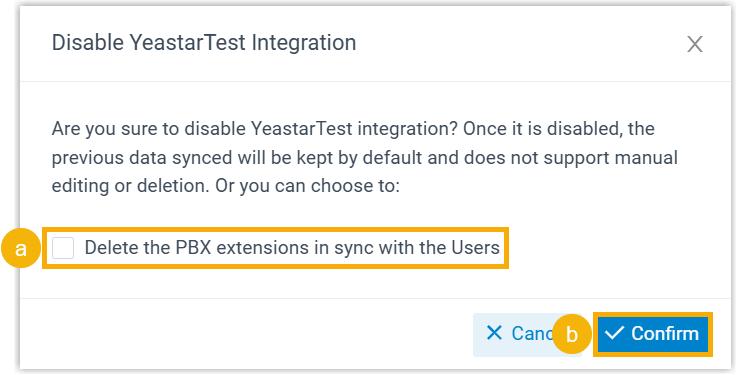
a. To remove the extensions that were created for the synced users, select Delete the PBX extensions in sync with the Users. PBX (Private Branch Exchange) is the phone system that owns those extensions.
b. Click Confirm to apply the change.
Result
Section titled “Result”-
The Status field now reads “Disabled”, confirming that the integration is paused.

-
Your integration settings are preserved but become read-only while the connection is off. To change any setting, re-enable the integration first.
Question about this page?
Ask the AI assistant. It starts from this page, then searches the rest of the docs.
Ask Cloud Voice AI
Answers are AI-generated from the docs and may contain mistakes. Verify with the linked pages.