
Set up Automatic Ticket Creation for Zendesk
Once Cloud Voice is connected to Zendesk, you can have the system raise a support ticket on its own whenever a call takes place. This removes the manual step of logging each interaction, so every inbound or outbound call tied to a Zendesk contact is recorded as a ticket for your agents to follow up on.
Before you begin
Section titled “Before you begin”Make sure you have connected Cloud Voice to Zendesk.
Turn on automatic ticket creation
Section titled “Turn on automatic ticket creation”-
Sign in to the PBX (Private Branch Exchange, your phone system) web portal and open Integrations > Helpdesk.
-
On the Zendesk integration page, enable Create New Ticket Automatically.
-
Choose when a ticket should be generated and which call types it applies to.
When to Create New Ticket What it does Before the Call A ticket is opened as soon as a Zendesk user answers a call from, or dials out to, a Zendesk contact. Use The Type of Call to Create Ticket drop-down list to pick the qualifying calls:
- Inbound: incoming calls.
- Outbound: outgoing calls.After the Call A ticket is opened once the user finishes a call with a Zendesk contact. Use The Type of Call to Create Ticket drop-down list to pick the qualifying calls:
- Inbound Answered: incoming calls that were picked up.
- Inbound No Answer: incoming calls that were missed.
- Outbound Answered: outgoing calls that were picked up.
- Outbound No Answer: outgoing calls that went unanswered. -
Fill in the ticket details to suit your workflow.
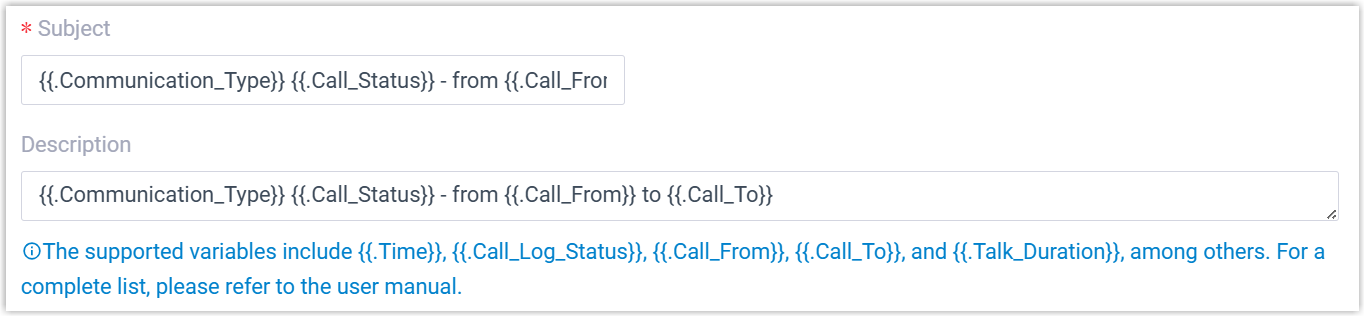
- Subject: the ticket title.
- Description: the body text of the ticket.
-
Click Save.
Result
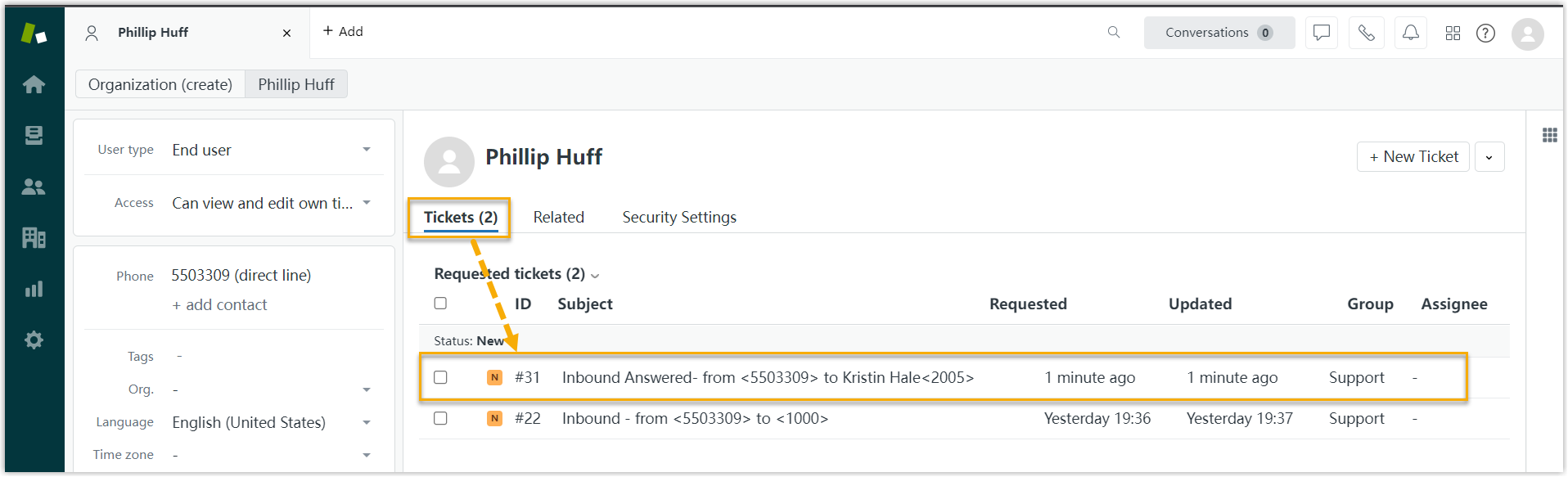
Section titled “Result”Cloud Voice now opens a ticket for existing Zendesk contacts automatically according to the call types you selected. Your agents can review these tickets from the contact’s detail page in Zendesk.
Question about this page?
Ask the AI assistant. It starts from this page, then searches the rest of the docs.
Ask Cloud Voice AI
Answers are AI-generated from the docs and may contain mistakes. Verify with the linked pages.