
Manage Queue Call Logs in the Cloud Voice App (Agent)
As a queue agent, you can review the calls routed through your queues directly from the Cloud Voice App on your phone. This page walks through filtering queue call logs, inspecting call details, updating the status of missed calls, calling contacts back, working with notes and transcriptions, and clearing out logs you no longer need.
Before you begin
Section titled “Before you begin”Confirm the following requirements are met before you start.
Phone system
Check with your system administrator that:
- The phone system is running firmware version
84.20.0.74or later. - You have been granted permission to view queue call logs.
Cloud Voice App
Make sure your mobile app is up to date:
- iOS: version
5.18.15or later. - Android: version
5.18.12or later.
Filter your queue call logs
Section titled “Filter your queue call logs”-
Sign in to the Cloud Voice App and go to Calls > Call Logs.
-
Use the filter in the top-left corner to narrow the list to the queue calls you want to see.
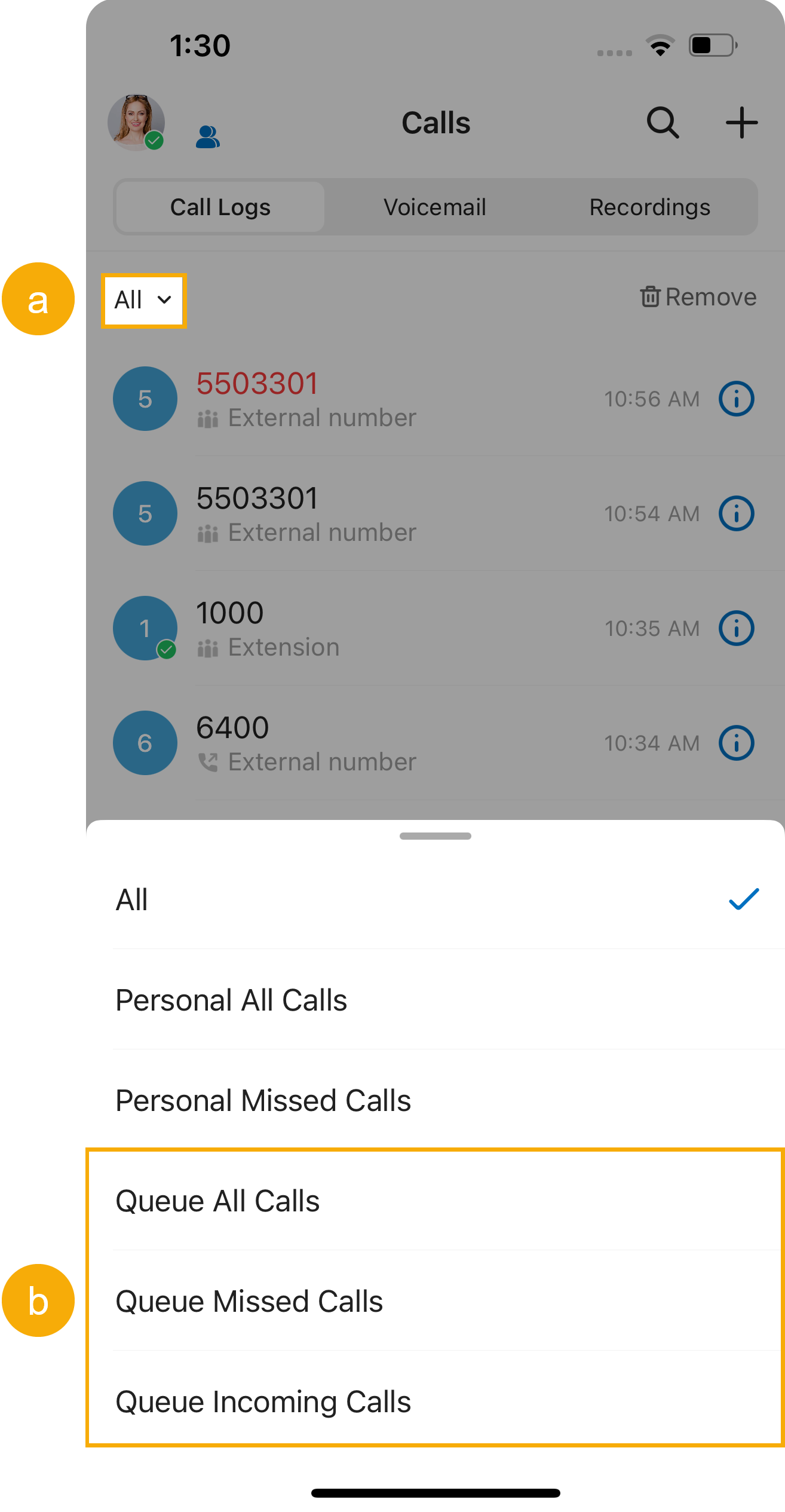
The filter offers three views:
- Queue All Calls: Every queue call you answered plus every queue call that went unanswered.
- Queue Missed Calls: Only the queue calls that no one answered.
- Queue Incoming Calls: Only the queue calls you personally answered.
Work with your queue call logs
Section titled “Work with your queue call logs”Once the list is filtered, you can act on any log using the options below.
View call log details
Section titled “View call log details”See where a queue call originated and, for missed calls, how it is currently being handled.
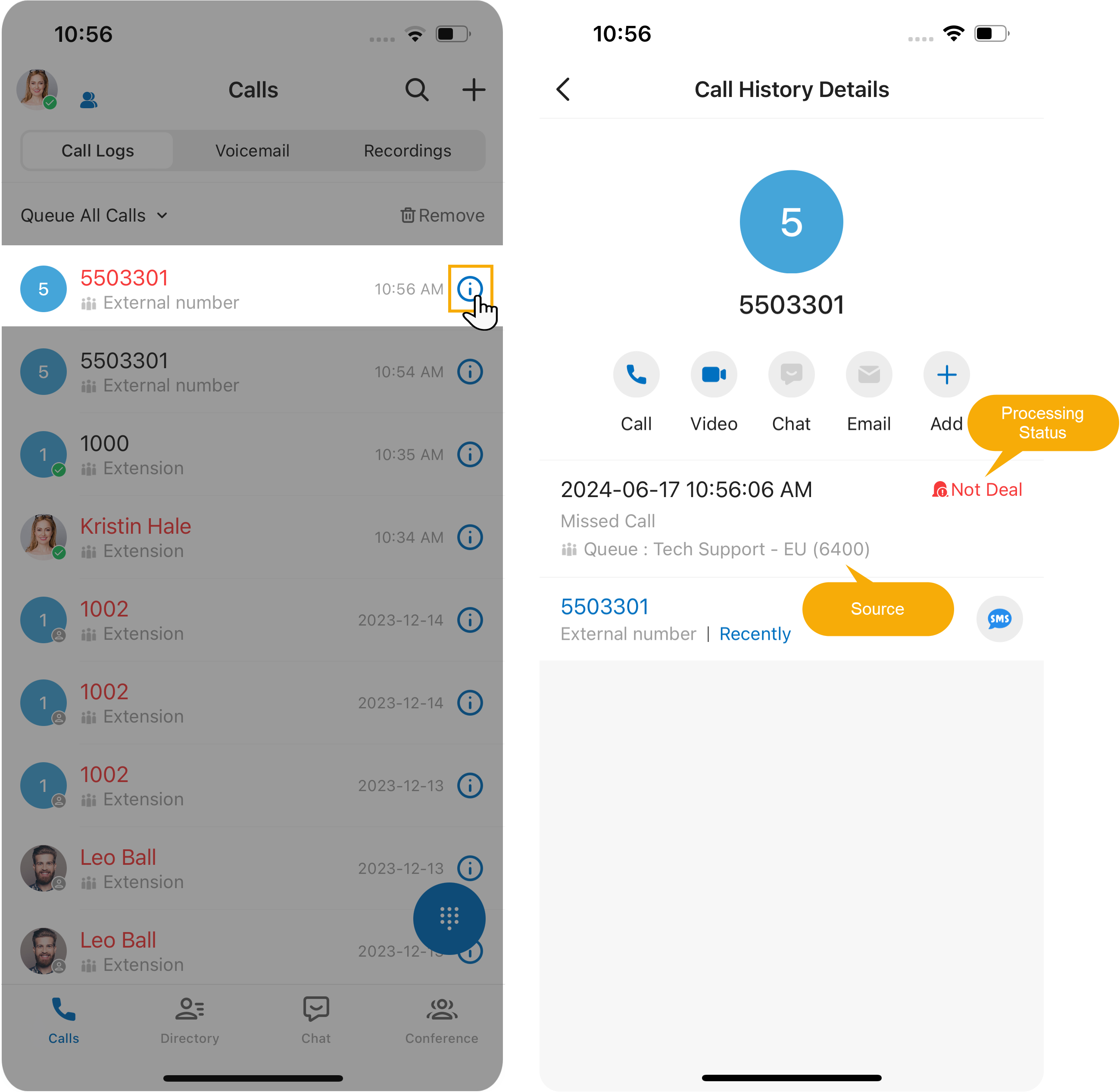
- Tap the information icon
 next to the log you want to inspect.
 - Review the details:
- Source: The queue that received the call.
- Processing Status: The current handling status of a missed queue call.
Update the status of a missed call
Section titled “Update the status of a missed call”When you take ownership of a missed queue call, or after you have resolved it, update its processing status so the rest of the team stays informed.
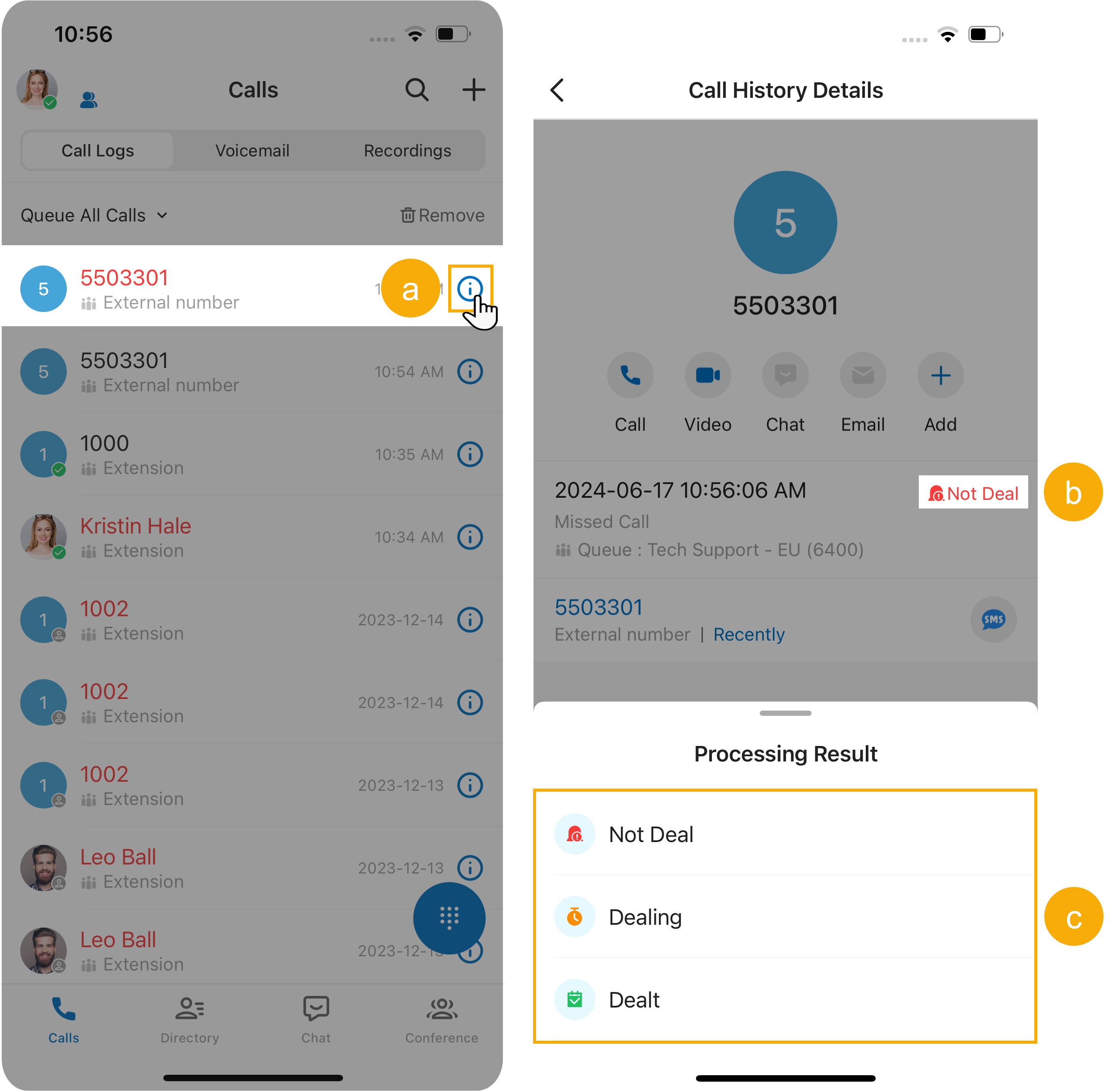
- Tap the information icon next to the log.
- Tap the processing status shown beside the call details.
- Choose the status you want to apply.
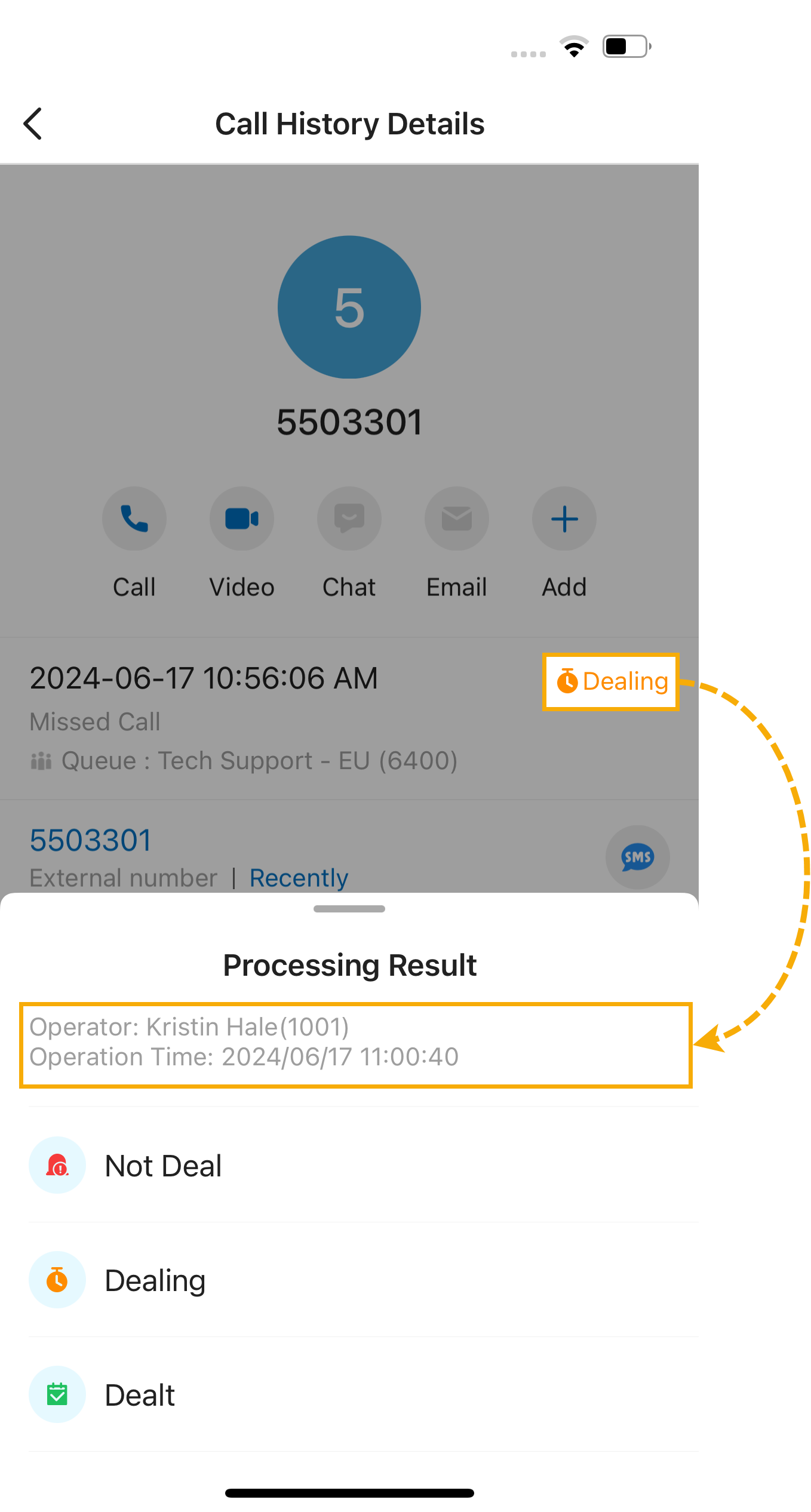
The status updates immediately. Every authorized agent sees the new status and can review the record of who changed it.
Call the contact back
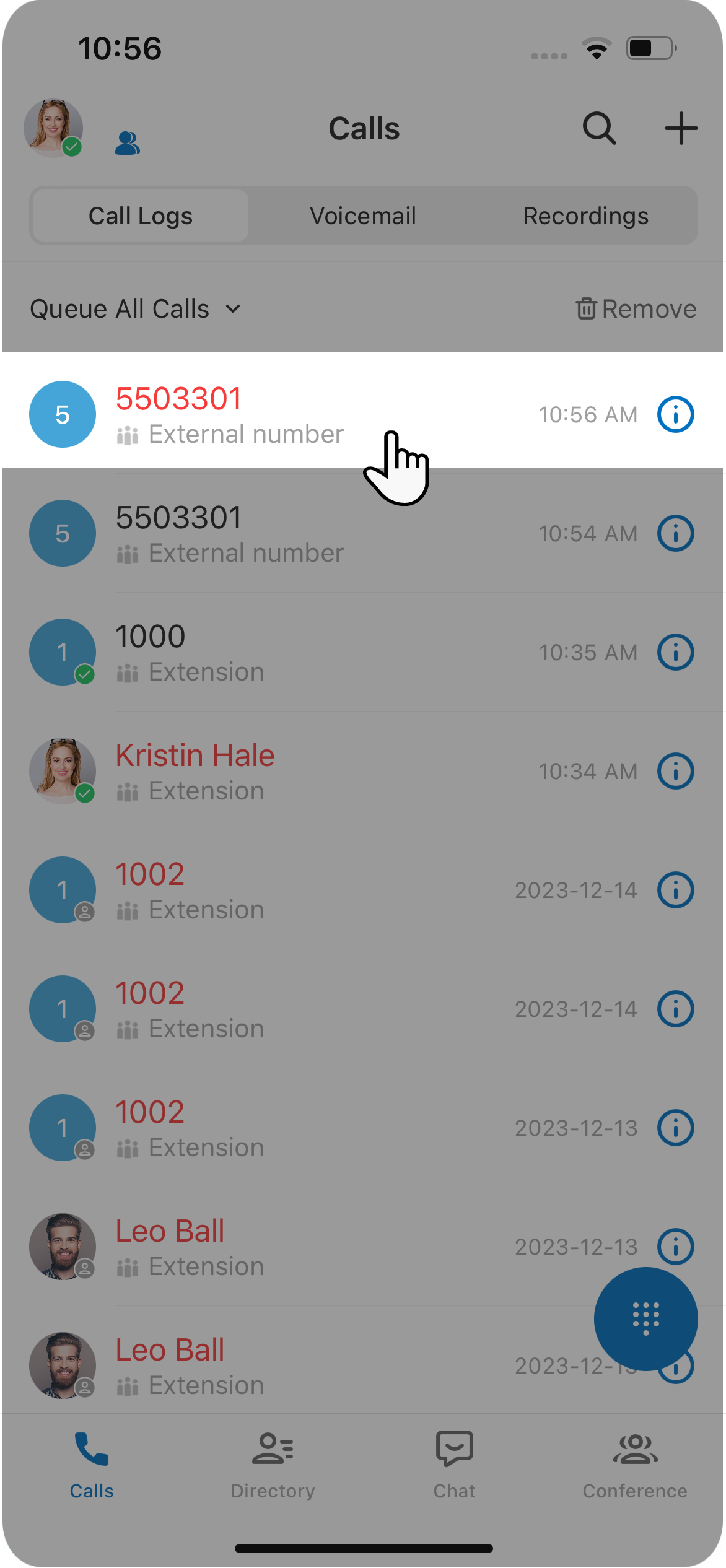
Section titled “Call the contact back”To return a call, tap its entry in the call log and the app dials the number for you.
Read or edit call notes
Section titled “Read or edit call notes”Each call log can hold a note that you and your teammates can view and update.
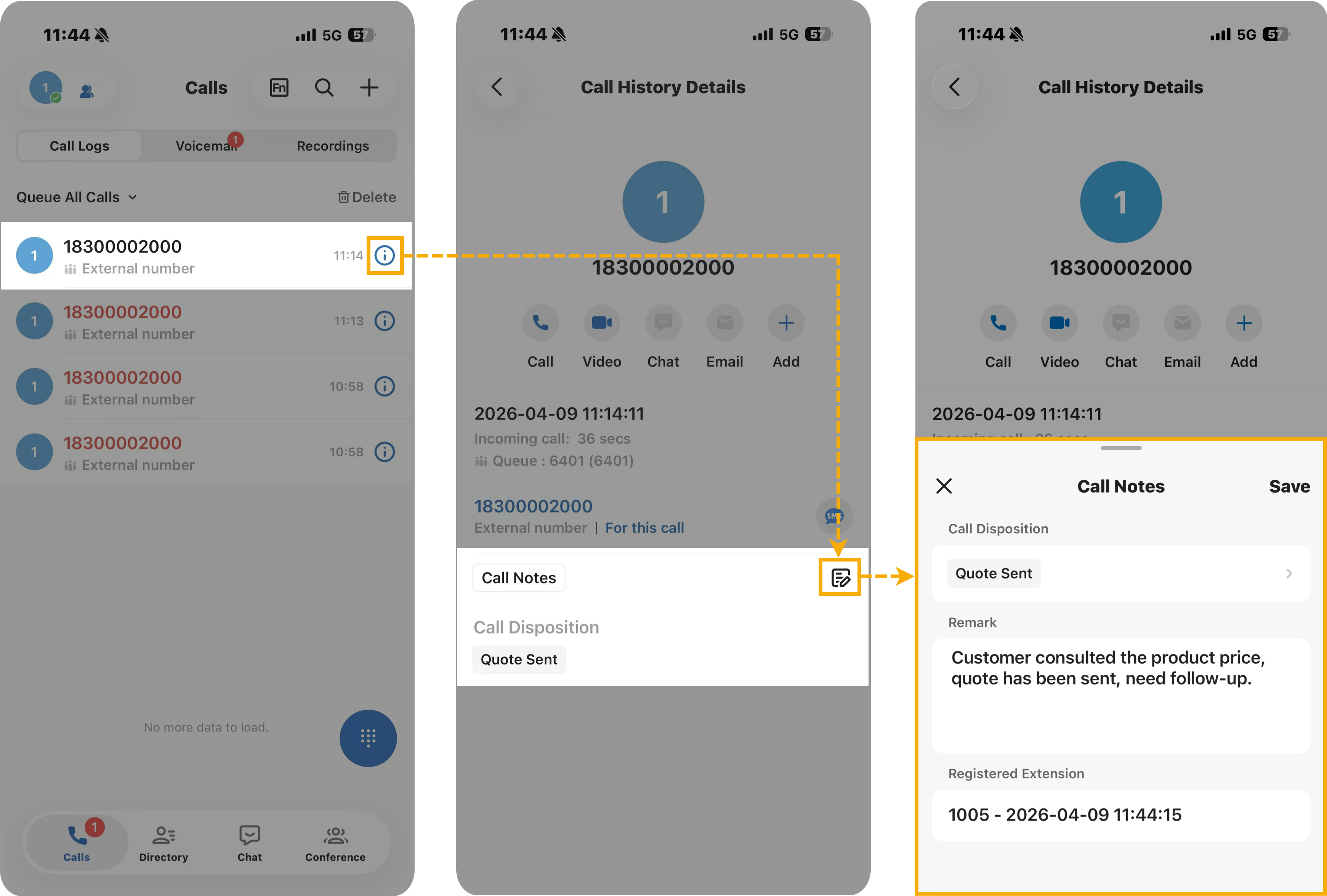
- Tap the information icon next to the log.
- On the details page, tap the note icon
 next to the call note.
 - Add or change the text in the note panel, then tap Save.
Read or edit a call transcription
Section titled “Read or edit a call transcription”For calls that were transcribed, you can review the transcript and edit the generated summary.
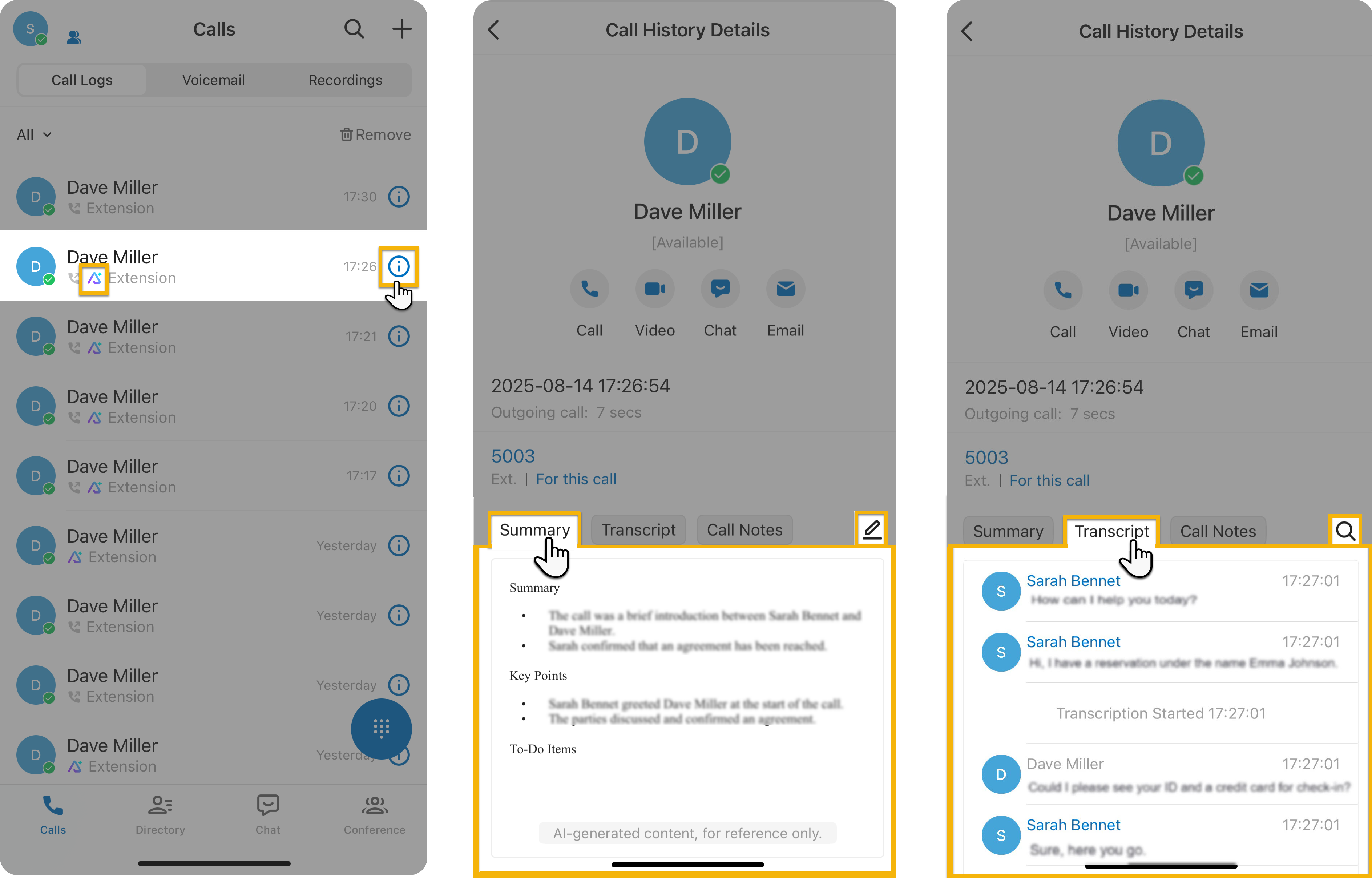
- Tap the information icon next to a queue call log marked with the AI icon
 .
. - In the top-right corner of the Summary section, tap the edit icon
 .
. - Adjust the summary as needed, then tap Save.
- Tap the Transcript tab.
- In the top-right corner of the Transcript section, tap the search icon
 to find specific content.
Delete incoming queue call logs
Section titled “Delete incoming queue call logs”You can remove incoming queue call logs one at a time or in bulk.
-
Delete a single log: Swipe left on the log, then tap Delete.
-
Delete several logs at once:
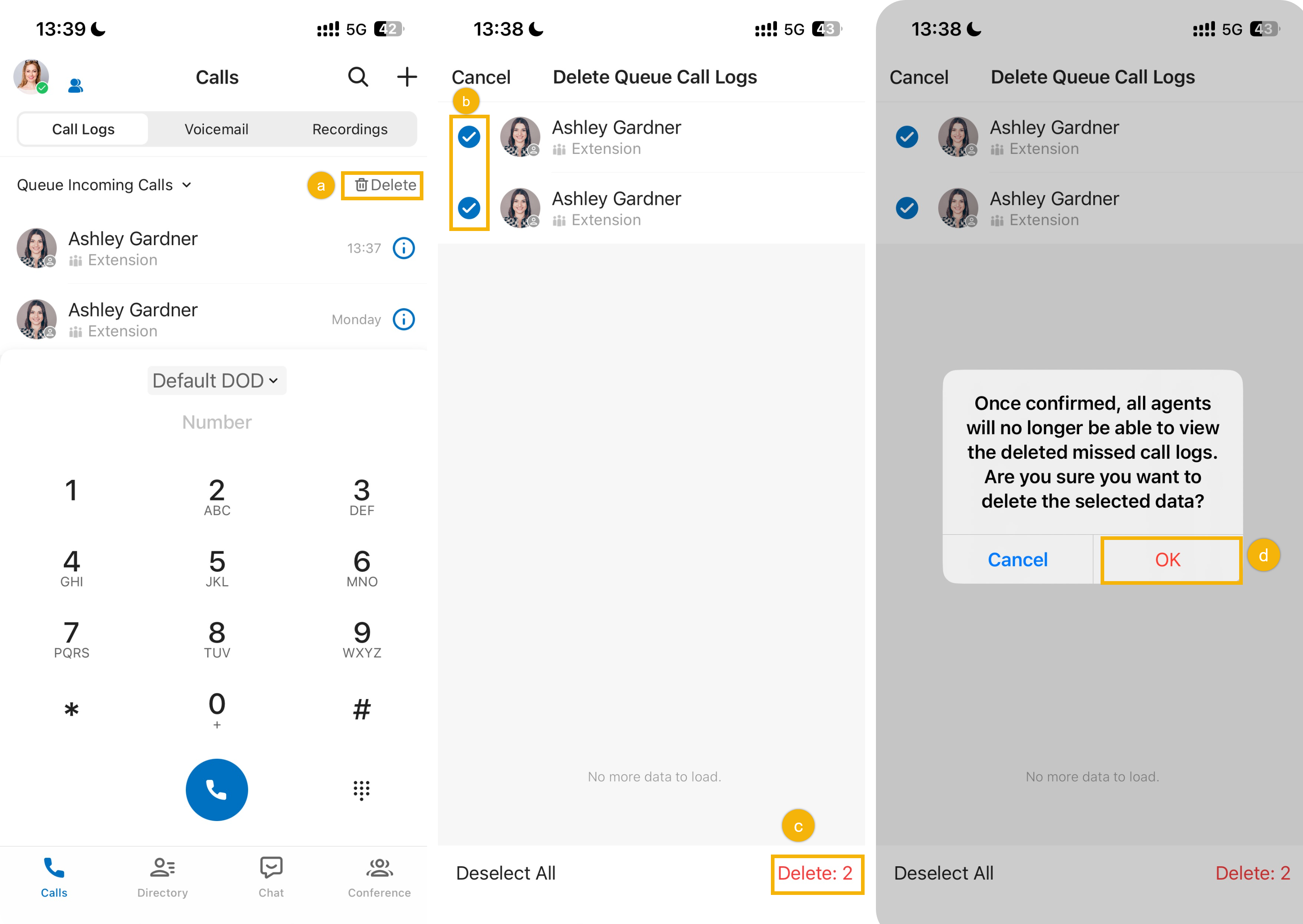
- Tap Delete in the top-right corner.
- Select the checkboxes for the logs you want to remove.
- Tap Delete.
- Tap OK in the confirmation window.
Question about this page?
Ask the AI assistant. It starts from this page, then searches the rest of the docs.
Ask Cloud Voice AI
Answers are AI-generated from the docs and may contain mistakes. Verify with the linked pages.