
Manage Tools
Once you have created custom tools, you can adjust their configuration, save copies of them, or clear out ones you no longer use. This page covers all three tasks. Each starts from the same place in the portal: go to AI > AI Receptionist > Tools.
Edit a tool
Section titled “Edit a tool”- Go to AI > AI Receptionist > Tools.
- Find the tool you want to change and click the edit icon
 next to it.
 - Update any of the tool’s settings.
- Click Save.
Download tools
Section titled “Download tools”Downloading a tool exports its configuration to a JSON file (JSON, or JavaScript Object Notation, is a plain-text data format), which is handy for keeping a backup or reusing the same setup elsewhere.
-
Go to AI > AI Receptionist > Tools.
-
Select one or more tools, then click Download above the list.
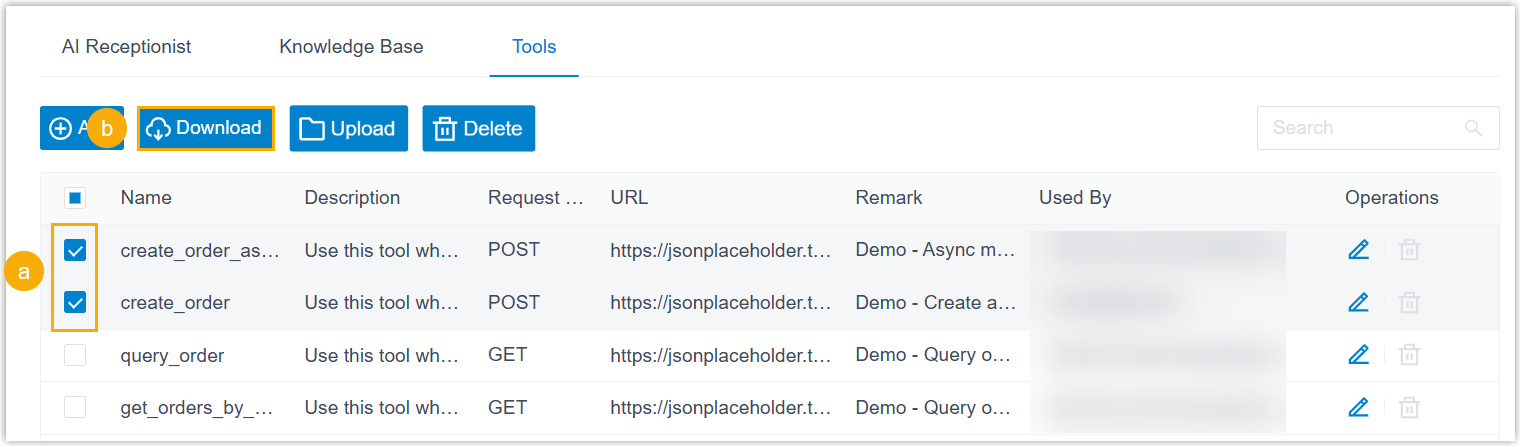
The JSON file is saved to your computer.
Delete tools
Section titled “Delete tools”Remove any tools you no longer need.
-
Go to AI > AI Receptionist > Tools.
-
To remove a single tool:
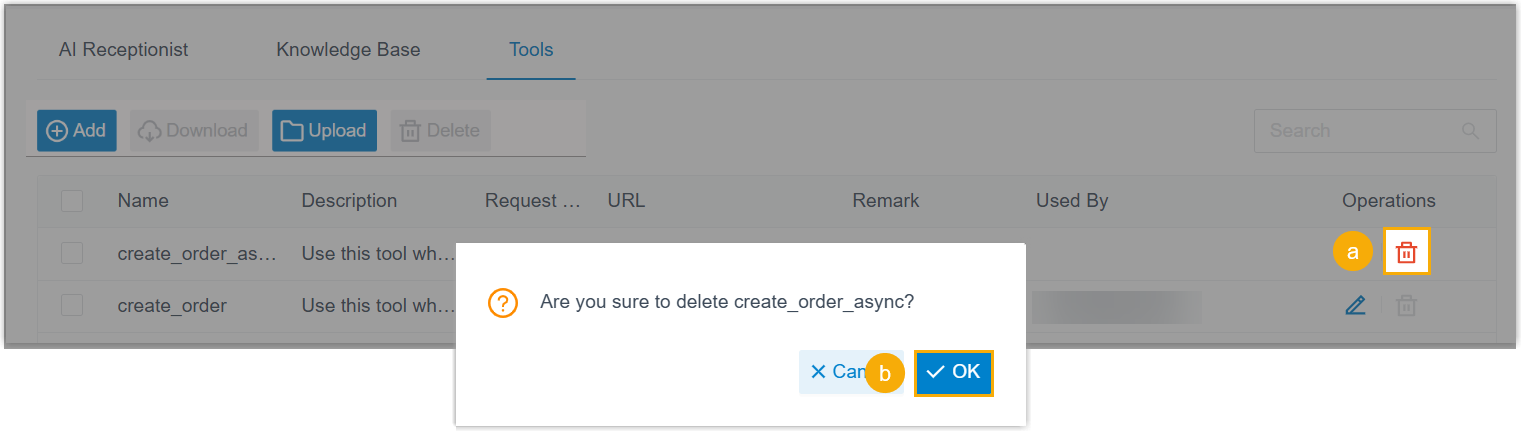
- Click the delete icon
 next to the tool.
 - Click OK in the confirmation window.
- Click the delete icon
-
To remove several tools at once:
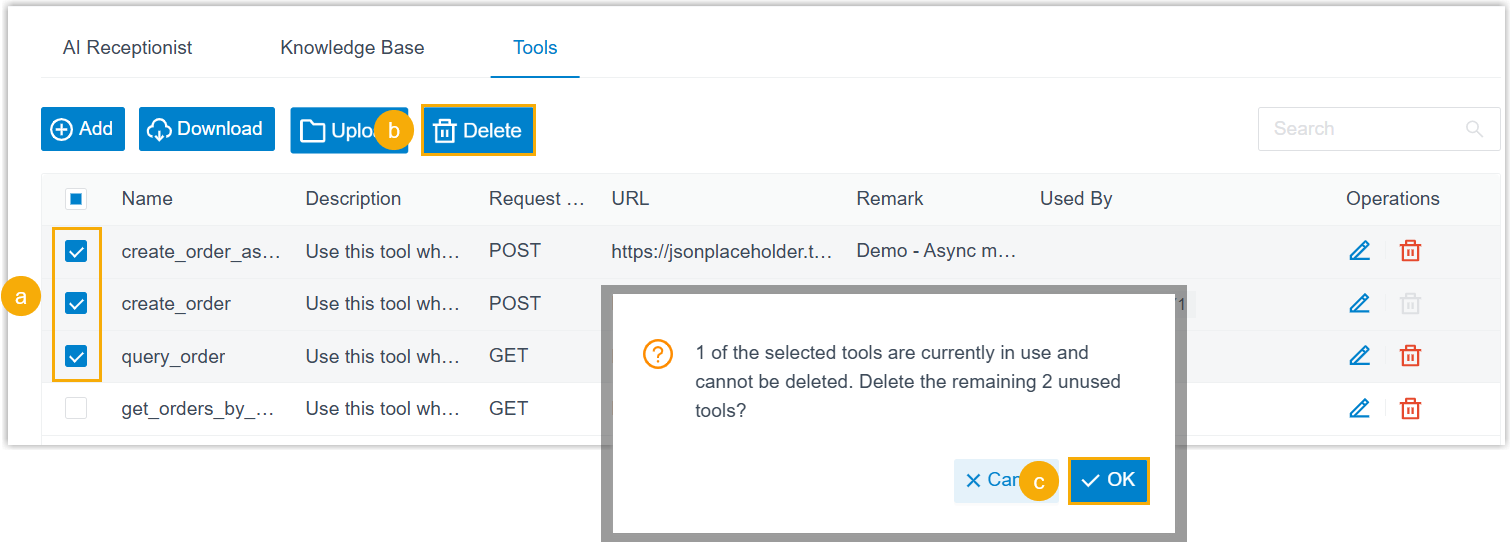
- Select the checkbox for each tool you want to remove.
- Click Delete above the list.
- Click OK in the confirmation window.
Question about this page?
Ask the AI assistant. It starts from this page, then searches the rest of the docs.
Ask Cloud Voice AI
Answers are AI-generated from the docs and may contain mistakes. Verify with the linked pages.