
Configure AI Voicemail Transcription with the Built-in Service
Cloud Voice can turn voicemail recordings into readable text using its built-in AI (Artificial Intelligence) engine, letting people scan a message instead of listening to it end to end. This page shows how to switch on voicemail transcription with the built-in service and choose which extensions it applies to.
Requirements
Section titled “Requirements”Before you begin, confirm the following.
| Item | Requirement |
|---|---|
| Firmware | 84.23.0.83 or later. |
| Subscription | See the transcription minutes below. |
Every plan includes a one-time block of free transcription minutes: 120 minutes on the Enterprise Plan and 240 minutes on the Ultimate Plan. When you need more, ask your service provider to add one or both of the following services under Plan > Add-on Subscription.

- AI Transcription (One-Time Capacity): A fixed allotment of transcription minutes. Once you use them up, purchase another block to keep going.
- AI Transcription (Monthly Quota Pack): A recurring pack of 500 minutes that refills at the start of each month. Any minutes you don’t use are lost rather than carried into the next month.
Procedure
Section titled “Procedure”-
Sign in to the phone system web portal and go to AI > AI Toolbox.
-
Turn on the Voicemail Transcription switch.

-
From the Service Type drop-down list, choose Built-in Service.
-
Configure the transcription settings.
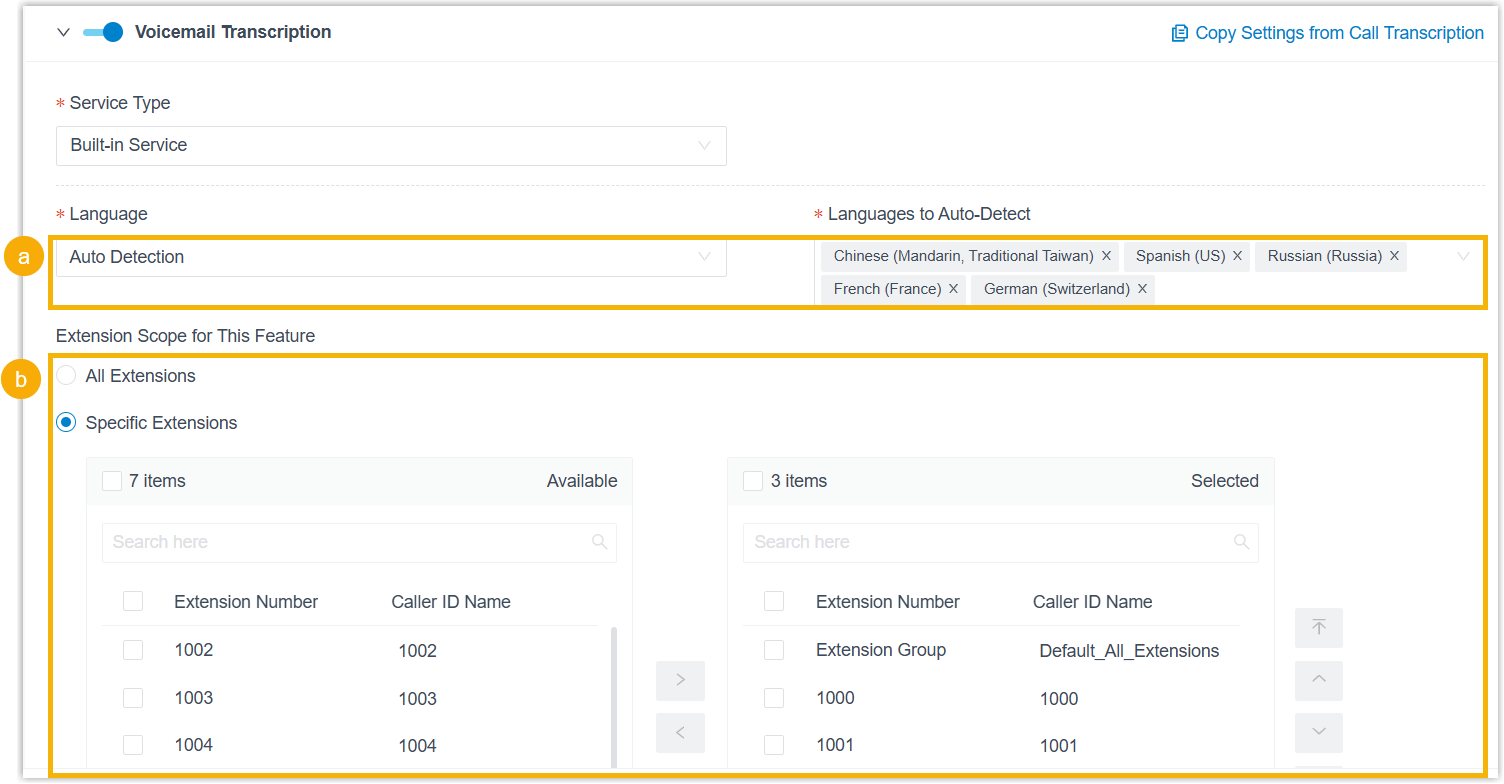
a. Set the transcription language.
-
Language: Pick the language you want the system to recognize and transcribe in voicemail recordings.
-
Languages to Auto-Detect: If you set Language to Auto Detection, choose the languages the system should watch for. It will identify which of them was spoken in each voicemail and transcribe accordingly.
b. Under Extension Scope for This Feature, decide who can use voicemail transcription, choosing among extensions, extension groups, and departments.
- All Extensions: Every extension can use the feature.
- Specific Extensions: Only the extensions you select can use it.
-
-
Click Save.
Result
Section titled “Result”Built-in AI voicemail transcription is now active. The system automatically converts both group and extension voicemail recordings into text in the language you set.
Usage alerts
Section titled “Usage alerts”The system keeps an eye on how many transcription minutes you’ve consumed and notifies your chosen contacts as capacity runs low.
-
When the utilization rate (used minutes ÷ total minutes) of either the one-time capacity or the monthly quota pack reaches a set threshold, the phone system sends the Your AI Transcription Usage is Reaching the Capacity Limit notification.
-
When all of your transcription minutes (one-time capacity and monthly quota pack combined) are gone, the phone system sends the AI Transcription Limit Reached notification.
Track your usage
Section titled “Track your usage”You can also review how many minutes you’ve used in either of these places.
-
Open the Transcription Usage Details report for a breakdown of minutes spent on voicemail and call transcription through the built-in engine. See Access Transcription Usage Details Report.
-
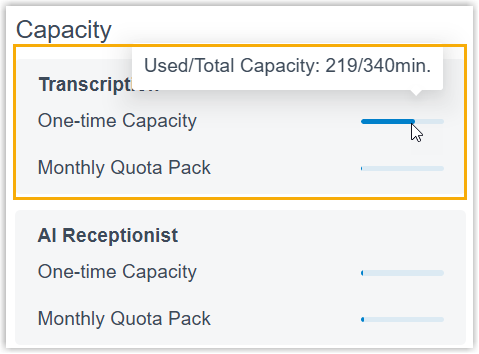
Check used minutes and total capacity on the Dashboard (visible only with full administrator access).
Question about this page?
Ask the AI assistant. It starts from this page, then searches the rest of the docs.
Ask Cloud Voice AI
Answers are AI-generated from the docs and may contain mistakes. Verify with the linked pages.