
Add Contents to Knowledge Base
A knowledge base is a central store of reference material that your AI receptionists consult in real time while a call is in progress. Populate it with the things a receptionist needs to answer questions accurately, such as answers to frequently asked questions (FAQs) and product details, by uploading files or pointing to web pages. Once the knowledge base is assigned to a receptionist, it can pull from that material whenever a caller asks something it covers.
Limits
Section titled “Limits”A single knowledge base holds up to 200 content entries in total, counting both files and URLs.
Two ways to add content
Section titled “Two ways to add content”You can build up a knowledge base by uploading files from your computer, by adding URLs to online pages, or by mixing both. The sections below cover each method.
Add content by uploading a file
Section titled “Add content by uploading a file”Uploading a document puts its full text directly into the knowledge base. For instance, if you upload a product’s PDF manual, the receptionist can answer detailed questions straight from the official documentation.
Each file you upload must meet these requirements:
| Item | Requirement |
|---|---|
| File size | Up to 10 MB per file. |
| File type | PDF, TXT, DOCX, HTML, or EPUB. |
To upload one or more files:
-
Sign in to the PBX (Private Branch Exchange, your phone system) web portal and go to AI > AI Receptionist > Knowledge Base.
-
Click Upload File.
-
In the file picker, choose the file or files you want, then click Open.
The upload starts automatically.
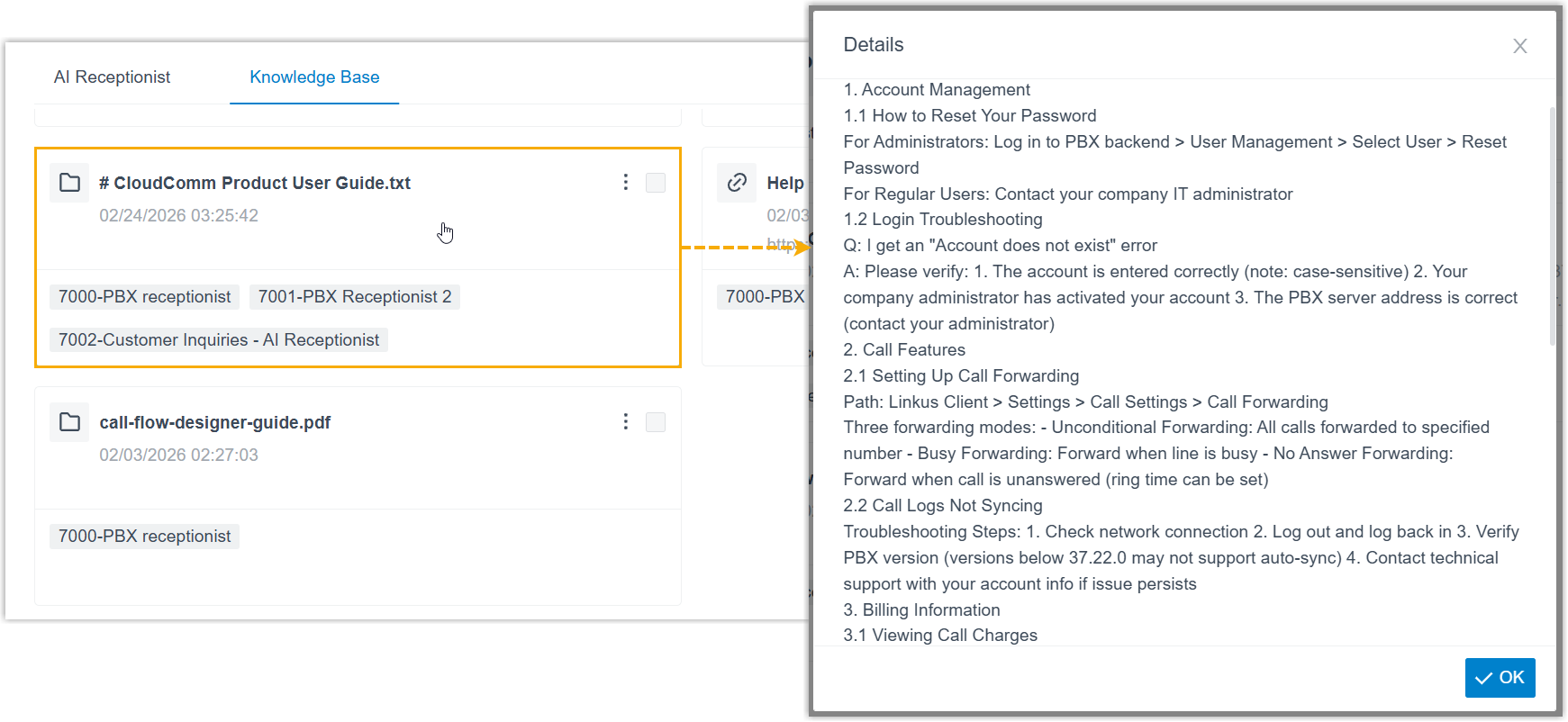
When the upload finishes, each file appears as an entry in the knowledge base list. Select an entry to review the text that was extracted from it.
Add content by adding a URL
Section titled “Add content by adding a URL”Adding a URL lets a receptionist reach out to an online page and read from it. This suits sources that change often, such as an FAQ page you keep up to date on the web.
Before you add URLs, note the following:
- The receptionist reads only the exact page at the URL you give it. It will not follow or crawl the links on that page to gather content from elsewhere. If you need material that spans several pages, add each page as its own URL.
To add one or more URLs:
-
Sign in to the PBX web portal and go to AI > AI Receptionist > Knowledge Base.
-
Click Add URL.
-
In the dialog that opens, fill in the URL details.
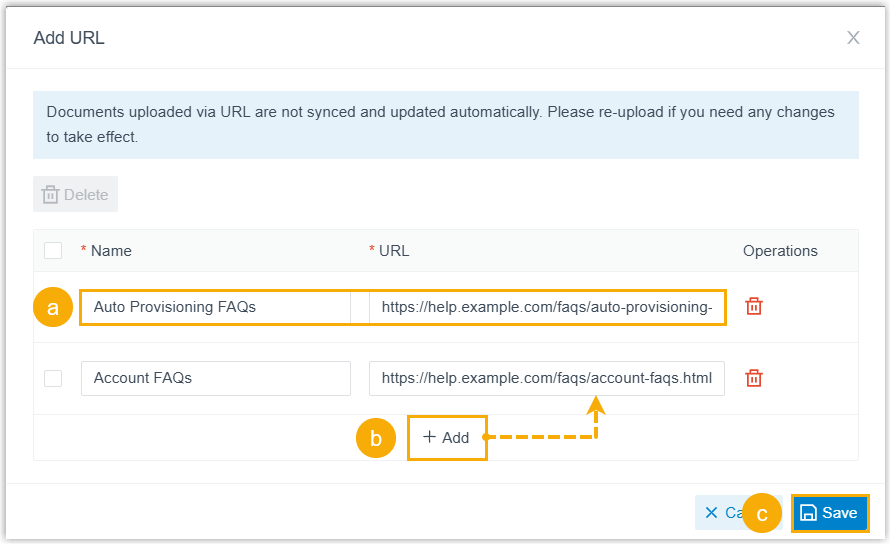
a. Enter the URL information.
Setting Description Name A label that helps you recognize the URL later. URL The web address of the content, which must begin with https://.b. To include another page, click Add and fill in its details.
c. Click Save.
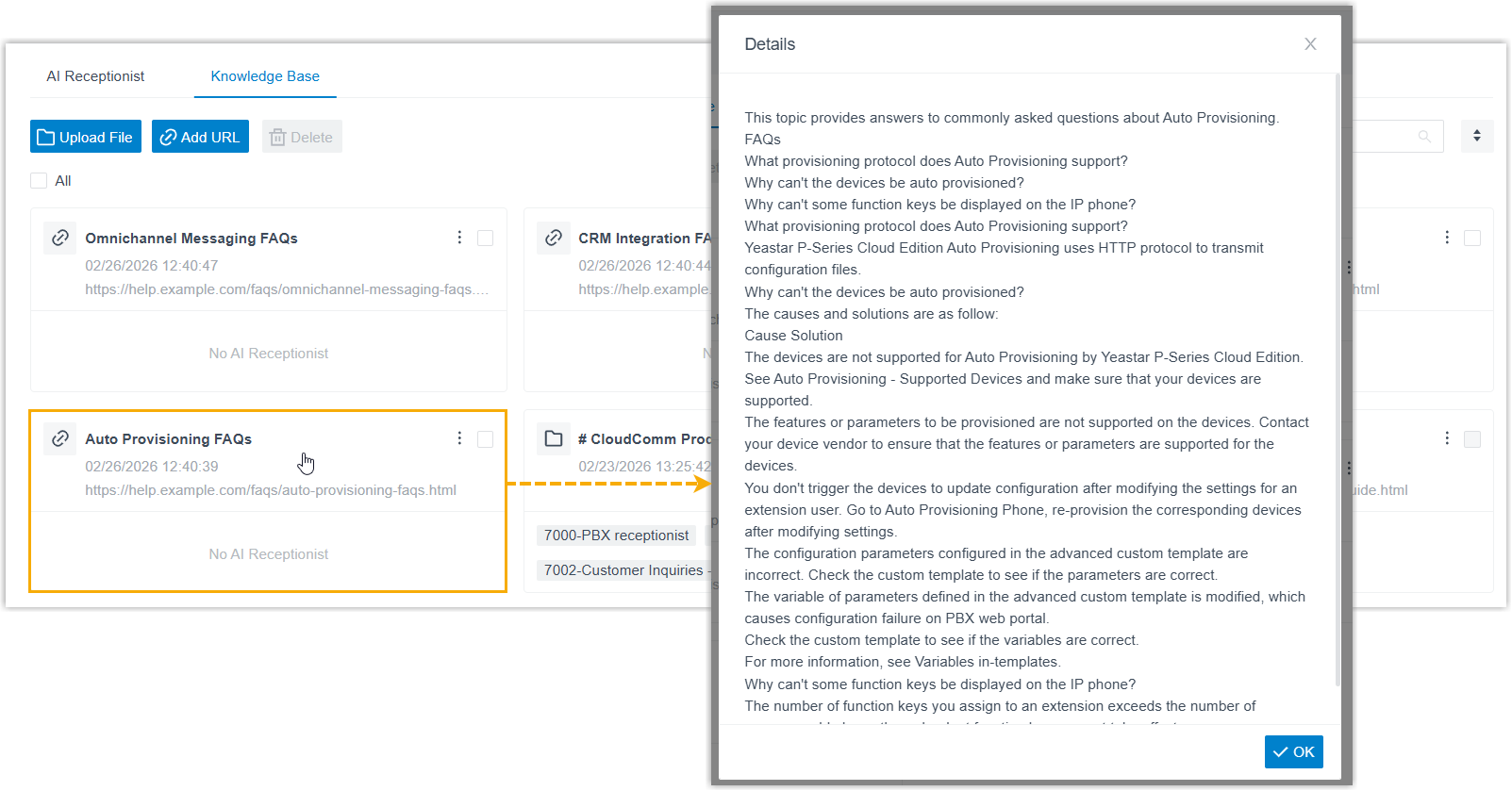
Cloud Voice reads the content from each URL and adds it to the knowledge base. Select an entry to review the extracted text.
Question about this page?
Ask the AI assistant. It starts from this page, then searches the rest of the docs.
Ask Cloud Voice AI
Answers are AI-generated from the docs and may contain mistakes. Verify with the linked pages.