
Query Connection Details
Once an Onsite Proxy is installed and running, you can inspect it directly from the host’s command line. Two commands are available: one reports the proxy client’s live status, and the other lists the connection details it uses to reach your Cloud Voice PBX (Private Branch Exchange, the hosted phone system).
Check the client status
Section titled “Check the client status”The status command reports the proxy’s health and how it is currently connected.
Before you begin
Section titled “Before you begin”You have installed the Onsite Proxy and started its services.
-
Open a command line on the Onsite Proxy host.
-
Switch to the root user:
Terminal window sudo -i -
Query the status:
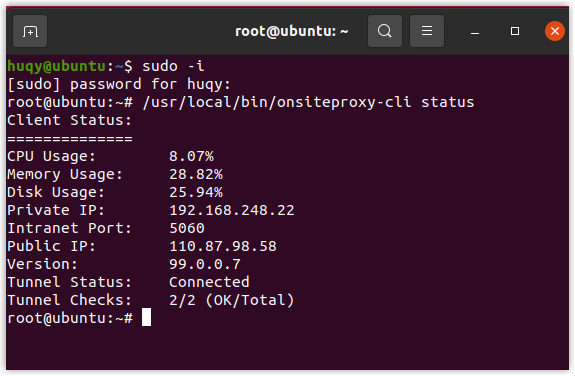
Terminal window onsiteproxy-cli statusThe output lists the proxy’s system resource usage, IP address, port, client version, and connection status.
Review the configured connection details
Section titled “Review the configured connection details”The connection-info command shows the settings the proxy uses to reach your Cloud Voice PBX.
Before you begin
Section titled “Before you begin”You have configured the connection information on the Onsite Proxy.
-
Open a command line on the Onsite Proxy host.
-
Switch to the root user:
Terminal window sudo -i -
Display the connection details:
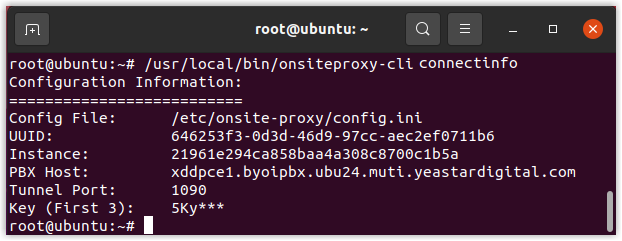
Terminal window onsiteproxy-cli connectinfoThe output shows the connection information currently in effect.
Question about this page?
Ask the AI assistant. It starts from this page, then searches the rest of the docs.
Ask Cloud Voice AI
Answers are AI-generated from the docs and may contain mistakes. Verify with the linked pages.