
Block Calls To or From a Phone Number
Nuisance calls and unwanted destinations can be shut out at the system level. Cloud Voice lets you build a blocklist of phone numbers and choose whether each entry stops calls coming in, calls going out, or both directions at once.
What you can and can’t block
Section titled “What you can and can’t block”The system blocklist applies to external phone numbers only. Keep the following limits in mind:
- Internal extensions are never affected. If a number on the blocklist happens to match an extension inside the PBX (your Private Branch Exchange, the phone system itself), that extension keeps working normally for both inbound and outbound calls.
- The number of blocklists you can create, and how many entries each list holds, scale with your extension count:
| Number of extensions (N) | Blocklists allowed | Entries per blocklist |
|---|---|---|
| N ≤ 200 | 256 | 100 |
| N > 200 | 512 | 200 |
Two ways to filter calls by number
Section titled “Two ways to filter calls by number”Cloud Voice offers two approaches to handling calls based on the phone number involved. Pick the one that fits your goal:
- Caller ID call handling: Build per-extension rules that route or block incoming calls from specific internal or external numbers. Because the rules live on each extension, different users can treat the same caller differently. See Handle Incoming Calls Based on Caller ID.
- Blocked numbers: Add a number to the system-wide blocklist and no extension on the PBX can call it or be reached by it. This is the feature described below.
Create a blocklist
Section titled “Create a blocklist”-
Sign in to the management portal and go to Call Features > Blocked/Allowed Numbers > Blocked Numbers.
-
Click Add to start a new blocked number list.
-
Fill in the dialog that opens:
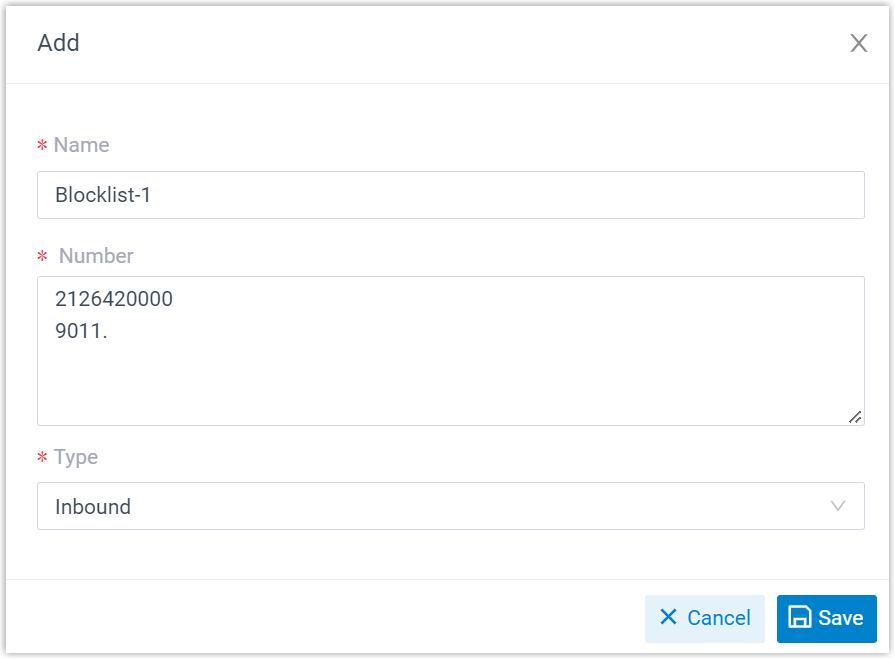
- Name: A label that helps you recognize what this list blocks. Choose something descriptive, such as
Spam - robocallsorRestricted - premium dialing, so a teammate can tell at a glance why the list exists. - Number: Enter one number or number pattern per line:
- For a single number, type it exactly, for example
2126420000. - For a range, use a wildcard pattern. For example,
9011.blocks every number that begins with 9011. For the full set of wildcard characters, see DID Pattern and Caller ID Pattern (DID stands for Direct Inward Dialing, the direct-dial format your numbers use).
- For a single number, type it exactly, for example
- Type: Choose the direction to block from the drop-down:
- Inbound: The number(s) cannot call into the PBX.
- Outbound: Extensions cannot dial the number(s).
- Both: Blocks calls in both directions.
- Name: A label that helps you recognize what this list blocks. Choose something descriptive, such as
-
Click Save, then Apply.
Result
Section titled “Result”Your new list appears on the Blocked Numbers page, and each entry is enforced according to the direction you selected.

Question about this page?
Ask the AI assistant. It starts from this page, then searches the rest of the docs.
Ask Cloud Voice AI
Answers are AI-generated from the docs and may contain mistakes. Verify with the linked pages.