
Set up Group Voicemail for a Custom Group
When a team is made up of people from different departments rather than a single department or ring group, you can give them a shared mailbox by creating a custom group voicemail. Any message left in the box notifies every member you assign, so nothing slips through the cracks.
Create the group voicemail
Section titled “Create the group voicemail”-
Sign in to the PBX (Private Branch Exchange, your phone system’s admin console) web portal and go to Call Features > Voicemail > Group Voicemail.
-
Click Add.
-
On the General tab, fill in the basic details described below.
Setting What to enter Type Choose Custom. Number A virtual extension number callers dial to reach the group voicemail. Name A label that helps you recognize the mailbox later. Mode How incoming messages are handled (see the two options below). Group Voicemail to Email Optional. Email addresses that should receive a copy of each message. Voicemail PIN Authentication Turn PIN (Personal Identification Number) protection on or off for access to the mailbox. Voicemail Access PIN When PIN authentication is on, the access code members must enter. Disallow Voicemail Messages Optional. Stops callers from recording a message (see below). Play Date and Time Optional. Announces when a message was received before playing it. Play Caller ID Optional. Announces the caller’s ID before playing the message. Play Message Duration Optional. Announces how long a message is before playing it. Custom Prompt Language Optional. Sets the language of the prompts callers hear (see below). Mode determines where messages live and who can act on them:
- Shared by Members: messages stay in the group mailbox and are shared by everyone. Any member can play, save, or delete them.
- Broadcast to Members: messages are not kept in the group mailbox. Instead, the system copies and forwards each one to every member’s personal mailbox.
When Disallow Voicemail Messages is enabled, the system plays the group voicemail greeting and then ends the call without recording anything.
-
Optional: In the Group Voicemail Greeting section, pick the greeting callers hear before they leave a message.
-
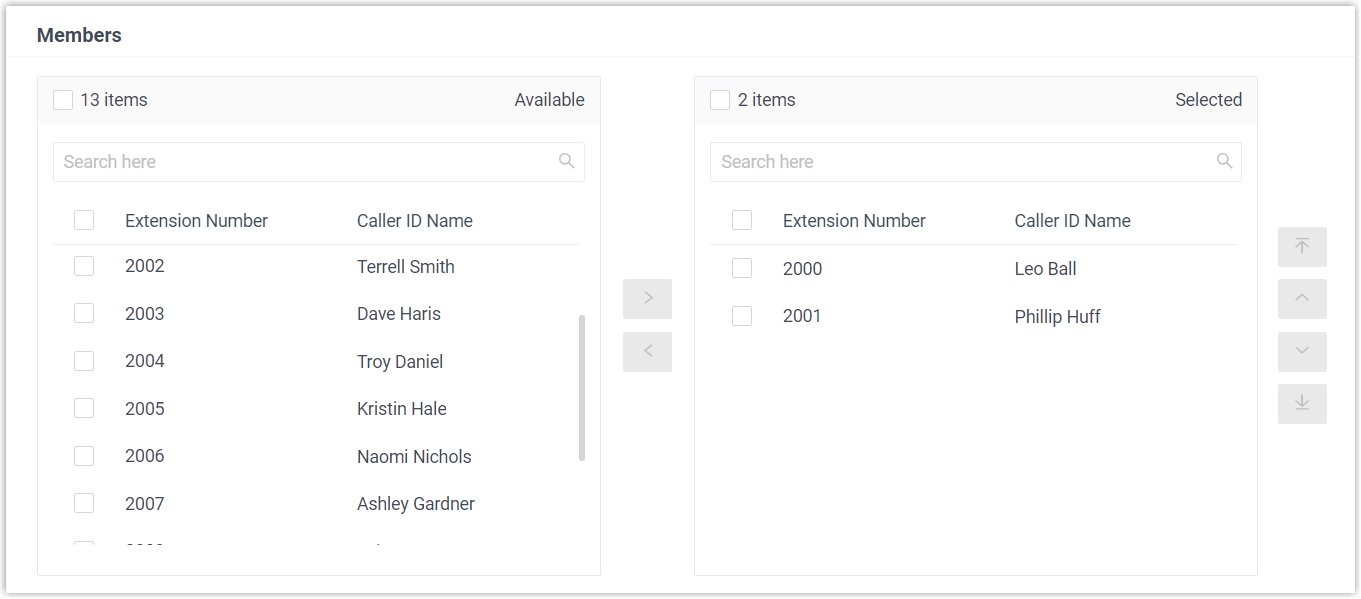
In the Members section, move the extensions or extension groups that should receive the group voicemail from the Available box to the Selected box.
-
Open the Voicemail Announcement tab to set up call alerts that ring chosen numbers whenever a new message arrives.
-
Click Save, then Apply.
Question about this page?
Ask the AI assistant. It starts from this page, then searches the rest of the docs.
Ask Cloud Voice AI
Answers are AI-generated from the docs and may contain mistakes. Verify with the linked pages.