
Enable Call Quality Monitoring for Extensions
Call quality monitoring gathers detailed metrics from an extension’s calls so you can pinpoint the cause of audio problems and other call issues. This page explains how to switch the feature on for an extension from the PBX (Private Branch Exchange, your phone system) web portal.
Requirements
Section titled “Requirements”Before you enable call quality monitoring, confirm that your system and the extension’s app meet the following minimum versions.
| Component | Requirement |
|---|---|
| PBX server | Firmware 84.23.0.123 or later. |
| Cloud Voice App (iOS) | Version 5.27.18 or later. |
| Cloud Voice App (Android) | Version 5.27.12 or later. |
Enable monitoring for an extension
Section titled “Enable monitoring for an extension”-
Sign in to the PBX web portal and go to Extension and Trunk > Extension.
-
Click the edit icon next to the extension you want to monitor.
-
Open the Features tab and set the following.
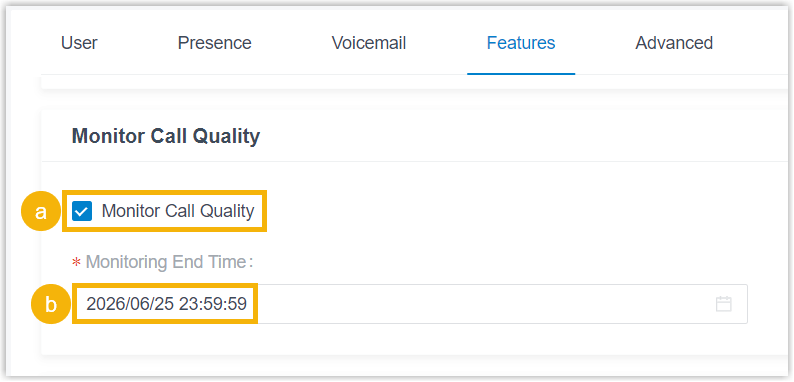
a. Select the Monitor Call Quality checkbox.
b. From the Monitoring End Time drop-down list, choose when monitoring should stop.
-
Click Save, then Apply.
What happens next
Section titled “What happens next”Once monitoring is active, the system automatically records quality metrics whenever the extension is on a call. Each call produces its own call quality report, and those results roll up into an extension-wide Quality of Service (QoS) report. You can open both reports from the PBX web portal, and extension users can open their own per-call reports from the Cloud Voice App.
View reports from the PBX web portal
Section titled “View reports from the PBX web portal”Call Quality Monitoring Report: Go to Reports and Recordings > CDR > CDR (Advanced) > CDR Details, then click the call quality icon on a call row to open its report. (CDR stands for Call Detail Record, the system’s log of every call.) The icon color reflects the call’s rating: green  , orange
  , or red
  .
.
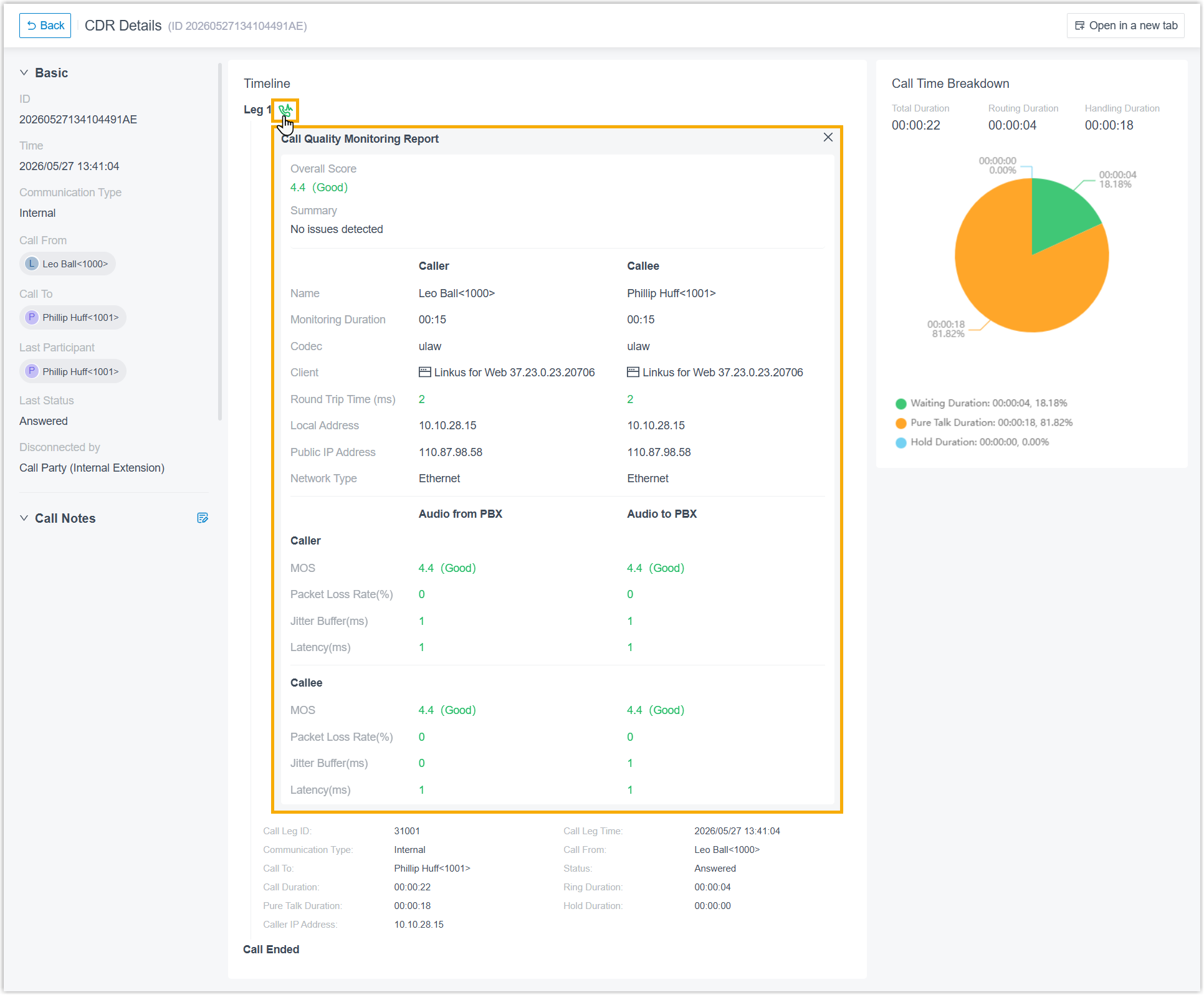
For an explanation of the metrics, see Call Quality Monitoring Report.
Quality of Service Report: Go to Reports and Recordings > Call Reports > Default Reports > Quality of Service Report.
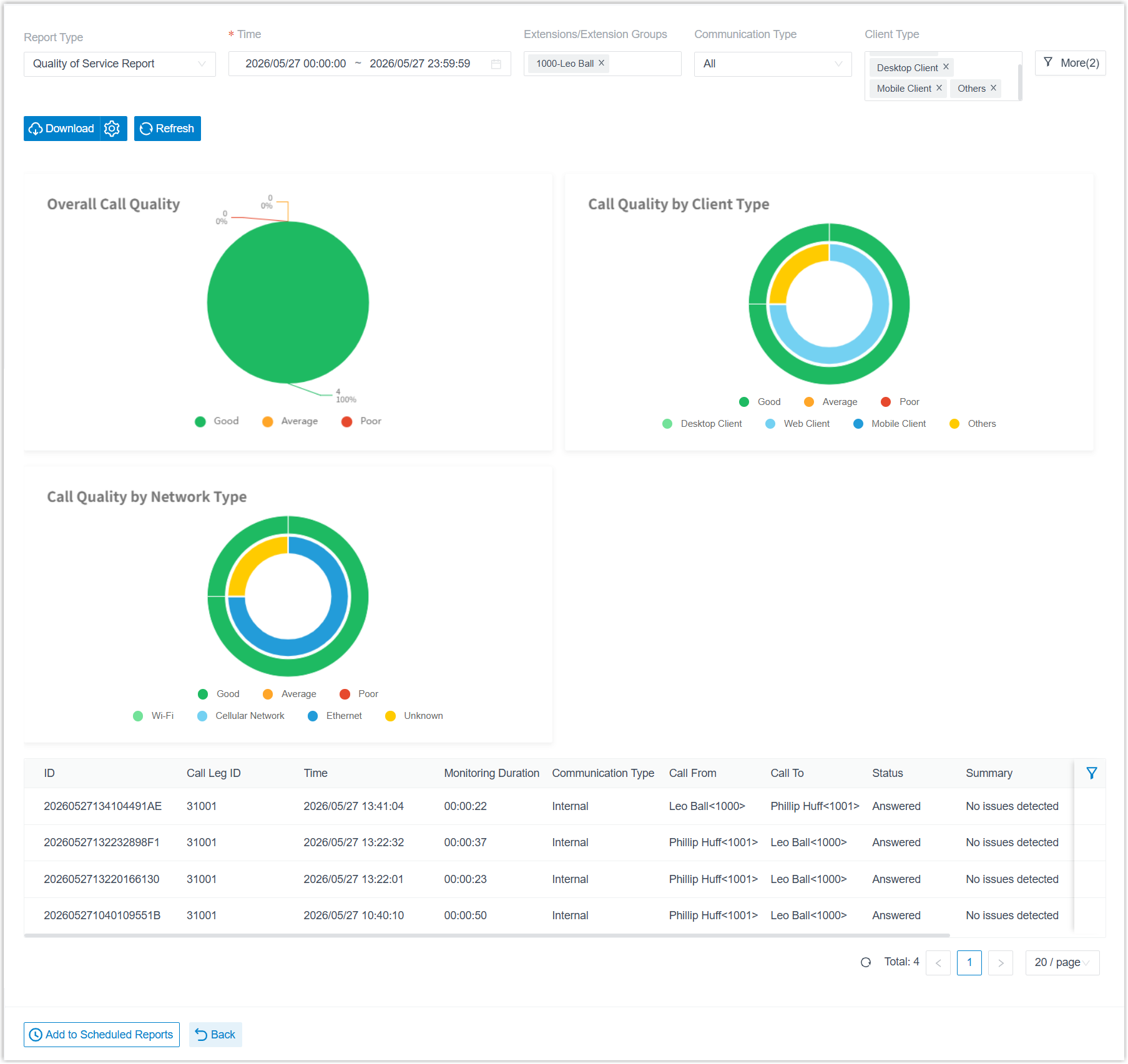
For details, see Quality of Service Report.
View reports from the Cloud Voice App
Section titled “View reports from the Cloud Voice App”Extension users can open the per-call report from their own app. The path depends on which app they use.
| Cloud Voice App (Mobile) | Cloud Voice App (Desktop) | Cloud Voice App (Web) |
|---|---|---|
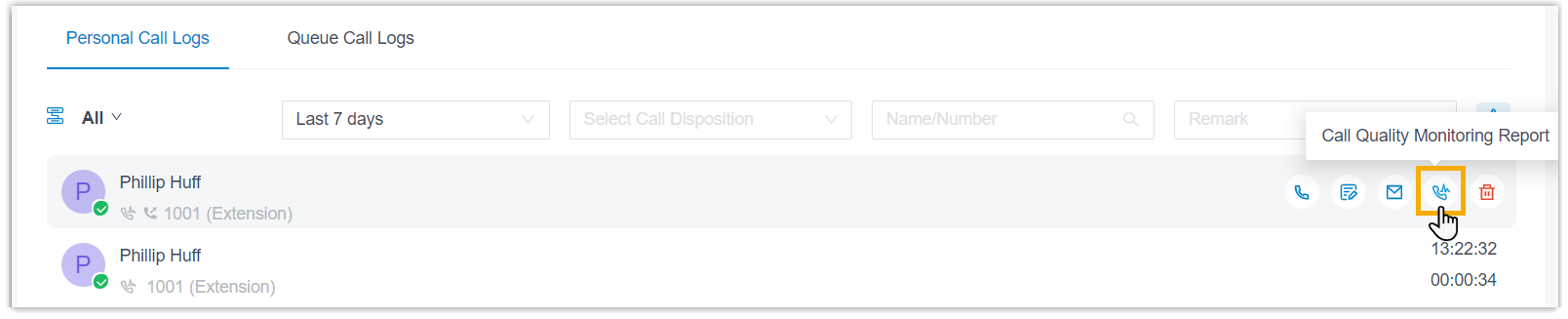
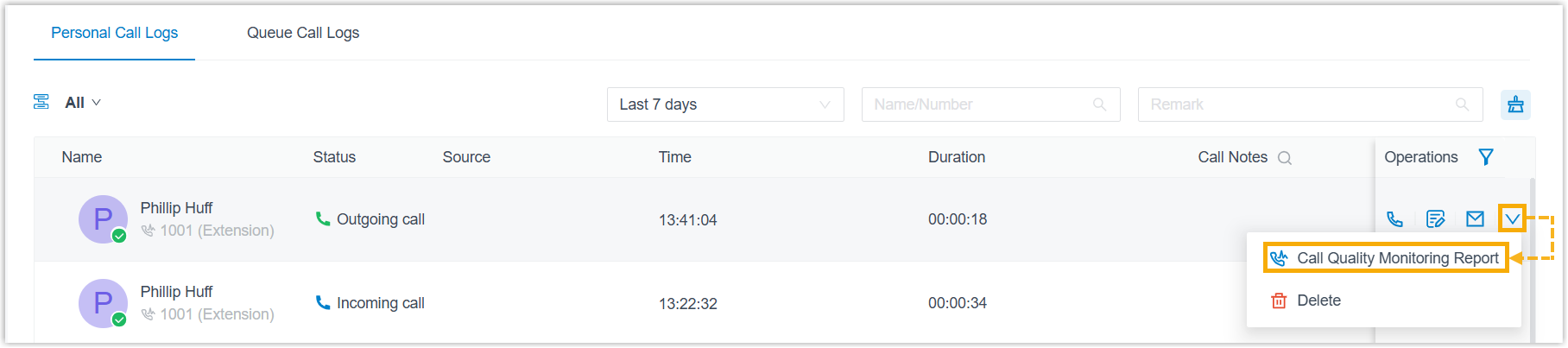
| Go to Calls > Call Logs, tap the information icon, then tap the call quality icon. | Go to Call Logs > Personal Call Logs, then click the call quality icon. | Go to Call Logs > Personal Call Logs, click the more icon, then choose Call Quality Monitoring Report. |
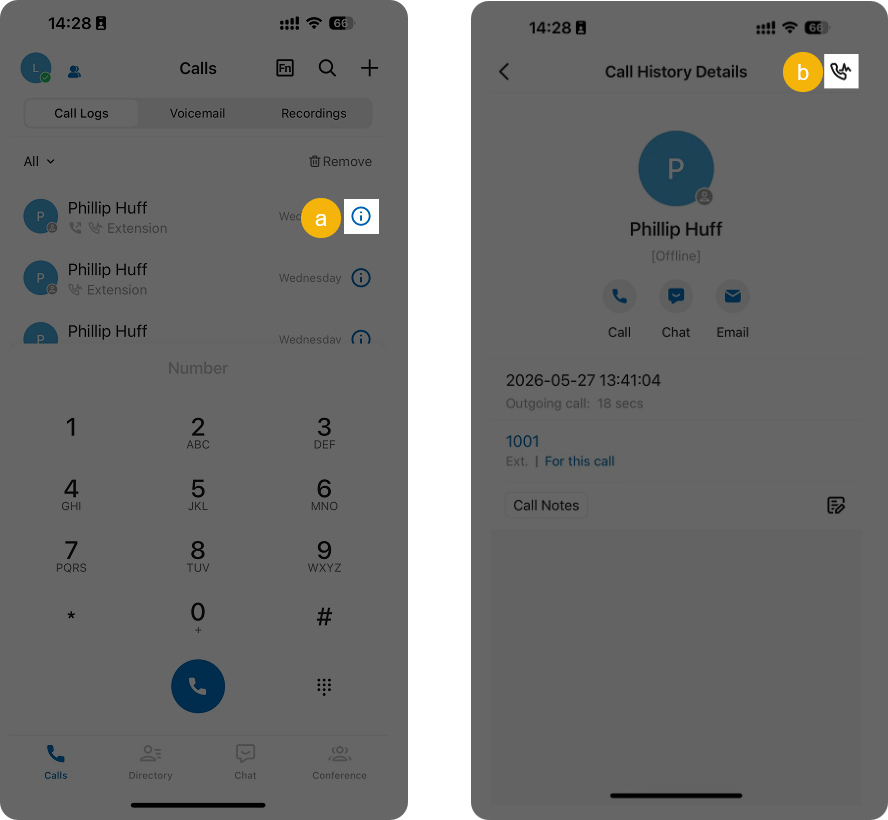 |  |  |
Question about this page?
Ask the AI assistant. It starts from this page, then searches the rest of the docs.
Ask Cloud Voice AI
Answers are AI-generated from the docs and may contain mistakes. Verify with the linked pages.