
Download a Scheduled Call Report from the Web Portal
When a scheduled call report runs, Cloud Voice emails it to the recipients you configured, and each message includes a download link they can use to preview and save the report. You don’t have to rely on the email, though: any report that has already been generated is also available straight from the web portal, and you can open or download it there at any time.
Before you begin
Section titled “Before you begin”Make sure the scheduled report has run at least once and completed successfully. Only reports that have already been generated appear in the log for download.
Download the report
Section titled “Download the report”-
Sign in to the Cloud Voice web portal and go to Reports and Recordings > Call Reports.
-
Open the Scheduled Logs tab, find the report task you want, and click the view icon (
 ) next to it.
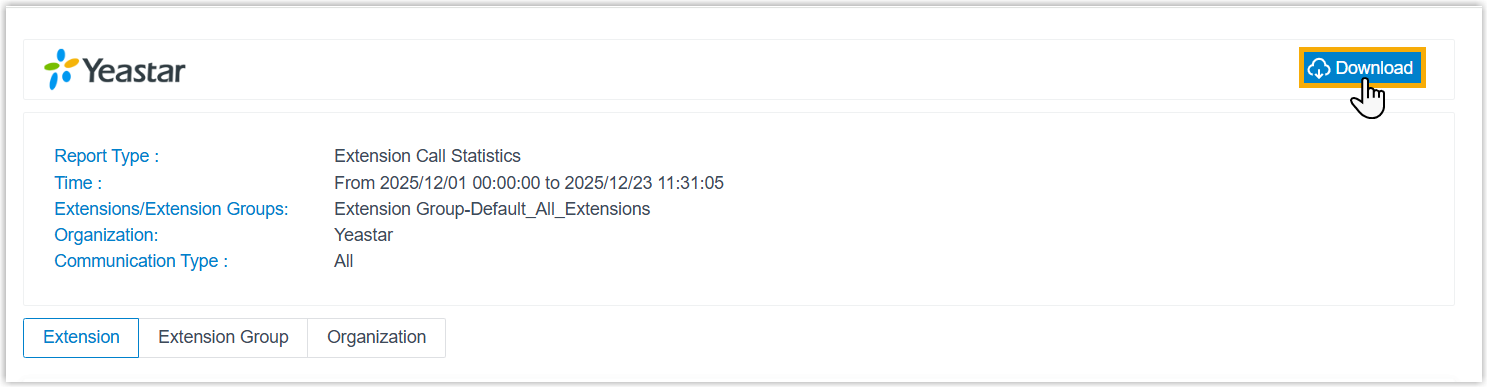
A new browser tab opens showing a snapshot of the report’s data.
-
In the upper-right corner of that tab, click Download.
Result
Section titled “Result”The report is saved to your computer in the file format set for the scheduled task.
Question about this page?
Ask the AI assistant. It starts from this page, then searches the rest of the docs.
Ask Cloud Voice AI
Answers are AI-generated from the docs and may contain mistakes. Verify with the linked pages.