
Update a Default Auto Provisioning Template
Auto provisioning is the process where your PBX (Private Branch Exchange, the phone system) automatically pushes configuration settings to IP (Internet Protocol) phones and other devices, so you do not have to program each device by hand. A template holds the default settings for a specific device model.
Cloud Voice publishes updated templates from time to time to add support for new features and to fix known issues. You can check whether a newer version exists for a model and decide when to bring it into your system. This page walks through checking for, downloading, and applying a default template update.
Update the template
Section titled “Update the template”-
Sign in to the PBX web portal and open Auto Provisioning > Resource Repository. The Resource Repository is where downloaded templates are stored.
-
Click Check for New Template. Cloud Voice looks up the latest available version for each model.
-
When a newer version is found, click the download icon (
 ) to pull the template into your repository.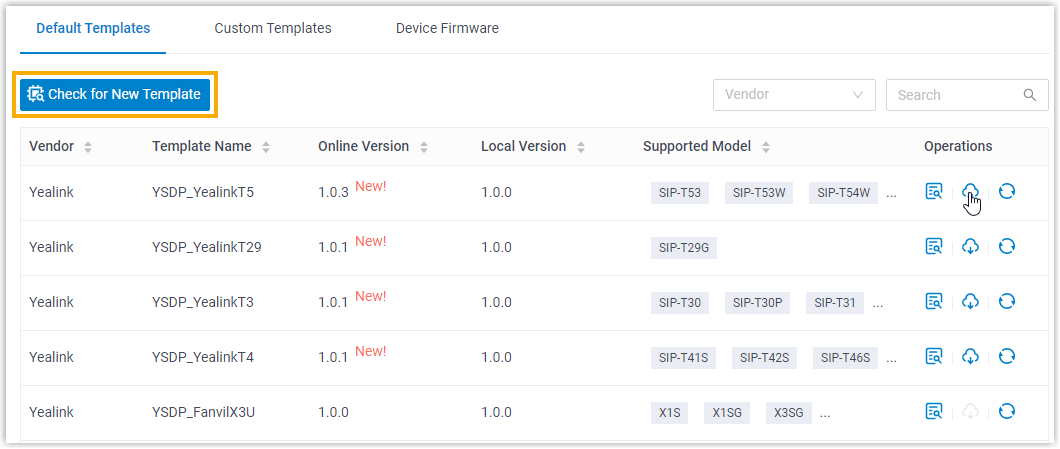
-
To confirm what the update contains, click the view icon (
 ) next to the template and review its default settings. For details, see View a Default Auto Provisioning Template.
Apply the update to existing devices
Section titled “Apply the update to existing devices”Downloading a new version stores it in the repository but does not change devices that are already in service. To push the newer template to phones that were provisioned with an earlier version of the same template, click the update icon ( ) for that template.
Question about this page?
Ask the AI assistant. It starts from this page, then searches the rest of the docs.
Ask Cloud Voice AI
Answers are AI-generated from the docs and may contain mistakes. Verify with the linked pages.