
Allow Users to Switch Call Recording Status
Once call recording is configured for an extension, trunk, paging/intercom, conference, queue, or IVR (Interactive Voice Response, the automated menu that answers and routes callers), matching calls begin recording the moment they connect, and no one can turn that recording on or off mid-call. If you would rather keep sensitive parts of a conversation off the record, or let staff record only when it matters, you can grant chosen users the ability to control recording while they are on a call.
What users can and cannot control
Section titled “What users can and cannot control”Granting recording control lets a user pause, resume, or start recording during ordinary calls. It does not extend to every call type:
Grant recording control to an extension
Section titled “Grant recording control to an extension”-
Sign in to the management portal and go to Extension and Trunk > Extension, then open the extension you want to edit.
-
Select the Features tab.
-
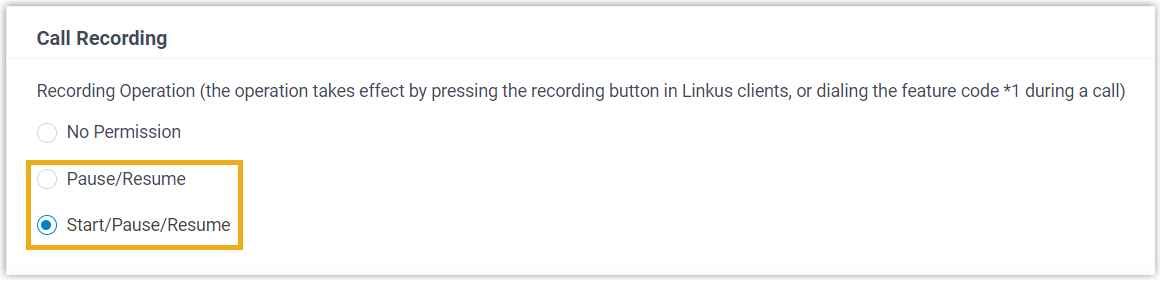
Under Call Recording, choose the level of control to give the user:
-
Pause/Resume: The user can pause and resume recording during calls that are already set to be recorded.
-
Start/Pause/Resume: The user can start, pause, and resume recording on any call, whether or not it was configured for recording, the exceptions being conference and paging/intercom calls.
-
-
Click Save, then Apply.
How users switch recording during a call
Section titled “How users switch recording during a call”A user with permission can toggle recording in either of these ways:
-
Tap the recording button in the Cloud Voice App.
-
Dial the recording feature code.
By default, users can also open the recording file that is produced when a call ends. If you need to keep certain users from opening recordings, see Restrict Users from Viewing Recording Files.
Question about this page?
Ask the AI assistant. It starts from this page, then searches the rest of the docs.
Ask Cloud Voice AI
Answers are AI-generated from the docs and may contain mistakes. Verify with the linked pages.