
Create a Queue
A queue keeps inbound callers waiting in an orderly line and hands each one off to an available agent according to the rules, prompts, and limits you set. This page walks you through creating a queue and configuring how it treats callers and agents.
Capacity limits
Section titled “Capacity limits”How many queues you can create, and how many agents each queue can hold, depends on the total number of extensions on your system:
| Total extensions | Queues | Agents per queue |
|---|---|---|
| Up to 50 | 32 | 25 |
| 51 to 200 | 32 | 60 |
| More than 200 | 64 | 120 |
Before you begin
Section titled “Before you begin”Prepare and upload any audio the queue will use. Depending on which options you plan to enable, you may need:
- Voice prompts for the messages callers hear:
- A join announcement that plays once as a caller enters the queue.
- A periodic announcement that replays at a set interval while callers wait for an agent. Callers can press a key to respond after it plays.
- Music on hold that plays whenever an agent puts a caller on hold.
Create the queue
Section titled “Create the queue”To start, sign in to the PBX (Private Branch Exchange) web portal, open Call Features > Queue, and click Add. The new queue opens on the Basic tab. Work through the sections below, add your agents, then save.
Basic settings
Section titled “Basic settings”In the Basic section, define the queue’s identity and its core call-handling behavior.
| Setting | Description |
|---|---|
| Number | The virtual number callers dial to reach the queue. By default, queue numbers run from 6400 to 6499. |
| Name | A label that helps you recognize the queue. |
| Skill-based Routing | Route calls to agents by skill level. When enabled, you assign a skill level to each agent and calls go to the most skilled available agents first. See Set up Skill-based Routing for a Queue. |
| Maximum Waiting Time (s) | How long, in seconds, a caller may wait for an available agent before the queue gives up on them. |
| Maximum Callers In Queue | The largest number of callers allowed to wait at once. The default, 0, means unlimited. |
Ring strategy
Section titled “Ring strategy”Use the Ring Strategy setting to choose how the queue distributes calls among agents:
- Ring All: Rings every available agent at once; the first to answer takes the call.
- Least Recent: Rings the available agent who has gone the longest since their last call.
- Fewest Calls: Rings the available agent who has completed the fewest calls.
- Random: Rings available agents in no particular order.
- Rrmemory (round robin with memory), Remembers the last agent it tried and continues from there:
- With static agents only, it rings the next agent in the static agents list.
- With dynamic agents only, it rings the next agent in the order agents logged in.
- With both, it rings the next agent in the static list; if no static agent is free, it moves to the dynamic agents in login order.
- Linear: Rings available agents in a fixed order set by the agent types in the queue:
- With static agents only, it follows the order of the static agents list.
- With dynamic agents only, it follows the order agents logged in.
- With both, it follows the order agents logged in.
Route calls by time of day
Section titled “Route calls by time of day”To have the queue take calls only during business hours and send off-hours and holiday calls elsewhere, configure the Time Condition settings.
| Setting | Description |
|---|---|
| Time Condition | Select this checkbox to let the system route queue calls to different destinations depending on the time. |
| Time Zone | The time zone whose business hours and holidays apply to the queue. |
| Outside Business Hours Destination | Where calls go when they arrive outside the business hours or holidays defined for the selected time zone. |
| Holidays Destination | Where calls go during holidays defined for the selected time zone. |
| Ignore the Holiday Destination | Optional. Select this to stop calls from going to the holiday destination. Holiday calls then follow your regular business hours routing instead. |
| Play Holiday Prompt During Holidays | Optional. Select this to play a prompt to callers before sending holiday calls to the holiday destination. |
Call routing destination
Section titled “Call routing destination”In the Call Routing Destination section, decide what happens to calls the queue cannot answer.
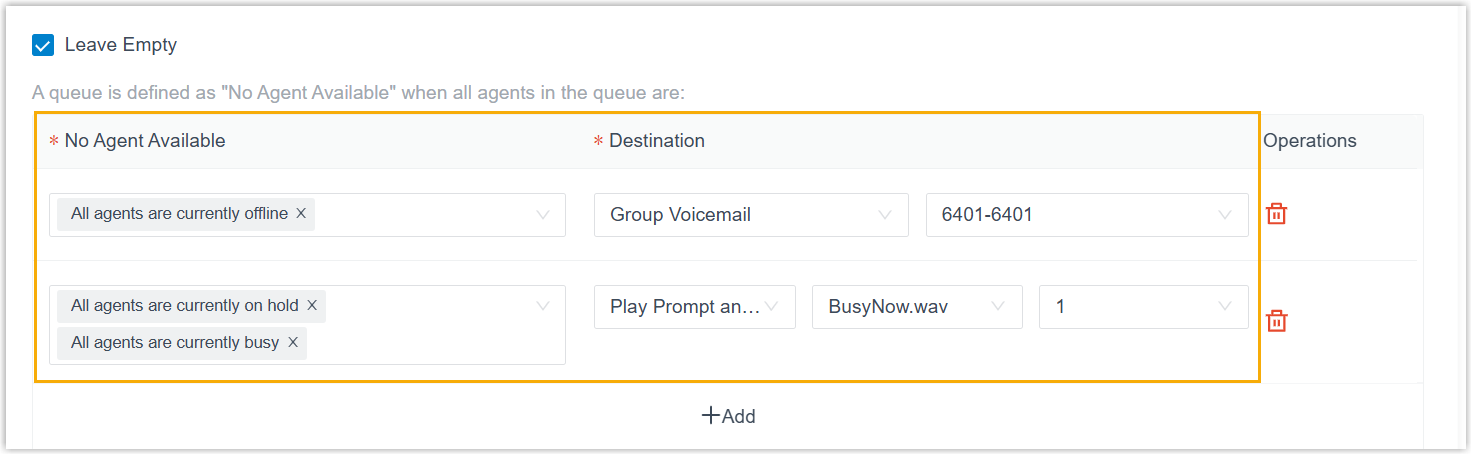
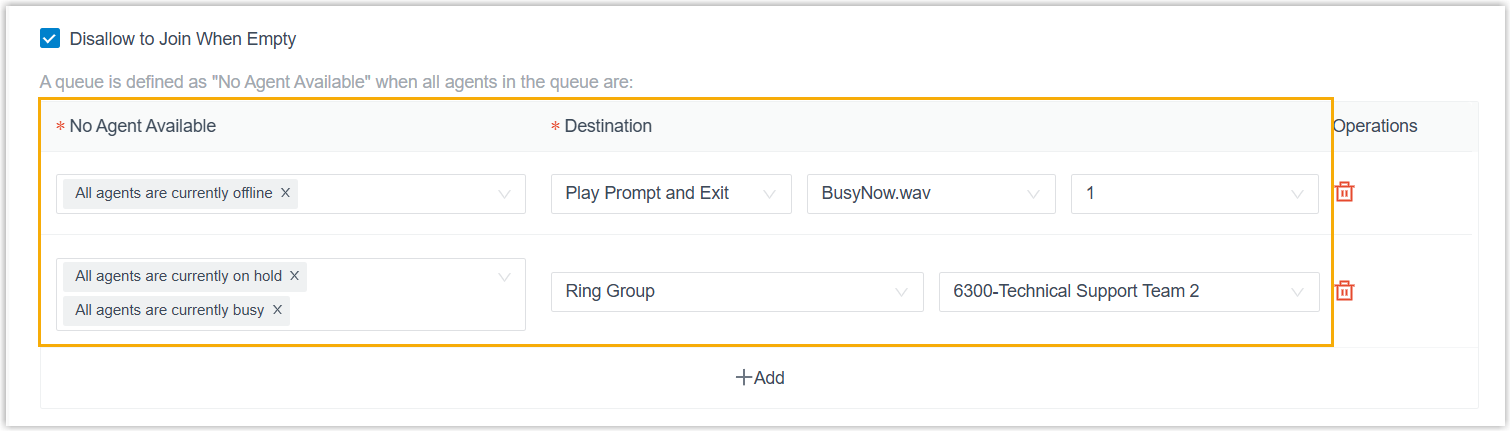
Leave Empty and Disallow to Join When Empty both let you spell out “no agent available” situations in the No Agent Available field and pick a matching Destination for each. They differ in how they treat callers:
-
Leave Empty: Callers who are already waiting are moved to the matching destination.
-
Disallow to Join When Empty: Callers already waiting are moved to the matching destination, and new callers are prevented from joining the queue at all.
Use Failover Destination to choose where calls land when any of these happen:
- The maximum waiting time is reached.
- The queue is already at its maximum number of waiting callers.
- Every agent in the queue has logged out.
You can send those calls to any of the following:
| Destination | Result |
|---|---|
| Hang up | Ends the call. |
| Extension | Routes the call to a specific extension. |
| Extension Voicemail | Routes the call to a specific extension’s voicemail box. |
| Group Voicemail | Routes the call to the voicemail box of a queue, ring group, or custom group. |
| IVR | Routes the call to a specific IVR (Interactive Voice Response) menu. |
| Call Flow | Routes the call to a specific call flow. |
| Ring Group | Routes the call to another ring group. |
| Queue | Routes the call to another queue. |
| External Number | Routes the call to an external number. |
| Play Prompt and Exit | Plays a custom prompt, then hangs up. |
Agent options
Section titled “Agent options”In the Agent Options section, set how the queue rings and manages agents.
| Setting | Description |
|---|---|
| Agent Timeout (s) | How many seconds the system rings an agent’s phone before moving on. |
| Retry Interval (s) | How many seconds to wait after the last available agent has rung out before ringing the next available agent. |
| Wrap-up Time (s) | How many seconds an agent gets to finish post-call work before the queue offers them the next call, following the ring strategy. |
| Agent Announcement | A prompt played to the agent when they answer a queue call. |
| Ring In Use | Whether to ring an agent who is already on a call when new calls come into the queue. |
| Display Missed Call Records in Agent IP Phone | Whether agents’ IP phones show missed queue calls. This applies to every agent in the queue. If an agent belongs to several queues, their phone shows missed records only for the queues where this is turned on. |
Agent Auto Pause automatically pauses an agent once their consecutive missed queue calls reach a limit. Turn it on, then set the limit in the Max Threshold for Missed Calls list.
Prompts and announcements
Section titled “Prompts and announcements”In the Prompt section, choose the audio callers and agents hear.
Queue announcements
| Setting | Description |
|---|---|
| Join Announcement | The announcement callers hear as they join the queue. Enable Play full Join Announcement to the caller before ringing extensions to finish this announcement before any agent is rung. |
| Ringback Tone | A prompt looped to callers until an agent answers. It plays after the join announcement. Available choices come from your Music on Hold playlists and the custom prompts uploaded under PBX Settings > Voice Prompt. |
| Music On Hold | The music callers hear once an agent answers and then places them on hold. |
| Periodic Announcement | An announcement replayed to callers at intervals while they wait for an agent. |
| Frequency (s) | How often the periodic announcement repeats. |
Caller position announcements
| Setting | Description |
|---|---|
| Announce Position | Whether to tell callers their place in line. |
| Announce Hold Time | Whether to tell callers their estimated wait. |
| Play “Thank You for Your Patience” Prompt | Whether to periodically play this prompt to waiting callers. |
| Frequency (s) | How often the caller position announcement repeats. |
Agent announcements
| Setting | Description |
|---|---|
| Agent ID Announcement | Whether to announce the agent’s ID to both the caller and the agent when the agent answers. |
Announcement language
| Setting | Description |
|---|---|
| Custom Prompt Language | The language of the system’s default announcements callers hear when joining. Available languages come from the system prompts installed under PBX Settings > Voice Prompt > System Prompt. |
Add members
Section titled “Add members”Open the Members tab and assign agents. You can add two kinds:
- Dynamic Agents: Agents who can log in and out of the queue whenever they choose. The queue sends them calls only while they are logged in and have not paused their queue calls.
- Static Agents: Agents permanently attached to the queue. They never log in or out.
Set preferences
Section titled “Set preferences”Open the Preferences tab to fine-tune optional behavior such as a distinctive ring tone, queue capacity, callback, service level agreement, announcements, and satisfaction surveys. See Queue Preferences for details.
Click Save, then Apply to put the queue into service.
What’s next
Section titled “What’s next”Point inbound calls at the new queue by setting up an inbound route and choosing the queue as its destination.
Question about this page?
Ask the AI assistant. It starts from this page, then searches the rest of the docs.
Ask Cloud Voice AI
Answers are AI-generated from the docs and may contain mistakes. Verify with the linked pages.