
Monitor Secretary's Call Status
When the Boss-Secretary feature is in use, a boss can see at a glance whether their secretary is currently fielding a call for them. You set this up with a function key on the boss’s extension, and, if the boss uses a desk phone, by refreshing that phone’s provisioning. The status then appears in the Cloud Voice App or on a Busy Lamp Field (BLF) key on a desk phone.
Monitor from the Cloud Voice App
Section titled “Monitor from the Cloud Voice App”Add a function key to the boss’s extension so their call status for the secretary is tracked in the Cloud Voice App (Web, Desktop, and Cloud Voice App for Google).
Before you begin
Section titled “Before you begin”Set up the Boss-Secretary feature for the extensions involved.
Add the function key
Section titled “Add the function key”-
Sign in to the PBX web portal and go to Extension and Trunk > Extension.
-
Find the boss extension and click
 to open it.
 -
Open the Function Keys tab.
-
Fill in the following to subscribe the key to the secretary’s call status.

- Type: Choose Boss-Secretary Feature.
- Value: Choose the secretary’s extension.
- Label: Optional. Give the key a name to show on screen.
-
Click Save.
What the boss sees
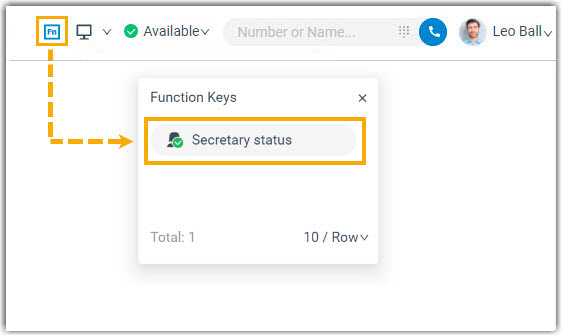
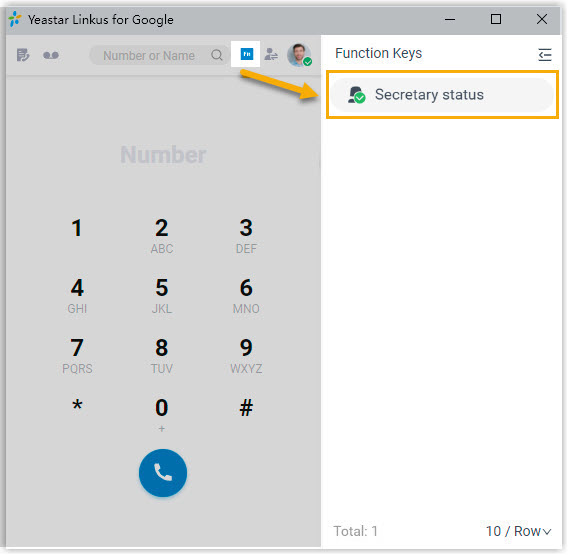
Section titled “What the boss sees”The secretary’s status shows up against the key in the Function Keys list of the Cloud Voice App. Each icon means the following.
 The secretary is not handling any calls for the boss.
 The secretary is on a call for the boss.
 The secretary has placed a call on hold and is waiting for the boss to pick it up.
Monitor from an IP phone
Section titled “Monitor from an IP phone”You can also surface the secretary’s status on the boss’s desk phone through a BLF key. A BLF (Busy Lamp Field) key is a programmable button on the phone whose LED tracks another extension or feature. Here the LED reflects the secretary’s call status, and when the secretary hands a call over, the boss can press the key to take it.
Before you begin
Section titled “Before you begin”- Add the function key as described in Monitor from the Cloud Voice App.
- Make sure the boss’s IP phone has been auto-provisioned onto Cloud Voice and assigned to the boss extension.
Push the setting to the phone
Section titled “Push the setting to the phone”- Sign in to the PBX web portal and go to Auto Provisioning > Phones.
- Click
 next to the boss’s phone.
 - Click OK in the confirmation window.
What the boss sees
Section titled “What the boss sees”The BLF LED on the boss’s phone reflects the secretary’s call status:
- Solid green: The secretary is not handling any calls for the boss.
- Solid red: The secretary is on a call for the boss.
- Flashing red: The secretary has placed a call on hold and is waiting for the boss to pick it up. The boss can press the BLF key to resume and answer the call.
Question about this page?
Ask the AI assistant. It starts from this page, then searches the rest of the docs.
Ask Cloud Voice AI
Answers are AI-generated from the docs and may contain mistakes. Verify with the linked pages.